Item Listing Display Actions

WP Inventory Item Listing Actions

These actions allow you to expand the functionality of the inventory listing, hooking into both the table and the card-style item display format.

Full Table Listing

These hooks are available in tables that display all inventory items.

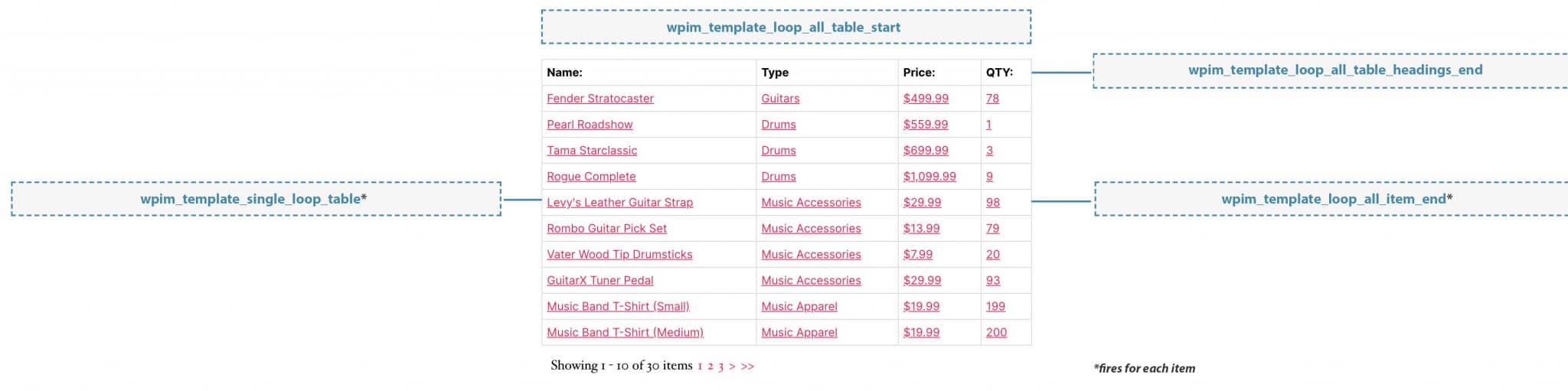
  • wpim_template_loop_all_table_start: This action is triggered before the listing table.
  • wpim_template_loop_all_table_headings_end: This action is trigger after the heading row
  • wpim_template_single_loop_table: This action is triggered before each item row.
  • wpim_template_loop_all_item_end: This action is triggered after each item row.
The hook wpim_template_loop_all_table_start does not pass any arguments.

The hooks wpim_template_loop_all_table_headings_end and wpim_template_loop_all_item_end pass an $arg that is a string with the value table.

The hook wpim_template_single_loop_table passes the argument $inventory_display, which is an array containing all of the fields set to display in the listing.

Below are several examples of how to hook into each of these actions:

add_action( 'wpim_template_loop_all_table_start', 'custom_before_table' ); 
/* Echo a notice before the listing table */ 
function custom_before_table() { 
     echo "Don't see what you're looking for below? Contact us for a list of specialty items."; 
}


add_action( 'wpim_template_loop_all_table_headings_end', 'custom_table_headings_notice' );
/* Echo an extra table header, and then... */ 
function custom_table_headings_notice( $arg ) {
     echo "<th>Satisfaction</th>";
}

add_action ( 'wpim_template_loop_all_item_end', 'custom_after_item_function' ); 
/* ...Echo an extra td element after each item */ 
function custom_after_item_function( $arg ) { 
     echo "<td>Satisfaction Guaranteed!</td>"; 
}


add_action( 'wpim_template_single_loop_table', 'custom_before_item_function' );
/* Echo an extra td element before each item */
function custom_before_item_function( $inventory_display ) {
     echo "<td><em>Click below for full item details</em></td>";
}

Category Table Listing

These hooks are available in tables that only display a specified category, using the shortcode options. Note that the wpim_template_loop_all_table_start action is also available for these tables.

  • wpim_template_loop_category_table_headings_end: This action is triggered after the heading row.
  • wpim_template_single_loop_table: This action is triggered before each item row.
  • wpim_template_loop_category_item_end: This action is after each item row.

The hooks wpim_template_loop_category_table_headings_end and wpim_template_loop_category_item_end pass an $arg that is a string with the value table.

The hook wpim_template_single_loop_table passes the argument $inventory_display, which is an array containing all of the fields set to display in the listing.

Below are several examples of how to hook into each of these actions:

add_action( 'wpim_template_loop_category_table_headings_end', 'custom_table_headings_notice' );
/* Echo an extra table header, and then... */ 
function custom_table_headings_notice( $arg ) {
     echo "<th>Satisfaction</th>";
}

add_action ( 'wpim_template_loop_category_item_end', 'custom_after_item_function' ); 
/* ...Echo an extra td element after each item */ 
function custom_after_item_function( $arg ) { 
     echo "<td>Satisfaction Guaranteed!</td>"; 
}


add_action( 'wpim_template_single_loop_table', 'custom_before_item_function' );
/* Echo an extra td element before each item */
function custom_before_item_function( $inventory_display ) {
     echo "<td><em>Click below for full item details</em></td>";
}

Boxed Inventory Listing

These hooks are available when the inventory listing displays each item as a separate box.

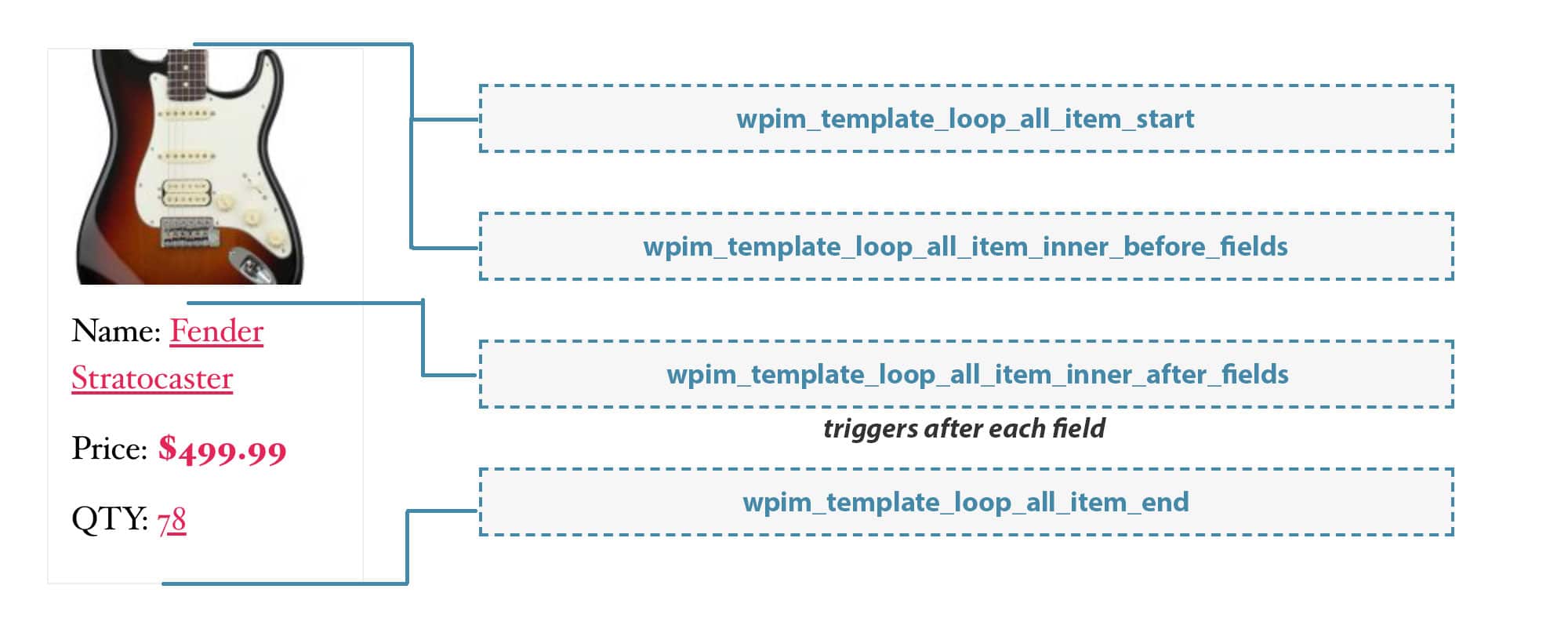
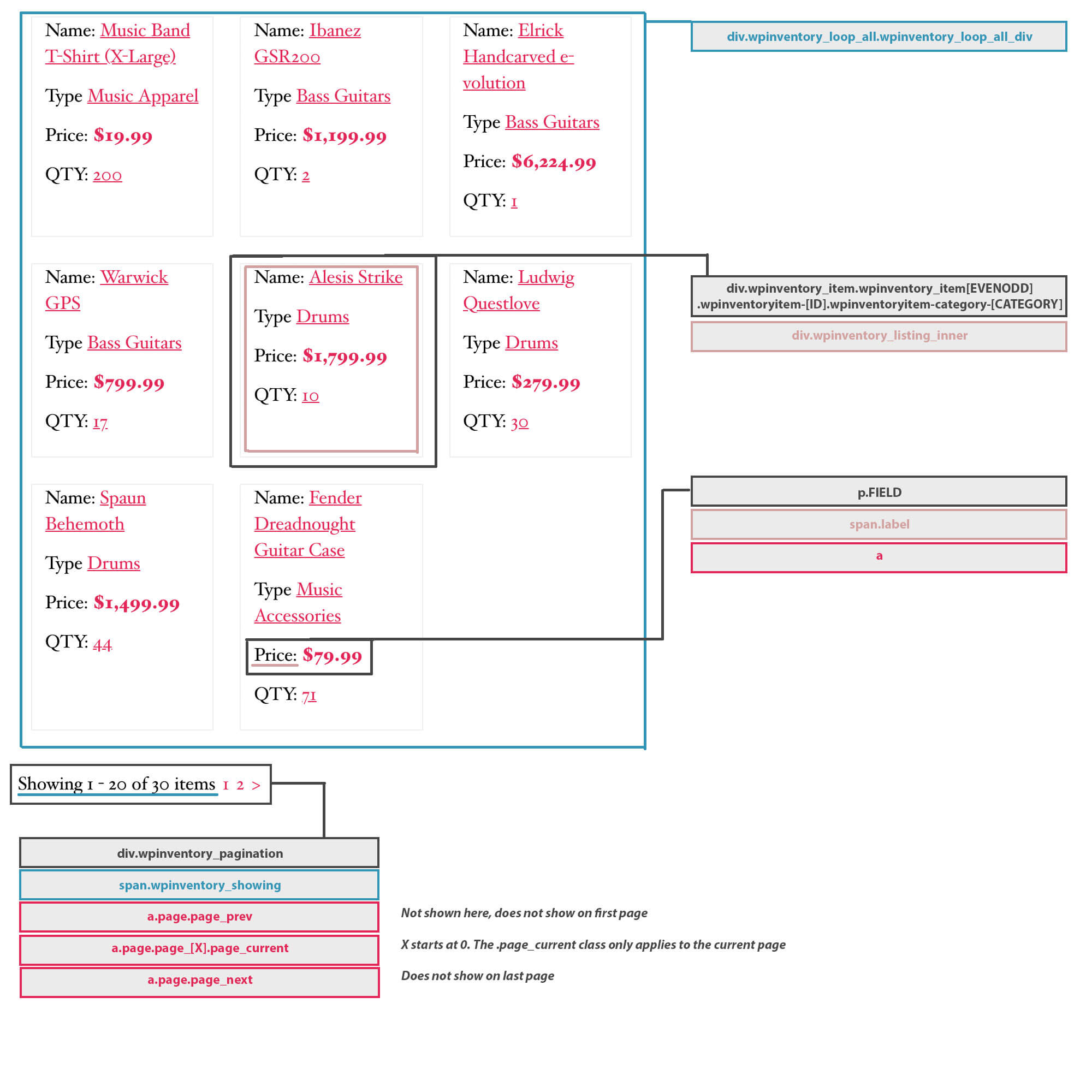
  • wpim_template_loop_all_item_start: This action is triggered for each item at the top of the box, before the div.wpinventory_listing_inner element.
  • wpim_template_loop_all_item_inner_before_fields: This action is for each item, at the top of the div.wpinventory_listing_inner element.
  • wpim_template_loop_all_item_inner_after_fields: This action is triggered after every field in the item box.
  • wpim_template_loop_all_item_end: This action is triggered after each item, below the div.wpinventory_listing_inner element.

The hooks wpim_template_loop_all_item_start and wpim_template_loop_all_item_end pass an $arg that is a string with the value grid

The hooks wpim_template_loop_all_item_inner_before_fields and wpim_template_loop_all_item_inner_after_fields do not pass any arguments.

Below are several examples of how to hook into each of these actions:

add_action( 'wpim_template_loop_all_item_start', 'custom_before_item' ); 
/* Echo a notice before each item */ 
function custom_before_item( $arg ) { 
     echo "<em>Click each " . $arg . " item for full details</em>"; 
}


add_action( 'wpim_template_loop_all_item_inner_before_fields', 'custom_before_fields' );
/* Echo a title for each inventory item */
function custom_before_fields() {
     echo "<strong>Item:</strong>";
}


add_action( 'wpim_template_loop_all_item_inner_after_fields', 'custom_field_break' );
/* Echo a break between each field */
function custom_field_break() {
     echo "<div style='height: 5px; border-bottom: 1px dashed #666'></div>";
}


add_action( 'wpim_template_loop_all_item_end', 'custom_end_notice' );
/* Echo a satisfaction notice after each item */
function custom_end_notice( $arg ) {
     echo "Satisfaction Guaranteed!";
}
Item Detail Page Actions

WP Inventory Item Detail Page Actions

These actions allow you to expand the functionality of the item detail page, hooking into every field or only specified fields to add your desired additions.

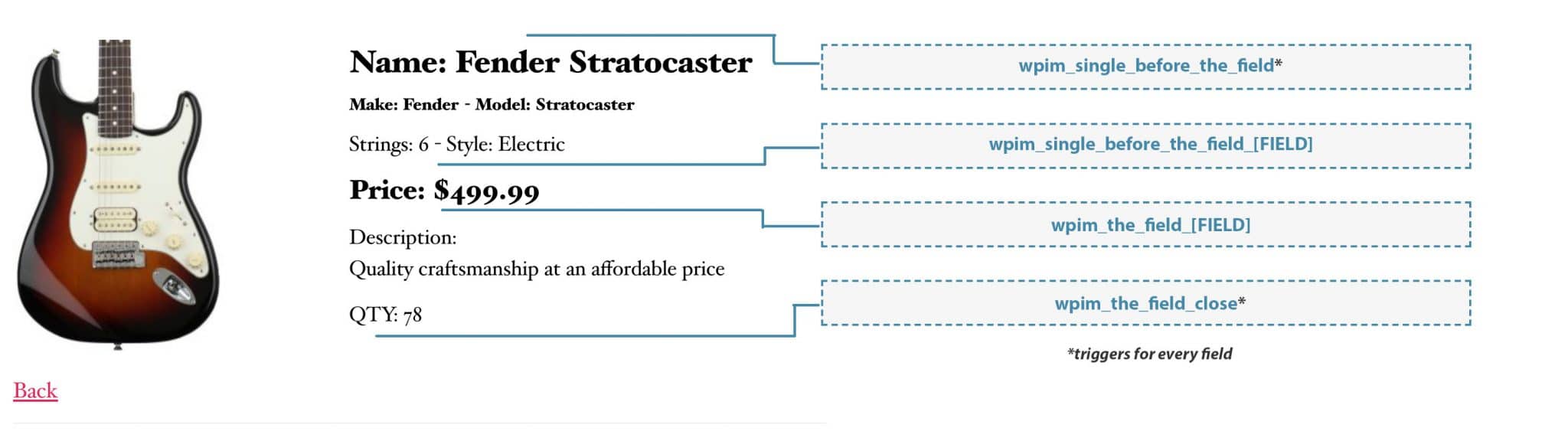
  • wpim_single_before_the_field: This action is triggered before every field is rendered in the single item display.
  • wpim_single_before_the_field_[FIELD]: This action is triggered immediately after wpim_single_before_the_field, but only for the specified field (e.g. wpim_single_before_the_field_inventory_name would only trigger for the name field).
  • wpim_the_field_close: This action is triggered after every field is rendered in the single item display.
  • wpim_the_field_[FIELD]: This action is triggered immediately after wpim_the_field_close, but only for the specified field (e.g. wpim_the_field_inventory_name would only trigger for the name field).

Each of the listed hooks pass two arguments into the action function: $field and $inventory_display. The $field variable is the CSS class of the targetted inventory field, and the $inventory_display variable is an array of all the fields set to display for the item in the Display settings.

Below are several basic examples of how to hook into each of these actions, with simple functions based on the field. However, the possibilities go much deeper. You could run multiple different notices in one function by checking what fields are being displayed, or always ensure a field is displayed regardless of your display settings by pushing a value into the $inventory_display array if it’s not already there.

add_action( 'wpim_single_before_the_field', 'my_custom_function_before', 10, 2 ); 
/* Echo a notice before each field that specifies the field */ 
function my_custom_function_before( $field, $inventory_display ) { 
     echo "<span style='display: block;'>I'm displaying before the " . $field . " field!</span>"; 
}


add_action( 'wpim_single_before_the_field_inventory_price', 'sale_price_notice_before' ); 
/* Echo a Sale Price notice BEFORE the price field */ 
function sale_price_notice_before() { 
     echo "<span style='display: block; color: red;'>SALE PRICE!</span>"; 
}


add_action( 'wpim_the_field_inventory_price', 'sale_price_notice_after' ); 
/* Echo a Sale Price notice AFTER the price field */ 
function sale_price_notice_after() { 
     echo "<span style='display: block; color: red;'>SALE PRICE!</span>"; 
}


add_action( 'wpim_the_field_close', 'my_custom_function_after', 10, 2 ); 
/* Echo a Limited Availability notice after the name field */ 
function my_custom_function_after( $field, $inventory_display ) { 
     if ( $field != 'inventory_name' ) { 
          return; 
     } 
     echo "<span style='display: block; color: red;'>Limited Time Item!</span>"; 
}


Item Fields Key

Customize the CSS of the Individual Fields

Differentiate the treatment of different item fields

Each inventory item field, from price to description, has a unique class that you can target with your CSS for total customization. You can find all fields here:

  • Name – .inventory_name
  • Price – .inventory_price
  • Quantity – .inventory_quantity
  • Make – .inventory_make
  • Model – .inventory_model
  • Size – .inventory_size
  • FOB – .inventory_fob
  • Description – .inventory_description
  • Category – .category_id
  • Date Added – .inventory_date_added
  • Date Updated – .inventory_date_updated
  • Images – .bxslideshow_sizer
  • Manufacturer – .inventory_manufacturer
  • Media – .inventory_media
  • Number – .inventory_number
  • Quantity Reserved – .inventory_quantity_reserved
  • Serial – .inventory_serial
  • Slug – .inventory_slug
  • Sort Order – .inventory_sort_order
  • Status – .inventory_status
  • Updated By – .inventory_updated_by
  • User – .user_id
  • Year – .inventory_year
  • Type – .inventory_type_id (only appears with Advanced Inventory Management)
  • Custom – .inventory_custom_[CUSTOM FIELD ID] (only appears with Advanced Inventory Management)

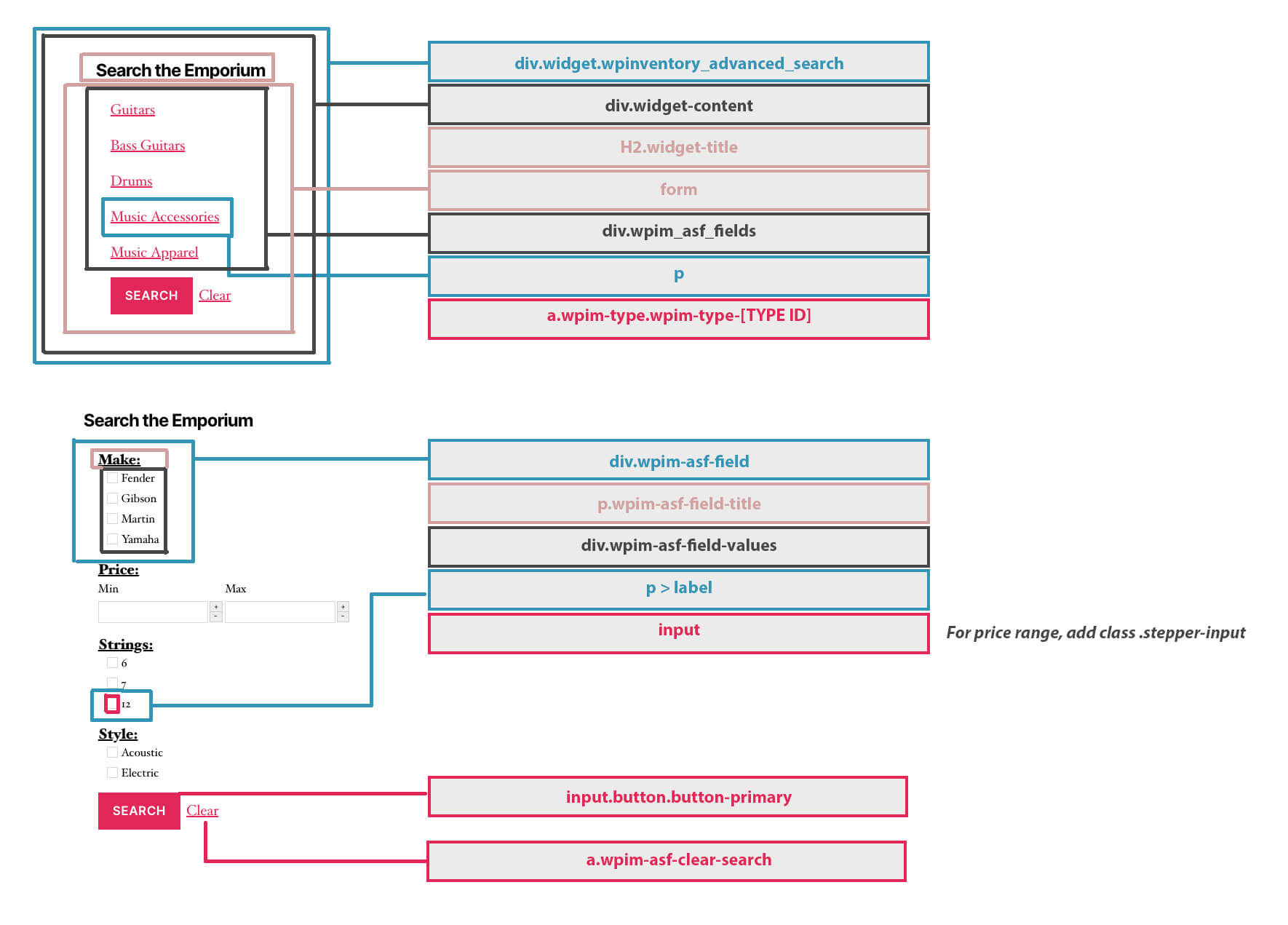
Search Filter Widget Map

Customize the CSS of the Search Filter Widget

Create a unique searching experience for your users

The search filter widget is only available with the Advanced Search add-on. Filtering by type only applies with Advanced Inventory Management installed. Please note you can click to enlarge.

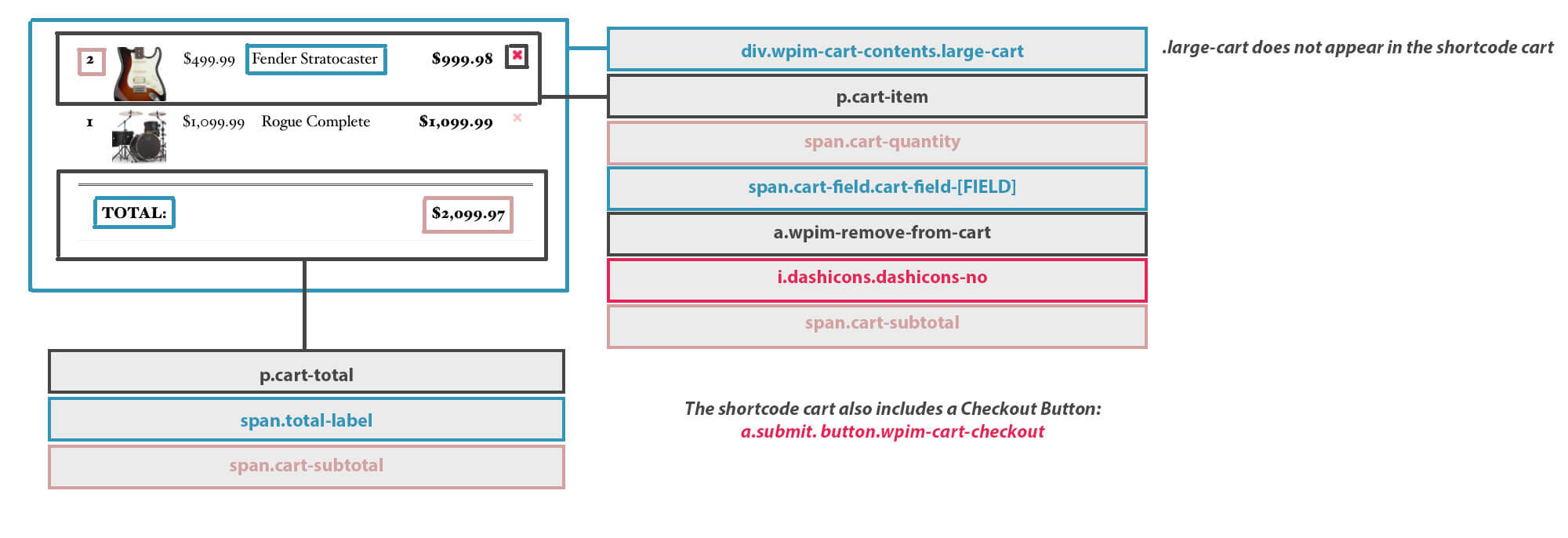
Reservation Cart Map

Customize the CSS of the Reservation Cart

Tweak your checkout experience for your customers

The item cart only appears with the Reservation Cart add-on. The CSS stylings are almost entirely the same between the widget cart and the checkout page cart. Please note you can click to enlarge.

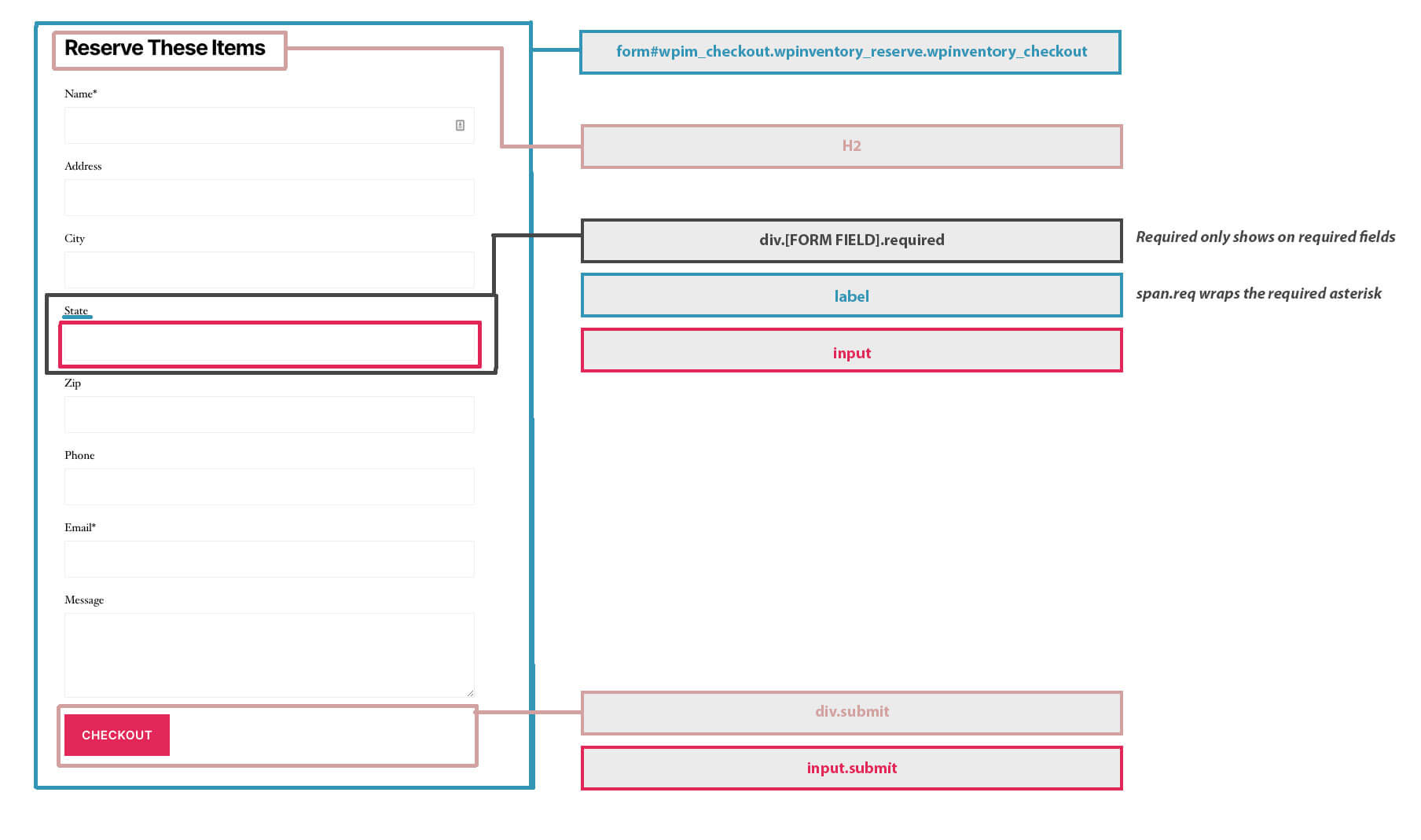
Reservation Form Map

Customize the CSS of the Item Reservation Form

Create a unique style for your checkout experience

Please note you can click to enlarge the roadmap below. The CSS remains the same regardless of whether you have the Reservation Cart add-on or not, the form is simply moved to the checkout page with the add-on.

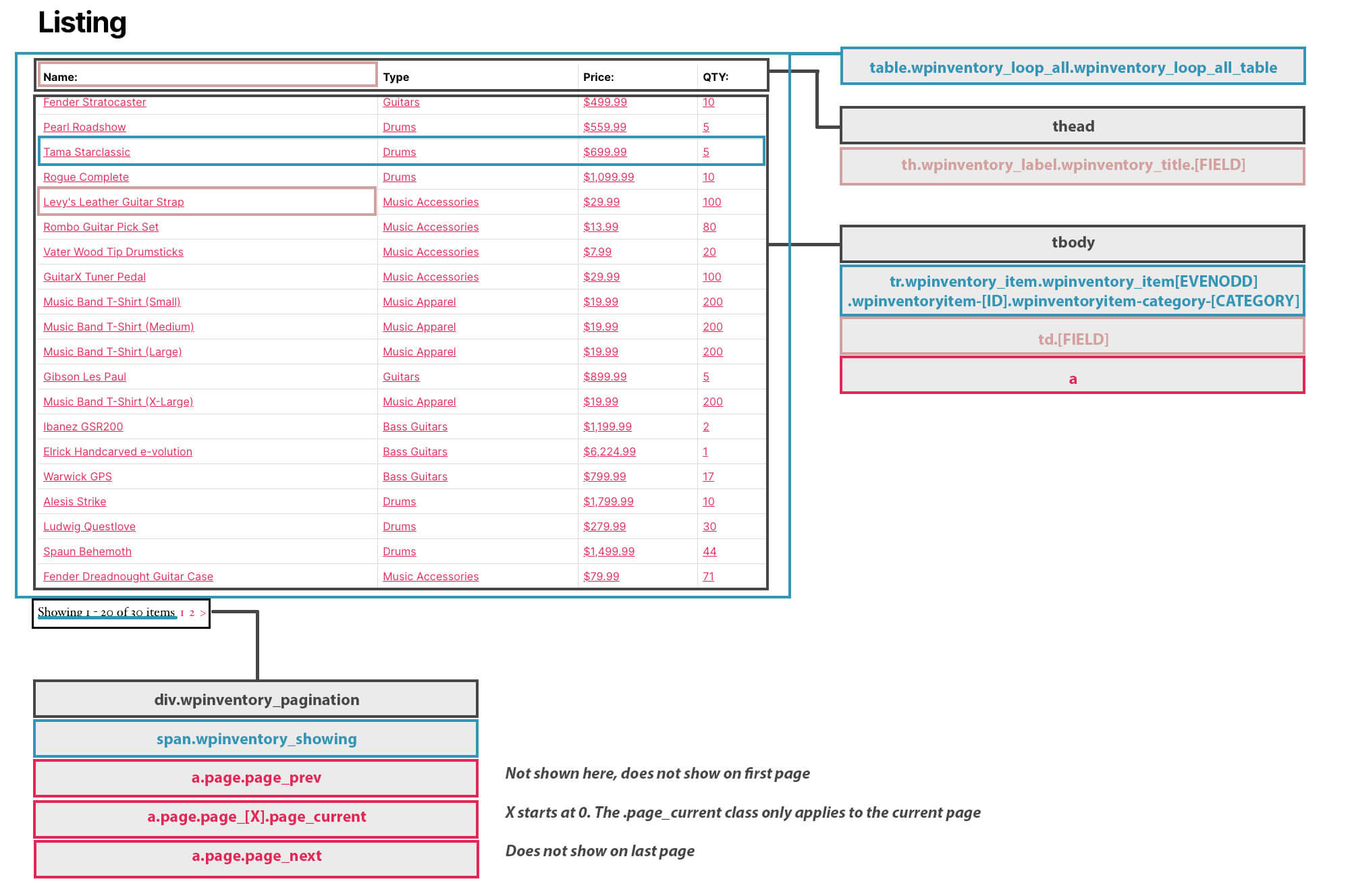
Inventory Listing Map

Customize the CSS of the Inventory Listing

Create a unique style for your table or card layout

There are two options for the frontend inventory listing in WP Inventory Manager – either a table or boxed cards. See both options below, and please note you can click to enlarge.

Table:

Cards:

CSS Customization

WP Inventory Manager CSS Customization Maps

Create a Unique Style with CSS Customization

WP Inventory is ready to use out of the box, and includes a default CSS theme that can suit most needs. However, we recognize not every site has the same needs, so we’ve included the option to turn off the default WPIM theme. Every element shown on the frontend has intuitive and easily-accessible HTML classes so you can easily target them with CSS and give your inventory a unique style.

Please see the CSS maps for all the frontend elements in the right hand sidebar, or in the list below. If you feel we are missing one or would like to see something added, please reach out to us at [email protected].

Item Detail Map

Customize the CSS of the Inventory Item Detail Page

Showcase your items in a new and unique way

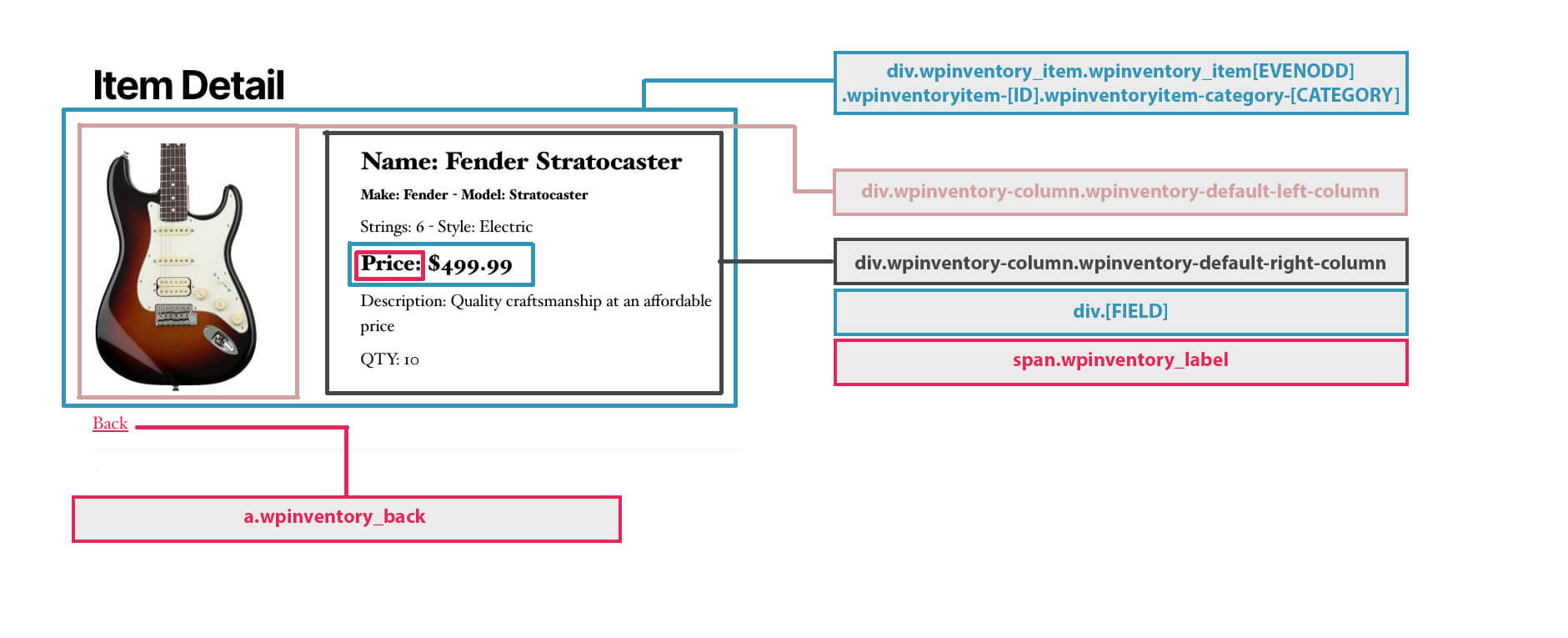
Please note you can click to enlarge the image. The default WPIM theme shown in the roadmap breaks the item detail page into two columns, but disabling the default theme leaves it in a single-column layout.

wpim_save_item

This hook fires when the item is being updated / saved to the database.


/**
 * @param $inventory_id
 * @param $data
 */
function my_wpim_save_item($inventory_id, $data) {
    // Do whatever you want from here.  Such as sending to another table, update the owner of the item via an email, etc.
}

add_action( 'wpim_save_item', 'my_wpim_save_item', 10, 2 );

Reviews on WordPress.org

Trusted by thousands of businesses

★★★★★

"Created an online museum for my club. Really impressive plugin. Support was responsive and helpful."

@hackrepair

★★★★★

"Excellent, clean, simple inventory management. Well structured code — use it right away or customize it to your liking."

@techlocally

★★★★★

"We purchased the entire suite. Installation was easy, small issues were fixed immediately, and the guidance during setup was invaluable."

@design4dotcom

★★★★★

"Plugin support was helpful and rapid. Highest mark."

@drgar

★★★★★

"Great support. Very thorough when looking for a solution, and upfront with exactly how to fix it or institute a workaround."

@shoidahl

★★★★★

"I used this plugin and eventually hired the developers for all my WordPress work. Responsive, competent, and clean code. Would recommend to anyone."

@justenhong