ATUM and WP Inventory Manager are the two most-searched WordPress inventory plugins. Both have free versions. Both have strong user bases. But one requires WooCommerce to even activate and the other works on any WordPress site, with or without a store. That difference determines which one is right for you.

The One Difference That Decides Everything

ATUM requires WooCommerce. Its full name is “ATUM WooCommerce Inventory Management and Stock Tracking.” Without WooCommerce installed and active on your site, ATUM will not run. It is a WooCommerce extension, not a standalone inventory tool.

WP Inventory Manager requires nothing but WordPress. It runs on any WordPress site, with WooCommerce installed, without it, or on a site that has never touched an online store. It is completely independent.

If you are not running a WooCommerce store, this comparison is already settled. WP Inventory Manager is the only option of the two that will work for you.

What ATUM Does Well

ATUM is purpose-built for WooCommerce store operators who need more visibility into stock than WooCommerce’s native tools provide. Its flagship feature is Stock Central: a single dashboard showing all your WooCommerce products, quantities, low-stock status, supplier details, and total stock value in one view.

For an online retailer processing hundreds of orders a week, that overview is genuinely useful. ATUM also supports purchase orders, a manufacturing module, and barcode scanning. All in the Premium tier. These are serious operations features for ecommerce businesses at scale.

Best for: WooCommerce store operators managing a large product catalog with an order-driven fulfillment workflow.

What WP Inventory Manager Does Well

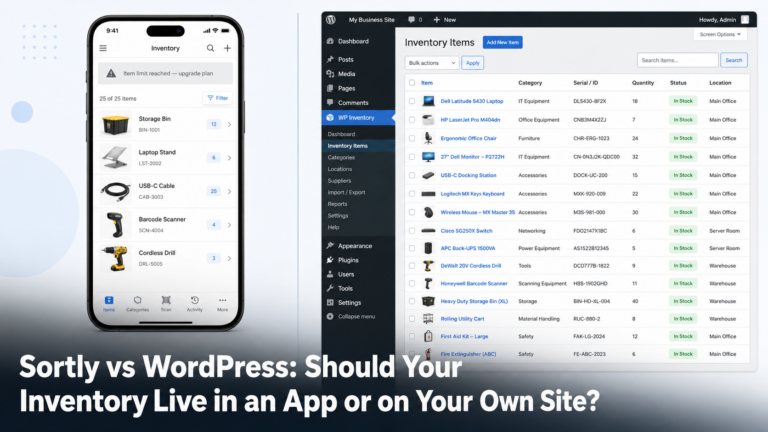
WP Inventory Manager is built for businesses that manage physical inventory in WordPress with or without a store. The plugin tracks items, quantities, categories, and custom fields, and displays your catalog on the front end via shortcode. It is its own system, not a WooCommerce extension.

That distinction matters more than it sounds. WooCommerce ties every stock change to a transaction. Every product lives inside the WooCommerce post type. If your inventory needs don’t revolve around checkout, you are installing a complex ecommerce platform to solve a problem that doesn’t require it.

Example: A gym tracks equipment available for member use: treadmills, kettlebells, resistance bands. None of it is for sale. There are no transactions. WooCommerce and ATUM are both irrelevant. WP Inventory Manager handles it out of the box: items, quantities, categories, and a front-end display members can browse.

Best for: Businesses tracking physical inventory outside the context of an online store: equipment, tools, assets, rental items, donated goods, or any inventory that isn’t tied to checkout.

Side-by-Side Feature Comparison

Feature WP Inventory Manager ATUM
Requires WooCommerce No Yes
Works without an online store Yes No
Free core version Yes Yes
Custom inventory fields Yes No (uses WooCommerce product fields)
Front-end inventory display Yes – shortcode No standalone display
Multi-location stock Yes – Locations Manager add-on Yes – Multi-inventory (Premium)
Low-stock email alerts Yes – Pro ($79/yr) Yes – Free tier
Purchase orders No Yes – Premium
Customer reservation system Yes – Reserve Cart add-on No
Paid tier pricing From $79 per year (Pro) or $199 per year (All Access) From ~$14.99 per month (Premium add-ons)

Who Should Choose WP Inventory Manager

  1. You don’t have WooCommerce installed. ATUM will not activate without it. WP Inventory Manager works on any WordPress site.
  2. Your inventory is not tied to online sales. Equipment, tools, assets, rental items, donated goods – if there’s no checkout involved, WPIM is built for this and ATUM is not.
  3. You need a customer-facing display. WPIM renders your catalog on the front end via shortcode. Visitors can browse and filter without a WooCommerce product page.
  4. You need custom fields. WPIM lets you add any data point to an inventory item: serial numbers, condition, supplier, last service date. ATUM uses WooCommerce’s fixed product fields.
  5. You want a lighter setup. WooCommerce adds checkout flows, payment gateways, and shipping zones. If you don’t need any of that, WPIM keeps your site clean and focused.

Who Should Choose ATUM

ATUM is the stronger choice if your primary concern is managing a large WooCommerce product catalog as part of an active ecommerce operation. Its Stock Central dashboard, purchase order support, and supplier management are genuinely valuable for an online retailer managing hundreds of SKUs with an order-driven workflow.

If WooCommerce is already the backbone of your business and you need more visibility into stock movement at the product level, ATUM extends that system well.

Getting Started With WP Inventory Manager

Install the plugin from the WordPress plugin repository or directly from wpinventory.com/downloads. Once active, the WP Inventory menu appears in your WordPress admin. From there:

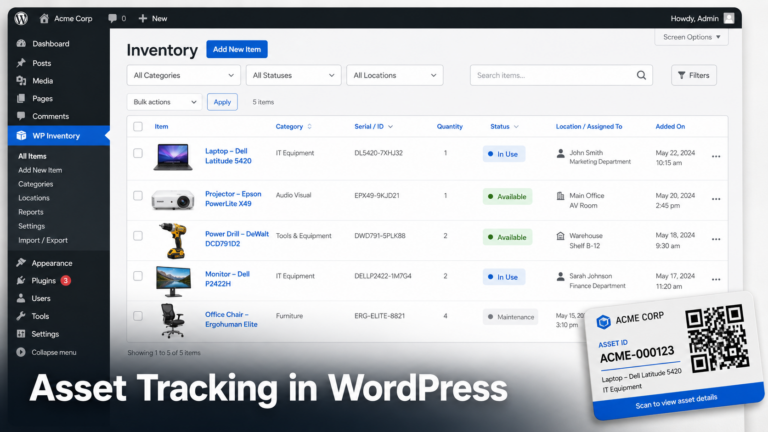
  • Go to WP Inventory > Inventory Items to add and manage your stock records.
  • Go to WP Inventory > Categories to organise items into groups.
  • Add the inventory shortcode to any page to display your catalog on the front end.
  • Go to WP Inventory > Settings to configure low-stock alerts and user access (Pro required for email alerts).

The free version covers item tracking, categories, custom fields, and front-end display. Upgrade to Pro ($79 per year) for low-stock email alerts and quantity history, or to All Access ($199 per year) for multi-location tracking, a customer reservation system, and advanced search.

Browse all options at wpinventory.com/add-ons.

Frequently Asked Questions

Does ATUM work without WooCommerce?

No. ATUM requires WooCommerce to be installed and active. It is built as a WooCommerce extension and cannot function as a standalone inventory system.

Can WP Inventory Manager work alongside WooCommerce?

Yes, there is no technical conflict – both plugins can run on the same WordPress site simultaneously. However, they maintain completely separate catalogs with no syncing. WPIM items and WooCommerce products are two independent systems. If you need stock changes in one to reflect in the other, that would require a custom integration. Most users running WPIM are not running WooCommerce at all.

Which plugin is better for a small business with no online store?

WP Inventory Manager. It was built specifically for businesses that need to track physical inventory in WordPress without running an ecommerce store. ATUM is not an option for this use case.

How do low-stock alerts work in WP Inventory Manager?

With the Pro plan, go to WP Inventory > Settings and enable the low-quantity alert. Set the threshold quantity and the notification email address. When any item drops to or below that number, an email is sent automatically. Those items are also highlighted in red in the admin dashboard.

Can customers browse and reserve inventory without buying?

Yes, with the Reserve Cart add-on (included in All Access). Visitors can browse your catalog and submit a reservation request. No payment gateway or checkout is required. ATUM has no equivalent feature.

Wrong stock numbers are one of the most damaging problems a product-based business can have. You sell something you no longer have. A customer buys the last unit twice. Your purchase orders are based on counts that are days old. By the time you catch it, you’re already dealing with the fallout.

If your WordPress inventory keeps showing numbers that don’t match reality, the problem is almost always one of five things. Here is what each one looks like and how to fix it.

1. Stock Management Is Not Actually Turned On

This sounds obvious, but it’s the most common cause of inventory not tracking at all.

WordPress inventory plugins need stock management enabled at two levels: the global plugin setting, and the individual item level. If you turned it on globally but forgot to enable it on specific products, those products will never track quantity changes.

Fix: Go through your product list and confirm that stock management is active on each item. In WP Inventory Manager, this is a per-item setting in the inventory record. In WooCommerce, it’s under each product’s Inventory tab. A single unchecked box silently breaks tracking for that entire SKU.

2. Caching Is Showing Old Numbers

Your website uses caching to serve pages faster. That is normally good. But caching can hold onto old stock counts and show visitors a number that is hours out of date.

A customer sees “3 in stock.” They buy one. Your cache still shows “3 in stock.” Another customer buys one. You now have oversold.

Fix: Exclude product pages, cart, and checkout from your caching plugin’s rules. Most caching plugins (WP Rocket, W3 Total Cache, LiteSpeed) have an option to exclude specific page types or URLs. Set that up, then clear your cache manually any time you do a bulk stock update.

3. WP-Cron Is Stalling

WordPress uses a background task system called WP-Cron to run scheduled updates, including inventory syncs with third-party tools or automatic stock recalculations. The problem: WP-Cron only fires when someone visits your site. On a low-traffic site, those scheduled tasks can sit in a queue for hours before they run.

If your inventory numbers lag by one to four hours after a sale or stock update, this is almost certainly the cause.

Fix: Replace WP-Cron with a real server cron job. Your hosting provider can usually set this up in a few minutes. You schedule wp-cron.php to run every 5 minutes via your server’s task scheduler instead of relying on site traffic to trigger it. This alone eliminates the lag for most stores.

4. Two Plugins Are Updating the Same Field

This one is harder to spot because it does not fail loudly. Instead, stock counts drift in unpredictable directions.

When two plugins both write to the same inventory field, they overwrite each other. One plugin sets a product to 5 units. Another runs a sync and sets it to 12. The first one runs again and sets it back to 5. Your actual stock count becomes whatever ran last, not what is accurate.

This is common for stores that use a WooCommerce-centric inventory plugin alongside a separate inventory management plugin, or when a point-of-sale sync and an order management tool both update stock simultaneously.

Fix: Decide which plugin owns inventory data and disable stock management in the others. You should have exactly one source of truth for stock counts. If you are using WP Inventory Manager for physical stock tracking, turn off WooCommerce’s stock management so the two systems are not fighting each other.

5. Multi-Location Stock Is Tracked in One Bucket

If you sell from more than one location, warehouse, or channel and you are tracking all stock in a single field, your numbers will always be wrong.

Consider a retailer with a physical store and an online shop. A sale happens in the store. Nobody updates the WordPress inventory. The online store still shows the old count. The item gets sold online too. Now you have an angry customer and a hole in your inventory records.

Fix: Use a plugin that supports location-level stock tracking natively. WP Inventory Manager’s Locations Manager add-on lets you assign stock to specific locations so each site or warehouse has its own count. Fulfillment then pulls from the right bucket, not a shared pool that nobody fully controls.

How to Run a Quick Inventory Audit

Before you troubleshoot, you need a baseline. Here is a simple process:

  1. Export your current stock counts from WordPress to a spreadsheet
  2. Do a physical count (or pull counts from your POS or warehouse system)
  3. Compare the two side by side
  4. Identify which items are off and by how much
  5. Check each discrepancy against the five causes above

Once you have found the pattern, you can fix the root cause instead of chasing individual wrong numbers.

When the Problem Is the Plugin Itself

Sometimes the issue is not configuration. Some plugins are simply not built to handle inventory accurately at scale. Signs you have outgrown your current setup:

  • Stock counts change for no apparent reason
  • Bulk updates do not save consistently
  • The plugin has no audit log so you cannot trace when a count changed
  • You are manually correcting numbers more than once a week

WP Inventory Manager is built specifically for this. It works without WooCommerce, supports multi-location tracking, keeps a record of stock changes, and does not fight with your other plugins over the same database fields. You can start with the free version and add capabilities as your business grows.

Frequently Asked Questions

Why is my WordPress inventory showing the wrong stock count?

The most common causes are caching serving stale numbers, two plugins writing to the same field, or stock management not being enabled at the product level. Start by checking each of those in order.

Why does my inventory update slowly after a sale?

If there is a delay of one to several hours, the likely cause is WP-Cron stalling. WP-Cron depends on site traffic to run. Replace it with a real server cron job and the lag disappears.

Can I track inventory across multiple locations in WordPress?

Yes, but you need a plugin that supports it natively. WP Inventory Manager’s Locations Manager add-on assigns stock to individual locations so each has its own accurate count.

What happens when two inventory plugins conflict?

They overwrite each other’s data unpredictably. The result is stock counts that drift in random directions. Pick one plugin to own inventory data and disable stock management in the others.

Do I need WooCommerce to manage inventory in WordPress?

No. WP Inventory Manager works independently of WooCommerce. If you are not running an online store or want cleaner inventory tracking without WooCommerce’s overhead, it is a direct alternative.

Most inventory management guides for WordPress assume one thing: that you’re running a WooCommerce store. You’re not. Or at least, you shouldn’t need to be.

WordPress powers more than 40% of the web and thousands of businesses use it to manage physical stock that has nothing to do with an online shopping cart. A gym tracking equipment checkouts. A nonprofit managing donated goods. A retailer with two locations who just wants to know what’s on the shelf.

This guide covers how to build a real inventory system inside WordPress, from basic setup to multi-location tracking, without bolting on a full ecommerce platform you don’t need.

Why WooCommerce Is Not Always the Answer

WooCommerce is excellent at what it does: running an online store. Its inventory features are designed around the transaction, they help you prevent overselling and update stock when orders come in.

But inventory management is broader than order fulfillment. Consider:

  • You need to track tools loaned to staff, not sold to customers.
  • You have products across two physical locations and need to see stock at each one.
  • You want customers to browse your catalog online, but you handle orders offline.
  • You run a WordPress site that isn’t a store at all.

WooCommerce adds significant weight to your site: checkout flows, payment gateways, shipping zones, none of which you need if you’re not selling online. A dedicated inventory plugin keeps things lean and focused.

What a WordPress Inventory System Actually Needs

Before choosing a tool, it helps to know what you’re solving for. A functional inventory system inside WordPress should handle five things:

  1. Item records: Each piece of stock has a name, description, quantity, and any custom fields you need (SKU, location, serial number, condition, etc.).
  2. Categories: Grouping inventory into categories keeps large catalogs browsable. A hardware shop might use categories like Tools, Fasteners, and Safety Equipment.
  3. Stock quantity tracking: You need to know what’s on hand, set low-stock thresholds, and get alerts before you run out.
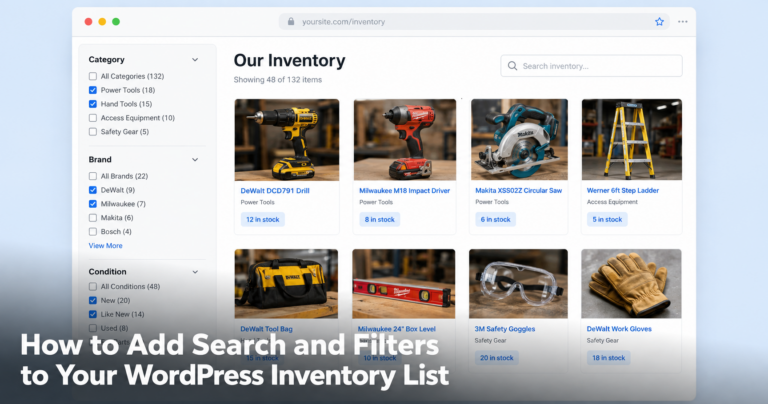
  4. Search and filtering: As inventory grows, your team needs to find items fast. Searching by keyword, filtering by category or custom field, or sorting by quantity saves real time.
  5. Display and access control: Whether you’re showing inventory to customers, staff, or just managing it internally, you need control over who sees what and how it looks on the front end.

Everything else: multi-location, reservations and advanced reporting builds on these five foundations.

Setting Up WP Inventory Manager: The Basics

WP Inventory Manager is a WordPress-native plugin built specifically for this. The free version covers the five foundations above. Here’s how a typical setup looks:

Install and Activate

Download WP Inventory Manager from the WordPress plugin repository or from wpinventory.com. Install it via Plugins > Add New in your WordPress admin then activate.

Add Your First Item

Go to WP Inventory > Add Inventory. Fill in the item name, description, quantity and any other fields you want to track. You can upload an image, assign a category and set a low-stock threshold right from this screen.

Example: A small art supply shop adds “Titanium White Oil Paint (40ml)” with a quantity of 24, a low-stock alert set at 5, and a category of “Oil Paints.” Any staff member logging into WordPress can now check and update this item without touching a spreadsheet.

Create Categories

Go to WP Inventory > Categories and build out your category tree. Categories can be nested, for instance “Paints > Oil Paints” or “Tools > Power Tools > Drills.”

Display Inventory on the Front End

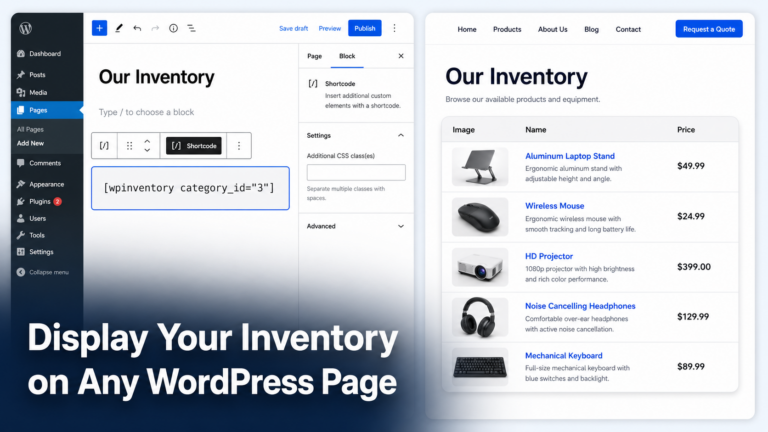
Add the WPIM shortcode to any page or post to display your inventory publicly. You control which fields show, the layout and whether users can filter by category. This works whether you want a customer-facing product catalog or an internal reference list behind a login.

Tracking Stock Quantities

The free version of WP Inventory Manager tracks quantity per item. When stock changes, a delivery comes in, an item is checked out or something is sold, you update the quantity manually from the admin.

For businesses that need automation or more control, WP Inventory Pro adds:

  • Low-stock email alerts: Get notified when any item drops below your set threshold.
  • Quantity adjustment history: See who changed a quantity and when.
  • Minimum/maximum quantity fields: Set reorder points directly in the item record.

Pro runs $79 per year and is the right step for any business managing more than a few dozen SKUs regularly.

Managing Multiple Locations

If you have stock split across more than one place, two stores, a warehouse and a showroom, a main office and a remote site, the Locations Manager add-on is what makes this work.

With Locations Manager, each inventory item carries a quantity per location. You can:

  • See total stock site-wide or drill into a specific location.
  • Assign items to one location or track them across all.
  • Let location managers see and update only their own stock.

Example: A landscaping company has tools stored at two depots. They add both depots as locations in WPIM. Each tool — trailer hitch, post hole digger, trencher — gets a quantity at each location. The office manager can see that Depot A has two trenchers available while Depot B has none, and plan accordingly.

This is the feature that separates a real multi-location business tool from a basic stock counter.

Custom Fields: Tracking What’s Specific to Your Business

Every business tracks different things. A library tracks ISBN and condition. A gym tracks equipment serial numbers and last maintenance date. A restaurant tracks supplier and unit cost.

WPIM’s custom fields let you add any data point you need to an inventory item: text, number, date, dropdown or checkbox. These fields appear in the admin when editing items and can be shown on the front end in your inventory display.

You don’t have to fit your business into a generic template. The fields fit you.

Letting Customers Reserve Items

The Reserve Cart add-on adds a reservation layer to your inventory display. Visitors browsing your catalog can submit a reservation request and you handle the transaction your way.

This is particularly useful for:

  • Equipment rental businesses (hold this item for these dates)
  • Specialty retailers with limited SKUs (reserve before it’s gone)
  • B2B suppliers where quotes precede orders

No payment gateway, no WooCommerce. Just a form that captures intent and reduces your back-and-forth.

Advanced Search for Large Catalogs

Once you have hundreds of items across multiple categories and locations, your team needs to find things fast.

The Advanced Search add-on powers filterable, searchable inventory displays on the front end. Visitors can narrow results by category, custom field value, location or keyword without reloading the page.

Think of it as turning your WordPress inventory into a functional database your team or customers can actually use.

What You Get With WPIM All Access

If you want the full toolkit without picking add-ons one by one, the All Access plan at $199 per year includes everything: WP Inventory Pro, Locations Manager, Reserve Cart, Advanced Search and Advanced User Control.

For businesses managing serious inventory across locations, All Access pays for itself quickly in time saved.

Start Managing Inventory in WordPress Today

Most small businesses outgrow spreadsheets before they realize it. WordPress already powers your site, building your inventory system inside it means one less tool, one less login and one less thing to sync.

WP Inventory Manager’s free version takes less than ten minutes to set up. If you need more such as locations, reservations, advanced search, the paid tiers scale with you.

Get started at wpinventory.com or compare plans to find the right fit for your business.

Frequently Asked Questions

Do I need WooCommerce to use WP Inventory Manager?

No. WPIM runs independently of WooCommerce. It works on any WordPress site, including sites with no ecommerce functionality at all.

Can I show inventory to customers without letting them buy?

Yes. The front-end display shows your catalog, with or without pricing, and visitors cannot check out. You control exactly what’s visible.

How many items can I manage?

There is no hard limit on the number of inventory items. Performance depends on your hosting environment, but WPIM handles catalogs with thousands of SKUs without issue.

Can different staff members manage only their own location’s inventory?

Yes, with the Advanced User Control add-on or the All Access plan. You assign each user to one or more locations, and they only see and edit what’s theirs.

Is there a free version I can try first?

Yes. The free version of WP Inventory Manager is available on the WordPress plugin repository. It covers basic item tracking, categories, and front-end display. Upgrade when you need alerts, locations, or search.

If you’re running a small business and want to list and track your physical inventory on your WordPress site, you don’t need WooCommerce to do it.

WooCommerce is built for selling online. If you’re not processing payments through your site, installing it just to manage a stock list is overkill. It adds complexity, slows your site down, and gives you tools you’ll never use.

WP Inventory Manager is a lightweight WordPress plugin built specifically for this. You can install it, configure it, add your items, and have a working inventory catalog live on your site in under an hour.

Here’s exactly how to do it, following the official setup sequence.


What You’ll Need

  • A WordPress site (version 5.0 or later)
  • Admin access to your dashboard
  • Your inventory data: item names, quantities, descriptions, and any images

That’s it. No coding, no WooCommerce, no third-party accounts.


How the Setup Works

Step 1: Install and Activate the Plugin

Go to wpinventory.com and download the plugin ZIP file. Save it to your computer and do not unzip it.

Then in your WordPress dashboard:

  1. Go to Plugins > Add New
  2. Click Upload Plugin at the top of the page
  3. Browse to the ZIP file you downloaded and click Install Now
  4. Once installed, click Activate

You’ll now see a WP Inventory menu item in your left sidebar. That’s your starting point.

If you’re only installing the free version, you can also find it by searching “WP Inventory Manager” in the plugin directory. The upload method is recommended if you’re also installing any paid add-ons, since those aren’t in the public directory.

Step 2: Set Up Your Categories

The first thing the plugin prompts you to do from the main WP Inventory tab is set up categories. Do this before adding any items — it keeps your catalog organized from the start.

Go to WP Inventory > Categories and add your top-level categories.

For example, a restaurant supply company might use: Cookware, Smallwares, Refrigeration, and Furniture. A nonprofit tracking donated goods might use: Clothing, Electronics, Furniture, Books.

The docs also recommend reviewing Statuses at this stage. By default you have Active (visible on the front end, reservable) and Inactive (hidden). If you need additional statuses like “On Backorder” or “Featured,” you can add those now under the Statuses menu item.

Step 3: Configure Your Settings

Go to WP Inventory > Settings. This is where the plugin’s core behavior is defined. A few settings worth getting right from the start:

  • SEO URLs – Enable this so item links use the item name (e.g. /inventory/standing-desk/) instead of an ID number. Much better for search engines.
  • SEO End-point – Sets the base URL folder for all items. Set it to something like inventory or catalog to match your site structure.
  • Items Per Page – Controls how many items appear before pagination kicks in. Default is 20.
  • Hide Items Low Quantity – If you want items to disappear from the front end when stock drops below a threshold, enable this and set the number.
  • Theme – The plugin ships with a default display theme. If you plan to style things yourself with CSS, set this to “No Theme.”
  • Currency settings – Set your symbol, separator, and decimal format if you’re displaying prices.

Don’t feel like you need to configure everything on day one. The defaults are sensible. But SEO URLs and your end-point are worth setting before you publish anything, since changing them later will break existing links.

Step 4: Review Your Labels

Go to WP Inventory > Labels. This is where you rename the default field labels to match your business language.

Out of the box, the plugin uses generic terms like “Inventory Name” and “Quantity.” If your business calls these “Product,” “Stock Count,” or “Units Available,” change the labels here. They’ll update everywhere, in the admin and on the front end, so your team and your customers see consistent language.

This step is quick and easy to skip, but it makes the plugin feel like it was built for your specific operation rather than a generic one.

Step 5: Add Your Inventory Items

Go to WP Inventory > Inventory Items and click Add Inventory Item.

Each item has built-in fields including:

  • Name (required)
  • Category
  • Quantity
  • Description
  • Price (display only, not connected to a checkout)
  • Image
  • Serial Number / SKU
  • Status (Active or Inactive)

Fill in what’s relevant. You don’t have to use every field.

Practical example: A small furniture retailer adding a standing desk would enter: Name “Adjustable Standing Desk,” Category “Desks,” Quantity “12,” Description “Electric height adjustment, 3 memory presets, 60×30 surface,” and upload a product photo. That’s a complete, useful listing.

Add each item one at a time, or if you have a large existing catalog, the Pro version supports CSV import to save time.

Step 6: Display Your Inventory on a Page

Create a new WordPress page (or edit an existing one) where you want your catalog to appear. Add this shortcode:

[wpim_display]

Publish the page. Your inventory catalog is now live.

Visitors can browse by category and search by keyword out of the box. The layout works with most WordPress themes without styling conflicts.

If you want a standalone search bar or category filter, the plugin generates additional shortcodes for those. Check the shortcode options documentation for the full list of display parameters.


When to Upgrade

The free version handles a single location, unlimited items, and the full setup described above. It covers most small businesses completely.

If you need more, the paid add-ons are worth looking at:

  • Multiple locations (warehouse, retail floor, offsite storage): Locations Manager
  • Let visitors reserve or request items: Reserve Cart
  • Advanced filtering and search by custom fields: Advanced Search
  • Full stock tracking with quantity history: Advanced Inventory Manager

WP Inventory Pro bundles several of these for $79/year. The All Access pass at $199/year includes everything.


Your Inventory, Live in 30 Minutes

Install the plugin, set up your categories, configure a few key settings, label your fields, add your items, and drop a shortcode on a page. That’s the complete setup.

From there, you can layer in paid features as your needs grow, but most small businesses won’t need them on day one.

Get started at wpinventory.com.


Frequently Asked Questions

Do I need WooCommerce to use WP Inventory Manager?

No. WP Inventory Manager is a standalone plugin and does not require WooCommerce. It’s built specifically for businesses that want inventory management without an ecommerce platform.

What’s the correct order to set up the plugin?

Install and activate, then: Categories, Settings, Labels, add your Inventory Items, and finally display with the shortcode on a page. Setting things up in this order means your items will inherit the right configuration from the start.

Can I import my existing inventory from a spreadsheet?

CSV import is available in the Pro version. The free version requires adding items manually through the dashboard.

How many inventory items can I add?

There is no hard limit on the number of items in either the free or paid version.

What if I have inventory in more than one location?

The free version supports a single location. For multiple locations (warehouse, store, offsite), the Locations Manager add-on handles this and is included in the Pro and All Access plans.

If you run an equipment rental business, you already know the problem.


Equipment rental inventory managed in WordPress

Your catalog lives in a spreadsheet. Here’s what your typical day looks like: customers call to ask what’s available, you check the sheet, maybe check your email for pending reservations, and give them an answer that may or may not be accurate. Then you do it again for the next call.

At some point you try to fix it by building a WordPress website. You look at your options and most of them point you toward WooCommerce — a platform designed for selling products, not renting them out. The checkout flow doesn’t make sense for rentals. Dates and deposits require extra plugins. You’re bending a sales tool to fit a reservation workflow. There’s a simpler path.


What you actually need as a rental business

Before picking any tool, it helps to be clear about what the job is.

A rental business doesn’t need a shopping cart. It needs three things:

  1. A browsable, searchable catalog that customers can view on your website
  2. A way for customers to submit a reservation inquiry for one or more items
  3. A back-end system to track what’s in stock, what’s out, and where things are

That’s it. WooCommerce solves a different problem. You don’t need a payment gateway, product variations, or a shipping module. You need inventory visibility and a simple request form.

WP Inventory Manager is built for exactly this workflow.


How the setup works

Here’s how a typical equipment rental business sets this up from scratch using WP Inventory Manager.

Step 1: Install the free plugin and add your items

After installing WP Inventory Manager from the WordPress plugin directory, you start adding your items. Each item gets a name, description, quantity, images, and any custom fields you want — condition, dimensions, weight, rental rate, or anything else relevant to your catalog.

Custom fields are fully configurable. A tool rental shop might add fields for “power source” and “weight class.” An AV rental company might add “resolution” and “connector type.” You define what matters.

Step 2: Publish your catalog with a shortcode

Once your items are in, you display the catalog on any page of your site using a shortcode. Visitors can browse and filter the list by category, search by keyword, or sort by any field you’ve exposed.

No WooCommerce product page, no cart, no checkout. Just a clean, functional catalog that looks like part of your site.

Step 3: Add the Reserve Cart for reservation requests

The Reserve Cart add-on turns your catalog into a request-based workflow. Customers browse, add items to a cart, and submit a reservation request through a single form. You receive the inquiry with the item list attached and follow up directly.

This fits how rental businesses actually operate. The final confirmation happens when you’ve checked availability, discussed dates, and agreed on terms — not at an automated checkout screen.

Step 4: Track multiple locations (if needed)

If you operate out of more than one warehouse or yard, the Locations Manager add-on lets you assign stock levels per location. A customer in the north end of the city can see what’s available at the nearest depot. Your team can see the full picture across all sites.


Let’s take a concrete example

Say you run a small event equipment rental company. Your catalog has 60 items: tents, tables, chairs, lighting rigs, generators, and catering equipment.

Before WP Inventory Manager, your website had a static list of gear with a “call us to check availability” instruction on every page. Half your phone calls were people asking basic questions that were already answered on the page — they just couldn’t find them.

After setting up WP Inventory Manager, your catalog is searchable and filterable by category. Customers find the tent sizes they need, add three items to the reserve cart, and submit a request. You get an email with the full list. You confirm availability and send an invoice.

Phone calls drop. Inquiries from the website go up. Nothing about your actual rental process changes — you just stopped making your customers work to find information.


How much does WP Inventory cost?

The core WP Inventory Manager plugin is free with no item limits. For most rental businesses, the useful paid components are:

  • Reserve Cart add-on — included in WP Inventory Pro ($79/year) and All Access ($199/year)
  • Locations Manager add-on — included in All Access ($199/year)
  • All Access covers every add-on and unlimited sites, which makes sense if you manage more than one business location or WordPress install

For most single-location rental businesses, Pro at $79/year covers what you need.


When WP Inventory Manager is the right fit

This setup works well if:

  • You have a WordPress site and don’t want to rebuild it around WooCommerce
  • Your customers inquire and reserve rather than buy outright online
  • You need a front-end catalog that non-technical customers can actually use
  • You want to manage stock across one or more physical locations
  • You want a self-hosted solution you own, not a monthly SaaS subscription

It’s not the right fit if you need automated billing, date-based booking calendars with real-time holds, or deep integration with delivery scheduling software. Those are specific operational needs that require purpose-built rental platforms.

But for the majority of small rental businesses that need to get their catalog online and start receiving inquiries through their website, WP Inventory Manager gets the job done without the overhead.


How to get started

The free version is available directly from the WordPress plugin directory. Install it, add a few items, drop the shortcode on a page, and you’ll have a working catalog in under an hour.

When you’re ready to add reservation requests, see the Reserve Cart add-on or review the full pricing and add-ons at wpinventory.com.


Frequently Asked Questions

Can I manage equipment rentals in WordPress without WooCommerce?

Yes. WP Inventory Manager is a standalone WordPress plugin that does not require WooCommerce. You can build a full rental catalog and accept reservation requests without setting up an ecommerce store.

How do customers request a rental through my WordPress site?

The Reserve Cart add-on lets customers browse your catalog, add items to a cart, and submit a reservation inquiry form. You receive the request by email and confirm directly with the customer.

Can I track which items are available at different locations?

Yes. The Locations Manager add-on lets you assign and track stock levels at multiple warehouses or depots, so you and your customers can see availability per location.

Is there a limit on how many items I can list?

No. The free version of WP Inventory Manager has no item limits. You can manage 10 items or 10,000 with the same plugin.

How is this different from a booking plugin like Booqable or a WooCommerce rental plugin?

Purpose-built rental platforms like Booqable handle date-based booking calendars and automated holds, which is useful for high-volume operations. WP Inventory Manager is a lighter-weight solution for businesses that manage reservations manually or over the phone and primarily need a clean catalog and an inquiry form on their website.

WP Inventory Release 2.0.3

This release only has one change but it is a big one.  The “|” separator is now the separator character in the WP Inventory Manager shortcode.  This change was not made lightly by our team as it could impact several of you.  Below, is just one example of how it may affect you.  But there may be others as well.  The takeaway here is that if you have commas in your shortcodes to call out multiple items or categories; then you will need to update these instances on your pages.

Example:

[[wpinventory category=”1,2,3″]]

Would become:

[[wpinventory category=”1|2|3″]]

WP Inventory Manger 2.0.2

06/24/2020

  • Message for non existing item in the admin.
  • For the Reserve Cart add on, we added functionality to hook into so a view cart button could be added in the listing page.
  • Shortcode option added to hide the “back” button on details.
  • UK/US/International date formats are now options to choose from.
  • Back button on detail page use to be javascript. Reworked to use wp_get_referer().
  • When doing a search in the filter by category, the results displayed two add to cart options when Reserve Cart is active.
  • Enhanced the drag and drop functionality of the display settings in the back end.
  • Category names are now being honored in search text.
  • Extra / redundant “Email Input Label” removed.

https://www.youtube.com/watch?v=3v4VoiozO64

To purchase a license, click here.

WordPress Inventory Manager Plugin 0.4.0 is here!

The newest version of WP Inventory is out and it is HOT!  WordPress Inventory Manager Plugin 0.4.0 is here and dramatically improves user experience.

WordPress Inventory Manager Plugin 0.4.0 New features include:

  • change product labels for each field such as price to cost and quantity to amount, or whatever you want for each
  • drag and drop product fields into a product listing view (as many as you would like)
  • drag and drop product fields into a product detail page (as many as you would like)
  • use a reserve quantity feature where customers reserve items and they update automatically
  • display products in a table or non-table layout
  • choose to display product labels or not to display them for both listing and detail page
  • get an email update when someone reserves products from your site
  • and much more!

Head to the download page and get the WordPress Inventory Manager Plugin 0.4.0 now!  The power to manage your inventory is completely in your hands and it is completely free!  So don’t delay, try WordPress Inventory Manager Plugin 0.4.0 today!

Keep your eyes out very soon to come for the WordPress Inventory Manager Plugin Ledger.  The ledger gives you the ability to monitor the flow of your inventory.  This can be helpful to see how much inventory has grown or shrank between periods of time.  It can help you to manage what products you may need to consider replacing or updating.

More to come!

  • E-commerce – Adds the ability to sell your inventory online
  • Import and Export – This allows you to import or export inventory items
  • Dealer Mode – Allows retailers to post and pull products from your site you sell for them
  • Rental Reservations – Set reservations and equipment rental periods and keep track of those items

These are very exciting times here at the WordPress Inventory Manager Plugin and we appreciate you using the WordPress Inventory Manager Plugin for your needs.  As always, you can contact customer support at [email protected] or join our support forums and get help in the various threads available.

WP Inventory Manager Grand Release!

We are pleased to bring you the first of it’s kind, WordPress Inventory Manager.  This plugin is absolutely free of cost and we recommend that if you like it you can make a donation on our donations page or in the right hand side of our website’s updates feed.  Please refer a friend if you want to go the extra mile.  Thank you for choosing WP Inventory Manager as your inventory management solution and we look forward to rolling out even more and advanced features over time.  To download, please visit the download page.

–  WP Inventory Management Team

Reviews on WordPress.org

Trusted by thousands of businesses

★★★★★

"Created an online museum for my club. Really impressive plugin. Support was responsive and helpful."

@hackrepair

★★★★★

"Excellent, clean, simple inventory management. Well structured code — use it right away or customize it to your liking."

@techlocally

★★★★★

"We purchased the entire suite. Installation was easy, small issues were fixed immediately, and the guidance during setup was invaluable."

@design4dotcom

★★★★★

"Plugin support was helpful and rapid. Highest mark."

@drgar

★★★★★

"Great support. Very thorough when looking for a solution, and upfront with exactly how to fix it or institute a workaround."

@shoidahl

★★★★★

"I used this plugin and eventually hired the developers for all my WordPress work. Responsive, competent, and clean code. Would recommend to anyone."

@justenhong