An art collection becomes hard to manage long before it becomes large. The moment you have works in storage, on display, sold, loaned or spread across different locations, a spreadsheet starts turning into a liability.
For a small gallery, private collection, studio or cultural organisation, the problem is usually not storing the data. It is keeping the inventory useful.
You need to know where each work is, who created it, whether it is available, which collection it belongs to and which details should appear publicly. Ideally, the same records your team maintains internally should also power the catalogue visitors browse on your website.
If your site already runs on WordPress, you can do both without maintaining a separate gallery database.
This guide walks through how to create a searchable online art catalogue using WP Inventory Manager.
Start with one inventory record per artwork
The basic principle is simple: each artwork becomes one inventory item.
In your WordPress admin, go to WP Inventory > Inventory Items and create a record for each work.
A useful starting structure looks like this:
- Inventory number: Your internal reference or accession number.
- Name: The title of the artwork.
- Description: Notes, provenance, exhibition history or public description.
- Manufacturer: This can be renamed to Artist if you prefer.
- Year: The year the work was created.
- Size: Dimensions of the piece.
- Price: Useful for commercial galleries, even if you do not display it publicly.
- Inventory status: Available, Sold, On Loan, In Storage or another status that matches your workflow.
WP Inventory Manager lets you rename the default field labels under WP Inventory > Labels, so the terminology can match the way your gallery already works.
Example: A small contemporary gallery has 420 works from 34 artists. Instead of forcing the collection into generic product fields, it renames Manufacturer to Artist, Size to Dimensions and Inventory Number to Artwork ID. The underlying inventory system stays the same, but the admin interface now matches the language the team already uses.
Create fields that describe the artwork properly
The default inventory fields cover the basics, but art catalogues usually need more context.
You might want to record:
- Artist
- Medium
- Dimensions
- Year created
- Edition number
- Collection
- Condition
- Frame status
- Provenance
- Acquisition date
- Insurance value
- Current location
For more structured catalogues, the Advanced Item Manager add-on lets you define custom item types and fields rather than forcing every collection into the same template.
That becomes especially useful if you manage different kinds of objects.
A gallery might have paintings, sculptures and prints, while a museum might also have furniture, documents or archival material. Each type can carry the fields that actually matter to it.
Organise artworks into categories and collections
Categories give visitors and staff a simple way to move through a large catalogue.
You can use them for:
- Painting
- Sculpture
- Photography
- Works on Paper
- Limited Editions
- Current Exhibition
- Permanent Collection
Go to WP Inventory > Categories to create the groups you need, then assign each artwork to the relevant category.
You can also create dedicated catalogue pages for specific collections rather than putting every work on one enormous page.
For example:
[wpinventory category=”Photography”]
That page now displays only photography.
Another page could show paintings:
[wpinventory category=”Painting”]
This is useful for visitors, but it also gives you cleaner pages that can rank independently for specific parts of your collection.
Track where every artwork actually is
Location becomes one of the most important fields once a collection stops living in a single room.
A work might currently be:
- In Gallery A
- In storage
- At an external exhibition
- With a collector on approval
- On loan to another institution
- At a restoration studio
The Locations Manager add-on lets you associate inventory with specific locations rather than writing the location into a free-text note.
That makes the data easier to search and update.
Example: A gallery operates one public space and two storage rooms. A sculpture moves from Storage B to the main exhibition floor. Instead of editing a description and hoping everyone sees it, the team updates the location attached to the inventory record. Anyone checking the item now sees the current location.
Add images to every artwork record
An art catalogue without images is not much of a catalogue.
Each inventory record can include artwork images, so the same record used internally can also appear as a visual item on the public side of the site.
For consistency, photograph works using the same basic setup where possible:
- Use a neutral background.
- Keep the main artwork centred.
- Use similar image proportions across the catalogue.
- Keep filenames descriptive rather than using camera-generated names.
- Include detail shots when condition or texture matters.
The inventory page can then function more like an online collection than a spreadsheet.
Publish the collection on your WordPress site
Once the records are in place, the catalogue can be displayed on the front end with the standard inventory shortcode:
[wpinventory]
This is where WordPress becomes particularly useful for galleries.
You are not maintaining one internal inventory system and then manually recreating selected works on your website.
The inventory itself can power the public catalogue.
You can decide which fields appear, how the item pages are laid out and whether visitors see everything or only a selected collection.
For a broader overview of this setup, see our inventory management solution for galleries.
Add search and filters for larger collections
Once a catalogue reaches a few hundred works, browsing category by category is usually not enough.
Visitors may want to narrow the collection by:
- Artist
- Medium
- Year
- Collection
- Availability
- Condition
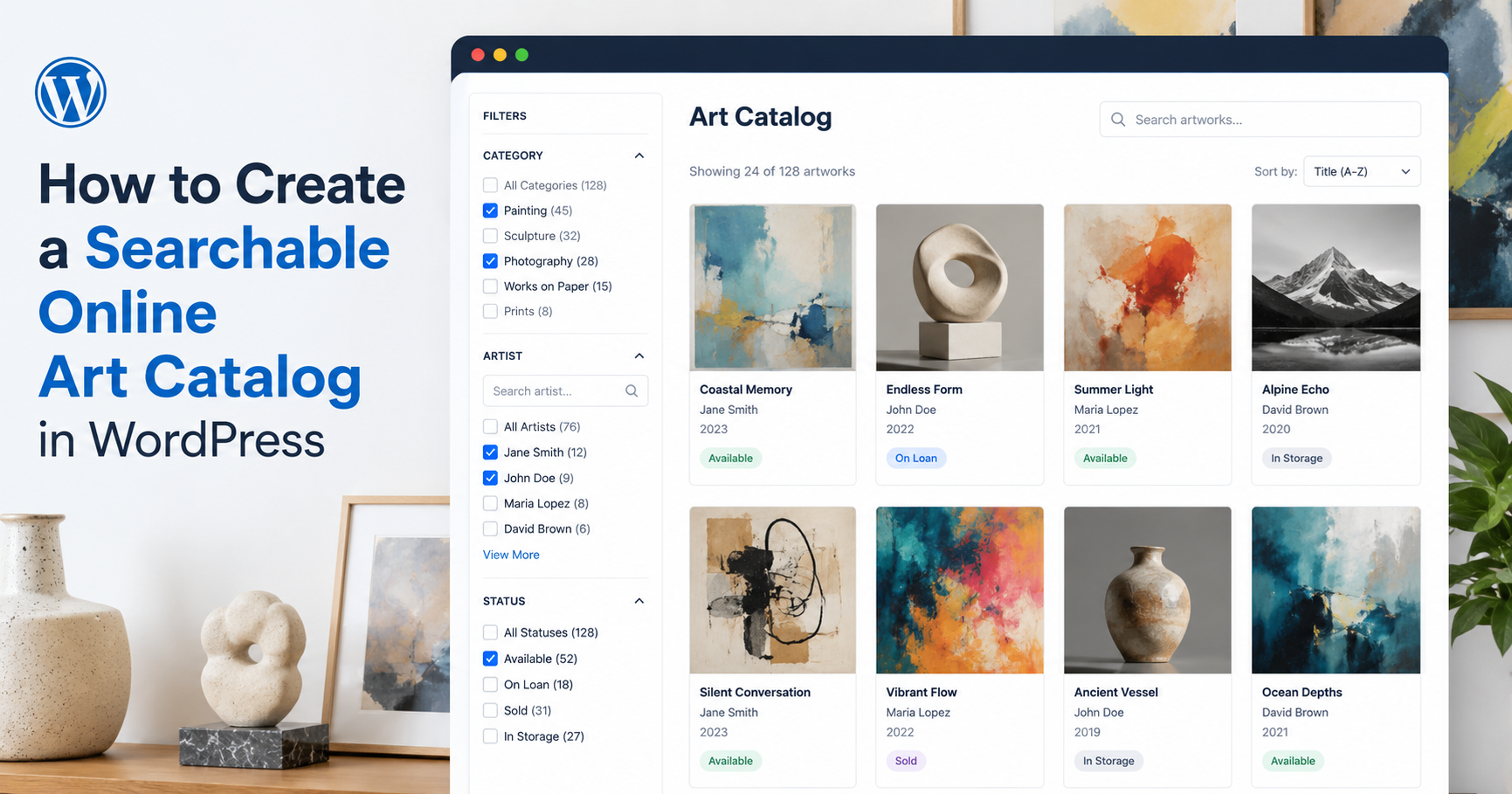
The free version of WP Inventory Manager includes a filter bar for keyword search, category, status and sorting.
For more advanced filtering, the Advanced Search Filter add-on lets you expose fields as checkbox or dropdown filters.
That gives you the familiar catalogue experience where visitors can select several criteria and narrow the results without manually opening dozens of artwork pages.
If you want the full setup, see our guide on adding search and filters to a WordPress inventory list.
Keep internal information off the public catalogue
Not every field belongs on the website.
A commercial gallery might want visitors to see:
- Artist
- Title
- Year
- Medium
- Dimensions
- Availability
But internally you might also track:
- Acquisition cost
- Insurance value
- Owner details
- Storage location
- Condition notes
- Internal reference numbers
Those do not all need to appear on the front end.
The important point is that you can maintain one structured inventory without treating every field as public website content.
The Advanced User Control add-on also lets you control which WordPress users can view, add or edit inventory records.
Import an existing art inventory from a spreadsheet
Most galleries do not start from zero.
The collection is usually sitting in Excel, Google Sheets or a CSV file already.
Re-entering hundreds or thousands of records manually would defeat the point of moving systems.
The Import Export add-on lets you upload a CSV and map the spreadsheet columns to your inventory fields.
A typical spreadsheet might contain:
| Spreadsheet column | Inventory field |
|---|---|
| Artwork ID | Inventory Number |
| Title | Name |
| Artist | Artist / custom field |
| Medium | Custom field |
| Dimensions | Size |
| Year | Year |
| Availability | Status |
Once the columns are mapped, the importer creates the records for you instead of requiring each artwork to be entered individually.
Full instructions are available in the user documentation.
Use statuses to track the lifecycle of a work
A catalogue gets much more useful when status means more than simply “in stock.”
For artwork, you might create statuses such as:
- Available
- Reserved
- Sold
- On Loan
- On Exhibition
- In Storage
- Under Restoration
That gives the team a quick operational view of the collection without needing to interpret notes.
It also lets you filter the inventory by status.
For a commercial gallery, for example, you can keep sold works in the database for historical records while excluding them from the public list of currently available pieces.
One catalogue, two jobs
This is the main reason WordPress works well for smaller galleries and collections.
A conventional inventory database is mostly internal.
A conventional website is mostly public.
Using an inventory plugin means one structured set of records can do both jobs.
Your team manages the artwork in WordPress. Visitors browse the same underlying catalogue from the front end.
That reduces duplicate data, reduces manual updates and makes it much less likely that the website says a piece is available when the internal spreadsheet says it sold three weeks ago.
Frequently asked questions
Can WordPress be used as an art inventory system?
Yes. With an inventory plugin, WordPress can store structured records for artwork including titles, artists, dimensions, dates, images, statuses, locations and custom fields. The same records can also be displayed as a public catalogue on the website.
Can I create a searchable art catalogue in WordPress?
Yes. WP Inventory Manager can display inventory on any WordPress page and includes keyword, category, status and sorting controls. The Advanced Search Filter add-on adds faceted filtering by additional fields such as artist, medium or condition.
Can I keep some artwork information private?
Yes. You control which inventory fields appear on the public-facing catalogue. Internal information such as insurance values, storage notes or acquisition details does not need to be displayed publicly.
Can I import my existing gallery spreadsheet?
Yes. Export the spreadsheet as a CSV, then use the Import Export add-on to map each column to an inventory field. This is much faster than recreating every artwork record manually.
Can I track artwork across different locations?
Yes. The Locations Manager add-on can associate inventory with different galleries, storage rooms or other locations, making it easier to keep track of where each work currently sits.
Do I need WooCommerce?
No. WP Inventory Manager works independently of WooCommerce. You can build a searchable public catalogue without adding ecommerce, a shopping cart or checkout functionality.
Build your art catalogue in WordPress
If your gallery already runs on WordPress, you do not need a second system just to turn your artwork records into a searchable online catalogue.
Start with the free core plugin, add a few real artworks and see how the catalogue fits your workflow before moving the full collection across.