
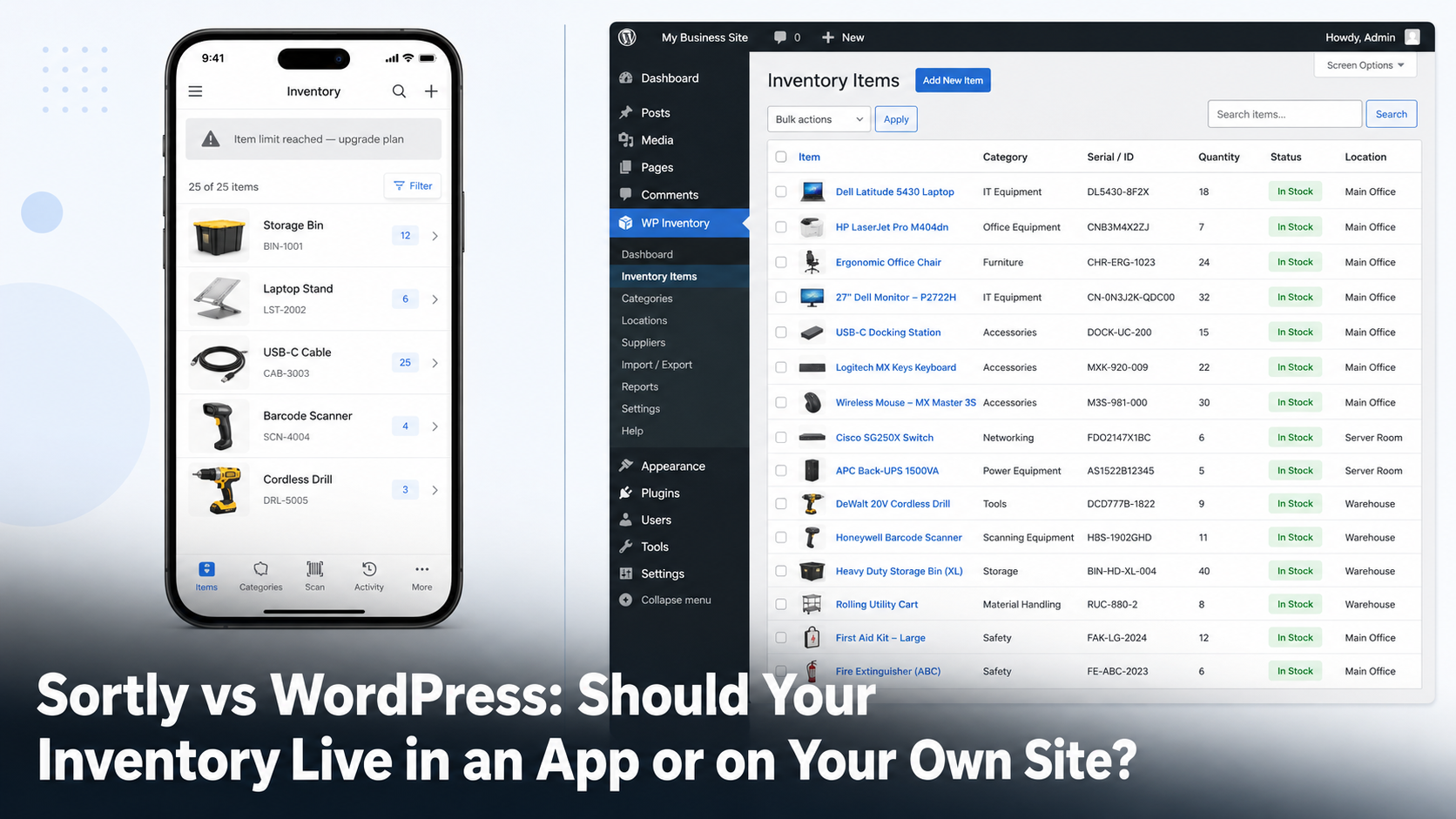
You hit 100 items and the free plan stops. That is usually the moment people start comparing inventory tools seriously.
If you have searched for inventory software recently, Sortly probably came up first. Clean mobile app, photo-based items, QR labels and a free tier.
Then the caps arrive. Item caps, seat caps, custom field caps. The real choice is between a hosted app that charges by how much you track and how many people track it, or an inventory system that lives inside the WordPress site you already run.
Both are reasonable. They are reasonable for different businesses. This post is about telling which one you are.
Two different bets
Sortly is software as a service. You rent access, your data sits on Sortly’s servers and your bill scales with your catalogue and your team.
A WordPress inventory plugin is the opposite bet. The software runs on hosting you already pay for, your data sits in your own database and the cost does not move when your catalogue grows.
Neither model wins in the abstract. What matters is which set of constraints you can live with.
Where Sortly’s limits bite
Sortly’s pricing is built around caps. Here is what each plan allowed as of August 2026, taken from Sortly’s own pricing page.
| Plan | Per month | Items | Users | Custom fields |
|---|---|---|---|---|
| Free | $0 | 100 | 1 | 1 |
| Advanced | $49 | 500 | 2 | 5 |
| Ultra | $149 | 2,000 | 5 | 10 |
| Premium | $299 | 5,000 | 8 | 20 |
| Enterprise | Quote | 10,000+ | 12+ | Unlimited |
A 50% first-year discount applies to yearly plans for new customers, dropping to 20% after year one. Sortly’s help centre states there are no school or non-profit discounts.
Three caps cause most of the friction:
- The item cap. Growth forces an upgrade, whether or not anything else about your operation changed.
- The seat cap. Adding a part-time volunteer costs real money.
- The custom field cap. The quiet one. Track five attributes today, need a sixth next year, change plans to add a text box.
Example: A community theatre catalogues costumes, props and lighting gear. It passes 500 items during its second season and needs six people updating stock during production week. On Sortly that combination pushes it to Ultra. On the WordPress site it already runs, the item count and the six staff logins cost nothing extra.
What Sortly does better
Being fair here matters, because picking the wrong tool wastes more than it saves.
- Native mobile apps with offline access. If your team counts stock in a basement, a job site or a storage unit with no signal, WordPress does not match this.
- In-app barcode and QR scanning. Phone camera, straight into the record.
- Real-time sync across devices. Several people updating at once, everywhere, instantly.
- Integrations. QuickBooks Online, Slack and Microsoft Teams on higher plans.
If your inventory work happens on a phone away from a desk, Sortly is built for that and a WordPress admin screen is not.
What WordPress does better
No item cap
WP Inventory Manager has no ceiling on item count. There is no row limit anywhere in the plugin. Catalogue size is a hosting question rather than a billing question.
Your existing users are your seats
Anyone with a WordPress login can be given inventory access. Ten staff cost the same as one. The Advanced User Control add-on narrows it further, setting each user’s view, edit and add rights to none, own items only or everything.
A public catalogue, not just a private database
This is the difference most comparisons miss. Sortly is an internal tool. WP Inventory Manager renders your inventory on the front end of your site with a shortcode, so the records your team manages can also be the catalogue your customers browse.
For a gallery, a rental yard or a parts supplier that removes an entire duplicate system. See how it plays out for equipment rental businesses.
Your data stays yours
Items live in your own database tables. Back them up, query them, export them to CSV and take them with you. Nothing goes read-only because a card expired.
Fields that match your business
Core ships with fields for number, name, description, size, manufacturer, make, model, year, serial and price. You rename or hide any of them under WP Inventory > Labels. When you need more, the Advanced Item add-on defines item types with their own text, number, dropdown and radio fields, with no cap on how many.
The three-year cost picture
Take a small organisation with 800 items and five people who need access. On Sortly that is the Ultra plan, which runs $888 for the first promotional year then renews near the standard yearly rate. Across three years you are looking at several thousand dollars. The number climbs again past 2,000 items.
The WordPress route uses hosting you already pay for. The core plugin is free. If you want the paid pieces, the All Access Pass bundles the add-on library for $199 a year. Item count and staff count do not change that figure.
The trade is real. You take on hosting, backups and updates yourself and you give up the mobile app.
Which one are you?
Five questions usually settle it:
- Do you already run a WordPress site? If yes, the marginal cost of adding inventory to it is close to zero.
- Does anyone need to see your inventory publicly? Customers browsing a catalogue or requesting a hold points hard toward WordPress.
- Where does the work happen? Warehouse aisle with poor signal favours Sortly. Back office on a laptop favours WordPress.
- How fast is your catalogue growing? Steady growth past a few hundred items makes per-item pricing expensive over time.
- How many people touch it? Volunteers and seasonal staff get costly under seat licensing. WordPress accounts carry no per-seat fee.
Example: A construction firm tracking tools across three job sites should probably pay for Sortly. Crews scan items on their phones, often without signal. Nobody outside the company needs to see the list. The mobile app is the whole product for them.
Trying the WordPress route
Install WP Inventory Manager from the plugin repository and activate it. A WP Inventory menu appears in your admin sidebar with submenus for Status, Inventory Items, Categories, Labels, Display, Statuses, Add Ons, Settings and Support.
Go to WP Inventory > Inventory Items to add records, then WP Inventory > Categories to group them. Rename fields under WP Inventory > Labels. Then drop the shortcode on any page to publish the catalogue:
[wpinventory]
If your stock already lives in a spreadsheet, the Import Export add-on walks a CSV through a three-step upload, mapping and import wizard, so you are not retyping anything. Full steps are in the user documentation. Our roundup of the best WordPress inventory plugins covers the other options in this space.
Frequently asked questions
Is WP Inventory Manager a direct Sortly replacement?
Not feature for feature. There is no native mobile app and no offline mode, so if your team works from phones in low-signal locations, Sortly still fits better. What WP Inventory Manager replaces is the item cap, the seat cap and the monthly bill. It also publishes your catalogue on the front end of your website, which Sortly does not do.
How many items can WP Inventory Manager handle?
There is no item limit in the plugin. Practical scale depends on your hosting rather than your plan. Catalogues in the thousands run fine on ordinary shared hosting.
Can I move my Sortly data across?
Yes. Export your Sortly inventory to CSV, then use the Import Export add-on to map those columns onto WP Inventory Manager fields. The importer can create categories automatically as it runs, so your existing grouping carries over.
Do I need WooCommerce for any of this?
No. WP Inventory Manager runs independently on any WordPress site, including sites with no ecommerce at all. There is no cart and no checkout unless you add a payment add-on deliberately.
What does it cost to run inventory on WordPress?
The core plugin is free from the WordPress repository with no item or user limits. Paid add-ons cover multi-location stock, reservations, advanced search, QR codes and import or export. The All Access Pass bundles the library for $199 a year. That figure does not change as your catalogue or team grows.
Load your real catalogue and see
The core plugin is free with no item cap and no seat cap, so you can import your actual inventory and judge it against your current tool before spending anything.


