
Installation
Installing the WP Inventory Manager Plugin and Add Ons
The following set of instructions will allow you to install your plugin and activate it.
- Download the plugin (along with any add ons) and save the ZIP file(s) to your computer
- From here, we recommend a simple installation through the WordPress dashboard.
Installing Through WordPress Dashboard:
- Login to your WordPress dashboard
- Navigate to your “Plugins” tab on the lefthand menu
- At the top of that page, click the “Add New” button

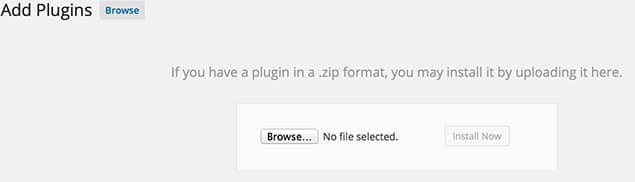
- At the top of the next page, click the “Upload Plugin” button

- Browse to your downloaded ZIP file, or drag and drop the file into the file selection box. Make sure the file is still a ZIP – do not unzip it. Once the ZIP file is loaded, click “Install Now.”
- The next page will tell you the plugin was successfully installed and give you an option to “Activate Now”
- After activating the plugin, it is now installed and ready to be configured.
Activate your license
Activating the plugin and activating your license are two different things. The “Activate Now” button above switches the plugin on in WordPress. If you are running the free plugin, that is all there is to do and you can move on to configuration.
If you bought WP Inventory Pro or a paid add-on, it needs a license key as well. Without one it will run, but it will not receive updates.
If you bought from wpinventory.com
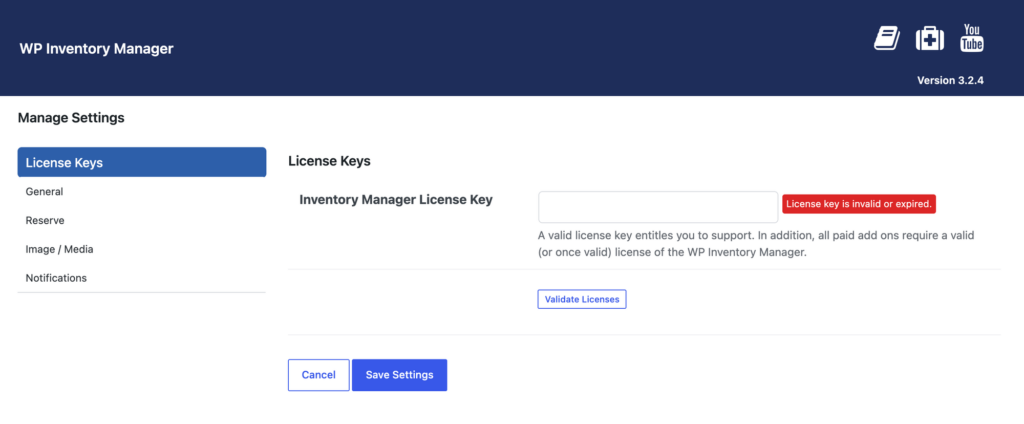
Go to WP Inventory → Settings → License Keys. Enter your key in the row for the product it belongs to, then save. Pro and each add-on have their own row and their own key.
If you bought inside the plugin
If you bought through the Add Ons screen inside WP Inventory, your purchase is tied to your account rather than to a key you type in. You will be prompted to connect the plugin to that account, and everything you own activates at once.
On these sites the License Keys tab reads “Licensed through your account. No license key is needed here.” That is expected, and it means there is nothing for you to do.
“It says Invalid license key”
This is the most common problem, and it is almost always the same cause.
On a site that has never had a license key stored, WP Inventory shows an activation prompt before anything else. That prompt belongs to the in-plugin store, not to wpinventory.com. If you bought from wpinventory.com and paste your key into that box, it is rejected as invalid, because it is a valid key for a different system.
Your key is fine. It just needs to go somewhere else:
- Go to WP Inventory → Settings → License Keys.
- Paste your key into the row for the product.
- Save.
If it still will not activate, check for stray spaces around the key, confirm the site matches the one the license is registered to, and confirm the license has not expired. Then contact support with the product name and the site URL
If you’re unable to install via the WordPress dashboard, please contact us for support to install WPIM via FTP. Next step, configuration.
