
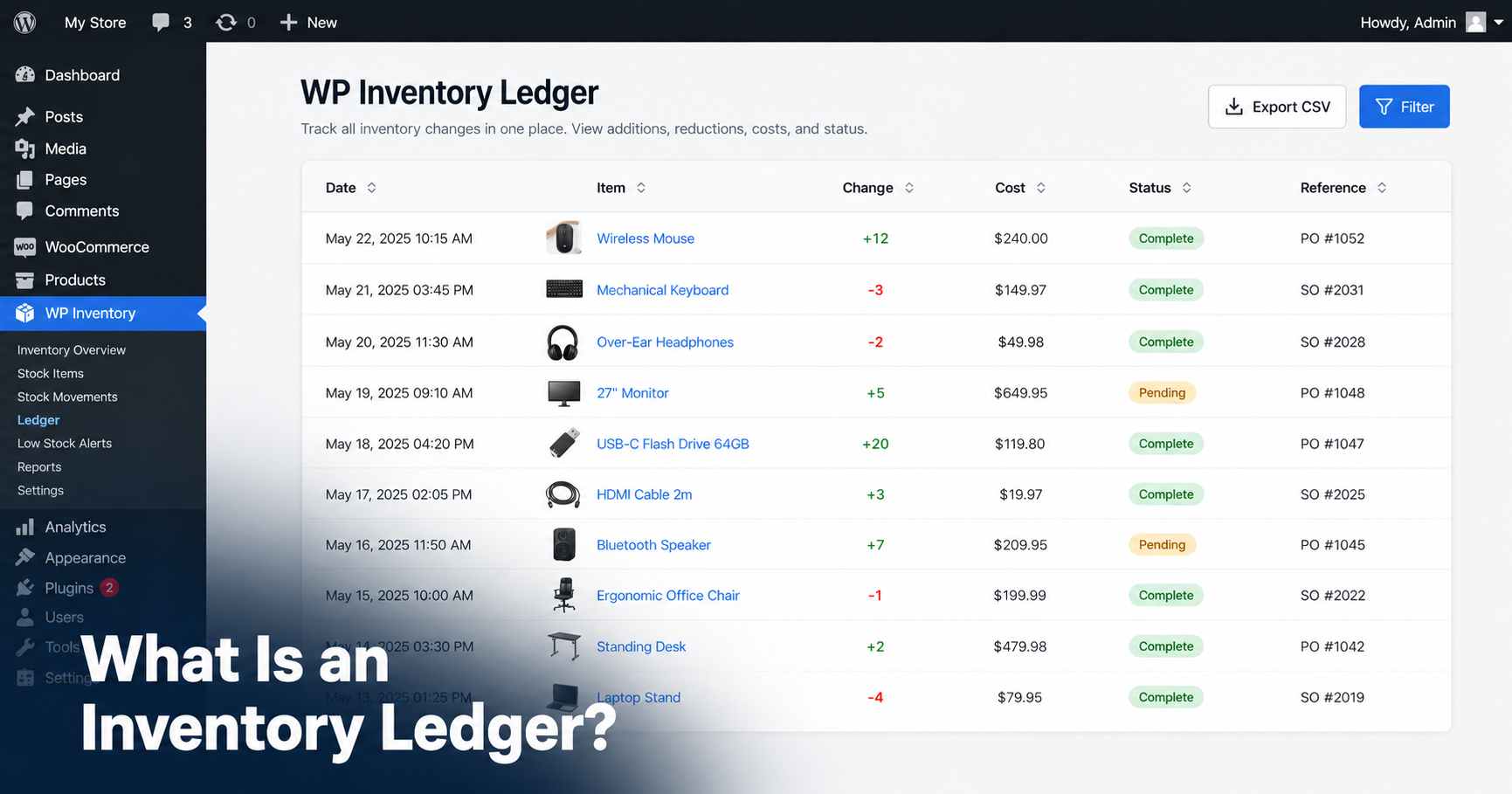
Every inventory system can tell you how much stock you have right now. Very few can tell you how you got there. If you have ever stared at a quantity field wondering who changed it, when and why, you already understand the problem an inventory ledger solves.
This post explains what an inventory ledger is, why a spreadsheet makes a poor one and how to keep a real ledger inside WordPress using the WP Inventory Ledger add-on.
An inventory ledger is one part of maintaining accurate inventory records. For the broader setup, see our guide to managing inventory in WordPress without WooCommerce.
What is an inventory ledger?
An inventory ledger is a running record of every stock movement: each addition, subtraction, reservation or transfer, logged with the date, the quantity involved and what the change was for.
Where a stock count answers “how much do we have,” the ledger answers “what happened.” Together they give you the two things every inventory question comes down to: the current state and the story behind it.
A useful ledger entry captures five things:
| What it records | Why it matters |
|---|---|
| Date | Reconstruct any period after the fact |
| Item and quantity | Which item moved and by how much |
| Description | The reason: a delivery, a sale, a reservation, a write-off |
| Cost and value | Turns a log into a financial record |
| Status | Pending, complete or cancelled, so holds never blur into finished transactions |
Why a spreadsheet makes a poor ledger
Most small businesses keep stock history in a spreadsheet, if they keep it anywhere. The problems show up within a month.
- Overwritten history. A spreadsheet cell holds one value. Type the new quantity and the old one is gone, along with any record of why it changed.
- No accountability. When three people share a sheet, nobody can say who made which change.
- Manual discipline. The log is only complete if every person records every movement, every time. One busy afternoon breaks the chain.
- Disconnected from the website. If your catalog lives in WordPress, every spreadsheet update is double entry. Eventually the two disagree, and you will not know which one is right.
That last point matters most. The fix for out-of-sync inventory is not more careful typing. It is keeping the record where the inventory already lives. We covered the sync problem in depth in our guide to fixing out-of-sync inventory in WordPress.
Keeping a ledger inside WordPress
The WP Inventory Ledger add-on adds a transaction ledger to WP Inventory Manager. Once activated, a Ledger screen appears under the WP Inventory menu in your WordPress admin.
The key difference from a spreadsheet: entries create themselves. The ledger hooks into WP Inventory Manager, so when an item’s quantity is saved or a reservation comes in through the reserve form, the movement is recorded automatically. You can also add entries by hand for anything that happens off the website.
What each entry records
Every ledger entry stores the date, an order ID, an order status, a description, the quantity moved and the cost. The ledger tracks cost separately from price, so you can record what an item cost you as well as what you charge for it.
Entries carry one of three statuses: Pending, Complete or Cancelled. The ledger screen filters by each, so open reservations never mix with finished transactions.
Reservations and invoices
If you use the reserve system, the ledger picks up each reservation as it arrives. A settings toggle controls whether stock is deducted the moment a reservation comes in or only after you review it.
From there you can generate an invoice directly from recorded entries and save it as a PDF. For rental businesses and B2B suppliers who take reservations through their reserve form, that closes the loop from hold to paperwork without leaving WordPress.
Who can see the ledger
A permissions setting controls the minimum WordPress role allowed to use the ledger, from Administrator down to Subscriber. Your bookkeeper can read the history without being able to touch your plugin settings.
Setting it up: a 10-minute walkthrough
Assuming WP Inventory Manager is already installed:
- Install and activate the Ledger add-on from your license keys page.
- Go to WP Inventory → Settings and find the ledger section. Choose whether reservations deduct stock immediately or after review, and set the minimum role.
- Open WP Inventory → Ledger and create your first manual entry to record current stock as a starting point.
- From now on, quantity changes and reservations log themselves. Add manual entries for anything external, like a damaged unit or a trade show giveaway.
The full field-by-field reference lives in the Ledger documentation.
Ledger or quantity history: which do you need?
WP Inventory Pro includes quantity change tracking, which answers “who changed this number and when.” That is an audit trail, and for many businesses it is enough.
The Ledger add-on goes further: costs and values per movement, pending and completed statuses, reservation capture and invoice generation. The rule of thumb is simple. If you only need to see changes, Pro covers it. If you need to account for them, with values and paperwork, you want the ledger.
Both are available à la carte from the downloads page, and the All Access pass bundles Pro with the full add-on library.
Inventory ledger FAQ
It is a dated list of every stock movement: what came in, what went out, what it was worth and why it happened. Your quantity on hand tells you where you are. The ledger tells you how you got there.
No. WordPress has no native inventory features at all. You need a plugin such as WP Inventory Manager for stock tracking, plus its Ledger add-on for full transaction history with costs, statuses and invoices.
Yes. The Ledger add-on records movements when item quantities are saved and when reservations come in through the reserve form. You can also create, edit and delete entries manually for movements that happen outside the website.
Yes. The WP Inventory Ledger add-on generates invoices from recorded entries and saves them as PDFs, which is particularly useful when reservations stand in for orders.
They overlap. An audit trail records who changed what and when, which WP Inventory Pro provides for quantities. A ledger adds the financial layer: costs, values, transaction statuses and documents like invoices.
Give your inventory a memory
Stock counts tell you where you are. The ledger tells you how you got there, and it starts recording the moment you activate it. Add the Ledger add-on to WP Inventory Manager and stop guessing what happened to your stock.
