Author Archive

How to Import Your Inventory into WordPress from a Spreadsheet


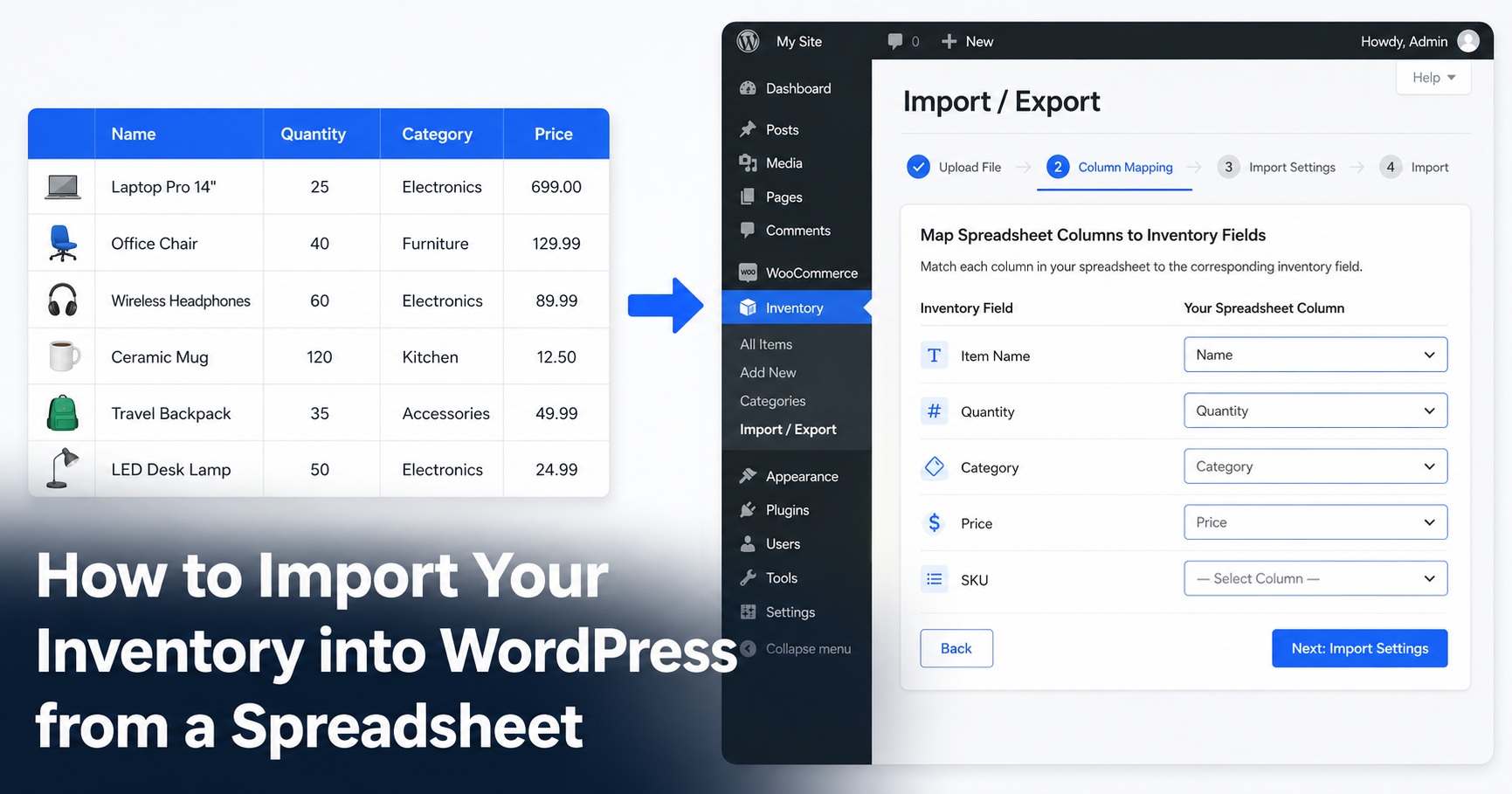
If your inventory already lives in a spreadsheet, you do not need to retype it into WordPress one item at a time. WP Inventory Manager reads a CSV file and turns each row into a full inventory record, complete with categories and images. A list that would take a whole afternoon to enter by hand goes in within minutes.

This tutorial walks through the entire process: preparing your file, exporting it to CSV and running the three-step import wizard. By the end you will have your catalog inside WordPress and a repeatable way to update it later.

If you’re building your inventory system from scratch rather than just migrating existing data, see our complete guide to managing inventory in WordPress without WooCommerce.

Why move off the spreadsheet

Spreadsheets are fine for a first list. They stop being fine once more than one person needs the data, once you want it on your website, or once a serial number matters for insurance.

Importing into WP Inventory Manager keeps the convenience of working in a spreadsheet while giving you a real system on top: a searchable admin, a front-end display through the [wpinventory] shortcode and per-item fields for quantity, category and serial number. You edit in bulk when it suits you, then import the changes.

What you need before you start

Importing is handled by the Import / Export add-on, which is included in the All Access Pass. Make sure it is installed and active, then check that your file is ready. A clean import file has four things.

  1. A heading row. The first row names each column: Name, Quantity, Category, Price, Serial Number. Clear headings let the importer match columns automatically.
  2. One item per row. Every row is a single inventory record. Avoid merged cells and blank separator rows, which confuse the parser.
  3. Consistent categories. Spell each category the same way every time. “Power Tools” and “power tools” become two separate categories on import.
  4. Image URLs, if you have them. Put a public link to each photo in an image column. The importer fetches the file and attaches it to the item for you.

Step 1: prepare your spreadsheet

Open your file in Excel, Google Sheets, or any spreadsheet tool. Put each piece of data in its own column and give every column a plain heading. Match your headings to the fields WP Inventory Manager uses so the next steps go faster.

Example: A hardware shop sets up four columns: Name, Quantity, Category, Price. The first data row reads “18V Cordless Drill, 12, Power Tools, 129.00.” Forty rows later the file holds the whole shop, ready to import.

Step 2: save the file as CSV

The importer reads CSV files, which almost every spreadsheet tool can produce. In Excel choose File > Save As and pick “CSV (Comma delimited).” In Google Sheets choose File > Download > Comma-separated values.

Keep the original spreadsheet as your working copy. The CSV is just the version you hand to WordPress.

Step 3: upload the CSV

In your WordPress admin go to WP Inventory > Import / Export and choose the import option. Upload your CSV file. The importer reads the first few rows and shows you a short preview so you can confirm it found your columns.

Tick the box for “File contains heading row” if your first row holds column names, which it should after Step 1.

Step 4: Map your columns

This is the part that saves you from manual entry. The importer tries to match each column in your file to a field in WP Inventory Manager, so a column named “Quantity” lines up with the quantity field on its own.

Review the suggested matches and fix any that landed wrong using the dropdown next to each column. If a column does not belong in your inventory, you can leave it unmapped and the importer skips it.

Example: A column titled “Cost” auto-maps to a custom field instead of Price. You open the dropdown, point it at Price and the rest of the mapping stays as detected. One fix and you are ready to run.

Step 5: Run the import

With your columns mapped, start the import. WP Inventory Manager creates one item per row and reports how many records it added. Open WP Inventory > Manage Inventory to see your catalog populated.

If something looks off, the add-on supports rolling back an import, so a test run on a few rows carries no risk. Import five rows first, check the result, then run the full file with confidence.

Categories and images on import

Two settings make the first import do more of the work for you.

  • Create categories automatically. Turn this on and any category in your file that does not exist yet is created during the import, so you do not have to build the list by hand first.
  • Fetch images from URLs. Give each row a public image link and the importer downloads the photo and attaches it to the item.

For the full import and export instructions, see the Import/Export documentation.

Exporting and updating Later

The same add-on exports too. From the inventory list you can export everything or just the items that match your current filter, which lands as a dated CSV file.

That gives you a clean update loop: export the current data, edit it in your spreadsheet, then import it back. Bulk price changes, seasonal additions and stock counts all become a quick round trip instead of dozens of edits inside WordPress.

Get started: Read the full walkthrough in the Import/Export documentation, or download the free plugin and build your catalog today.

Frequently Asked Questions

Do I need WooCommerce to import inventory?

No. WP Inventory Manager and the Import / Export add-on run independently of WooCommerce. The import works on any WordPress site with no store attached.

Can I import from Excel or Google Sheets directly?

You import a CSV file, which both Excel and Google Sheets export in a couple of clicks. Save or download your sheet as CSV, then upload that file.

What happens if I map a column to the wrong field?

You fix it in the mapping step before anything is saved. If a bad mapping slips through, the add-on lets you roll back the import and try again, so mistakes are easy to undo.

Will the import create my categories for me?

Yes, if you enable “Create categories.” Any category name in your file that does not already exist is created during the import and the matching items are assigned to it.

How many rows can I import at once?

There is no fixed limit, though very large files depend on your hosting limits for upload size and run time. For big catalogs, split the file or raise your server limits and always test a small batch first.

How Churches Track Inventory and Assets in WordPress (Without Expensive Software)

Most churches already run their website on WordPress. What they don’t have is a good answer to the question: “Where is that projector cable?” or “Do we still have folding chairs for the fellowship hall rental?”

Church inventory is a real operational problem. AV equipment gets borrowed and not returned. Musical instruments need maintenance tracking. Kitchen supplies run low before anyone notices. When your congregation spans multiple campuses, the problem multiplies.

Dedicated church management software exists, but most platforms bundle inventory into a much larger system built around giving, membership rolls, and event scheduling. That’s a lot of overhead if what you actually need is a simple, searchable record of what you own and where it is.

If your church already uses WordPress, you can solve this without buying another platform.

What churches actually need to track

Church inventory falls into a few predictable categories. Most congregations manage some combination of the following:

  • AV and technology equipment – projectors, microphones, cables, speakers, cameras, livestream gear that moves between rooms and services constantly
  • Musical instruments – guitars, keyboards, drum kits, brass and wind instruments often loaned to worship team members or used across multiple services
  • Furniture and fixtures – folding chairs, tables, risers, podiums rented out for community events or moved between rooms every week
  • Kitchen and hospitality supplies – coffee urns, serving dishes, coolers, linens shared across ministries and prone to going missing between uses
  • Vehicles and trailers – church vans, buses, utility trailers that need maintenance records alongside basic tracking

The common thread: these are physical assets that move, get borrowed, wear out, and need to be accounted for. A spreadsheet works until it doesn’t, and most churches hit that wall somewhere around year two of growth.

Churches that primarily need to keep track of equipment rather than consumable stock can also use the plugin to track organizational assets in WordPress.

Why WordPress is already the right platform

Your church website is already on WordPress. Your admin staff knows how to log in and update content. That familiarity matters.

A dedicated church software platform requires onboarding, training, a new login for every staff member, and a monthly subscription that competes with ministry budgets. A WordPress-native inventory plugin adds one new section to the same dashboard your team already uses.

The data advantage: With a WordPress plugin, your asset records live on your own server. You’re not locked into a vendor, not exporting data when you want to leave, and not paying per-seat fees as your volunteer base grows.

Setting up church inventory with WP Inventory Manager

WP Inventory Manager is a free WordPress plugin built specifically for this kind of asset tracking. It runs independently of WooCommerce. No shopping cart, no checkout flow, just an inventory system that lives in your WordPress admin.

Step 1: Install and activate

Go to Plugins > Add New in your WordPress admin, search for “WP Inventory Manager,” install, and activate. A new WP Inventory menu appears in your admin sidebar.

Step 2: Create your categories

Go to WP Inventory > Categories and build your top-level categories. For a church this might be: AV Equipment, Musical Instruments, Furniture, Kitchen Supplies, Vehicles. You can nest categories for more granularity. For example, AV Equipment > Microphones.

Step 3: Add custom fields for church-specific tracking

Generic inventory software tracks name, quantity, and a description. Church assets need more. Under WP Inventory > Settings, add custom fields specific to your needs:

Field name Field type Purpose
Serial Number Text AV equipment and instruments for warranty tracking
Condition Dropdown Excellent / Good / Needs Repair — flags items before they go out
Last Maintenance Date Date Especially useful for vehicles and sound equipment
Assigned Ministry Text Tracks which team “owns” an asset week to week
Purchase Date and Cost Date / Number Supports insurance documentation and stewardship reporting

Step 4: Add your assets

Go to WP Inventory > Add Inventory to create an item record. Each item gets a name, description, quantity, category, and optional image. Custom fields appear here too.

Real example: First Baptist Community Church enters their Shure SM58 microphones as a single inventory item with a quantity of 8 and a custom field for “last service date.” When the worship team needs to know if any mics are out for repair, they check the inventory record instead of texting three different people.

Multi-campus and multi-room tracking

A church with two campuses or even a single building with a main sanctuary, fellowship hall, and youth wing quickly runs into a location problem: which building has the portable PA system right now?

The Locations Manager add-on solves this. Each inventory item carries a quantity per location. You see total stock across all locations or filter down to a specific room or campus. When an item moves, you update its location record rather than hunting down the person who last used it.

Real example: Grace Community Church has two campuses. Their portable sound system shows 1 unit at the East Campus and 0 at the West Campus. The West Campus administrator can see at a glance that the unit is elsewhere before scheduling an event that requires it. No phone calls needed.

Staff and volunteer access without admin rights

Not every staff member or volunteer should have full WordPress admin access. A youth ministry coordinator needs to update equipment records, but they don’t need to touch your theme or plugin settings.

The Advanced User Control add-on lets you assign inventory-specific permissions to any WordPress user. You control whether a given user can view items, edit quantities, or add new records without granting them access to anything else in WordPress. You can also restrict each user to specific categories or locations, so the kitchen coordinator only sees kitchen supplies and the AV team only sees AV equipment.

Tracking equipment loans and reservations

Churches regularly lend equipment to member families, partner organizations, and community groups. A folding table goes to a school fundraiser. A projector goes to a neighborhood meeting. Without a system, tracking that is a mental load nobody wants to carry.

The Reserve Cart add-on adds a reservation layer to your front-end inventory display. Someone can browse your catalog and submit a hold request for a specific item and date range. You review and approve from the admin. No payment required, no WooCommerce, just a structured way to capture who has what and when it’s coming back.

Where to start

The free version of WP Inventory Manager covers basic item records, categories, custom fields, and a front-end display shortcode. For most churches getting started, that’s enough to replace the spreadsheet and give your team a shared, searchable record of everything you own.

When you’re ready to add locations or user permissions, the All Access plan bundles every add-on for $199/year. For a congregation, that’s less than most office supply orders and unlike a dedicated church management platform, there’s no per-seat cost as your team grows.

Frequently asked questions

Can a church use WP Inventory Manager for free?
Yes. The core plugin is free with no item limits. It covers basic asset tracking, categories, custom fields, and a front-end shortcode display. Paid add-ons add locations, user permissions, and reservation features when you need them.
Do we need WooCommerce or an online store?
No. WP Inventory Manager runs entirely independently of WooCommerce. It’s designed for organizations that want to track physical assets, not sell products online.
Can we track equipment across two campuses?
Yes. The Locations Manager add-on lets you assign stock quantities to specific locations. Each item can carry a count per campus, room, or building. You see total inventory site-wide or filter down to a single location.
Can volunteers update inventory without full WordPress admin access?
Yes. The Advanced User Control add-on lets you assign inventory-specific permissions to any WordPress user. You can restrict each user to specific categories or locations, so they only see and edit the items relevant to their ministry area.
Can we use this to track equipment loans to community groups?
Yes. The Reserve Cart add-on adds a reservation form to your front-end inventory display. Visitors submit a hold request for a specific item and time period. You review and approve from the admin — no payment or WooCommerce required.

Get started

WP Inventory Manager installs in minutes from the WordPress plugin directory. The core plugin is free. When your church needs multi-location tracking, staff access controls, or equipment reservations, the add-ons are available individually or as part of the All Access bundle.

Download Free →  Browse Add-Ons →

Free Asset Tracking for Nonprofits in WordPress (2026)

Your nonprofit runs on donated laptops, borrowed projectors, a fleet of outreach vehicles, and shelves of supplies spread across three office locations. Someone always knows where the good HDMI cable is. But when a grant auditor asks for a full equipment list or a laptop goes missing. The answer is usually a spreadsheet that hasn’t been updated in eight months.

This is the asset tracking problem every nonprofit eventually hits. And most WordPress solutions don’t solve it, because they’re built for donations, memberships, or ecommerce not physical asset management.

This guide walks through how to set up proper asset tracking for your nonprofit directly inside WordPress, without WooCommerce and without a monthly SaaS fee.

Why most WordPress plugins don’t solve this

Search for “nonprofit WordPress plugin” and you’ll find donation forms, membership management, and event calendars. These are useful but none of them track whether your field team has the projector or whether the van is assigned to Site A or Site B.

The SaaS options (AssetPanda, EZOfficeInventory, RedBeam) do handle physical assets well, but they carry monthly subscription costs that many nonprofits can’t justify for a problem that should be solvable inside the tools they already use.

The gap: Nonprofits need physical asset tracking, not ecommerce, not donations. A WordPress-native solution that’s free to run keeps the data on your own server, requires no new vendor contracts, and works within your existing admin dashboard.

What nonprofits actually need to track

The assets that cause problems at nonprofits tend to fall into a few categories:

  • Technology equipment – laptops, tablets, projectors, cameras, AV gear
  • Vehicles and transport – vans, bikes, trailers assigned to programs or locations
  • Program supplies – kits, uniforms, tools distributed to staff or volunteers
  • Furniture and fixtures – especially relevant for multi-site orgs or temporary locations
  • Grant-funded items – equipment purchased with restricted funds that must be tracked for compliance

The tracking requirements are also specific. You need to know: what you have, where it is, who has it, what condition it’s in, and whether it was grant-funded. A basic spreadsheet breaks down as soon as two people need to update it at the same time.

Setting up asset tracking in WordPress with WP Inventory Manager

WP Inventory Manager is a free WordPress plugin that adds a dedicated inventory module to your dashboard. It works independently of WooCommerce and stores all data on your own server. Here’s how to configure it for nonprofit asset tracking.

Step 1: Create your inventory type

After installing the plugin, go to WP Inventory → Manage Inventory and create your first inventory type. For example, “Technology Equipment.” You can create multiple types (Vehicles, Supplies, Furniture) and manage them separately or together.

Step 2: Add custom fields for your org

This is where WP Inventory earns its value for nonprofits. Under WP Inventory → Settings → Fields, add fields specific to your tracking needs:

Field name Field type Purpose
Serial Number Text Device identification for audits
Assigned To Text Staff member or program currently using the item
Condition Dropdown Good / Fair / Needs Repair / Retired
Grant Funded Dropdown Yes / No – flags items with compliance requirements
Grant Name Text Which grant funded the purchase
Purchase Date Date Useful for depreciation and warranty tracking

Step 3: Add your assets

Once your fields are set up, add assets under WP Inventory → Add New Item. For bulk imports, use the Import/Export add-on to upload a CSV — useful if you’re migrating from a spreadsheet.

Step 4: Set staff access without giving admin rights

One of the most important features for nonprofits: staff can update asset records without needing administrator access to your WordPress site. The Advanced User Control add-on lets you assign inventory-only permissions, so your program coordinator can update “Assigned To” fields without touching anything else in the backend.

The same setup can be used by other organizations that need internal asset tracking in WordPress for equipment, devices, furniture and other physical assets.

Managing assets across multiple locations

If your nonprofit operates from more than one office, shelter, program site, or van, the Location Manager add-on lets you assign each asset to a specific location. Staff can filter the inventory list by location, so Site B’s coordinator only sees Site B’s equipment.

Example: A social services nonprofit with four outreach sites assigns each laptop, tablet, and vehicle to its home location. When an asset moves between sites, the assigned staff member updates the location field. The operations manager sees the full picture from the backend at any time.

Exporting for audits and grant reporting

Grant auditors often require a complete asset list for items purchased with restricted funds. With WP Inventory’s Import/Export add-on, you can export your full inventory or a filtered subset to CSV at any time. Filter by the “Grant Funded: Yes” field to produce a grant-specific equipment list in minutes.

This replaces the quarterly scramble to reconcile spreadsheets across departments before a compliance review.

Displaying your asset list publicly or internally

Not every nonprofit wants a public-facing inventory but some do. A food bank might display available supply quantities. A tool lending library might show what’s available for checkout. A church might list AV equipment available for room bookings.

WP Inventory displays inventory on any WordPress page using a simple shortcode: [wpinventory]. Visitors can search, filter, and sort the list without any coding. If you want the list private, simply place it on a password-protected page or members-only area.

Frequently asked questions

Does this work without WooCommerce?
Yes. WP Inventory Manager is completely independent of WooCommerce. You do not need an ecommerce setup of any kind.
Is it free?
The core plugin is free with no item limits. Optional add-ons (Location Manager, Advanced User Control, Import/Export) are available as paid extensions starting at $39.99/year each, or bundled in the All Access pass at $199/year.
Where is the data stored?
All asset data is stored in your own WordPress database — on your server or hosting account. Nothing is sent to a third-party platform.
Can volunteers update the inventory?
Yes, with the Advanced User Control add-on you can give specific users inventory-edit access without granting them full admin rights.
Can I track check-out and check-in of equipment?
The Reserve Cart add-on handles reservation requests — a visitor requests an item, you receive an email notification, and you confirm. It’s a workflow-based system rather than an automated check-out system.

Get started

WP Inventory Manager installs in minutes from the WordPress plugin directory. The core plugin is free. If your nonprofit needs multi-location tracking, staff access controls, or CSV export for grant reporting, the add-ons are available individually or as part of the All Access bundle.

Learn more →

5 Best WordPress Inventory Management Plugins in 2026 (Compared)

Search “best WordPress inventory plugin” and you’ll find the same list repeated everywhere: ATUM, Smart Manager, WooCommerce Stock Manager. All solid tools. All built for online stores.

Quick answer:

  • Best without WooCommerce: WP Inventory Manager. Free, unlimited items, searchable front-end catalog
  • Best for WooCommerce stock control: ATUM. Purchase orders and suppliers in the free tier
  • Best for bulk editing a large WooCommerce catalog: Smart Manager
  • Best for a visual catalog with light inventory needs: Ultimate Product Catalog
  • Good enough for small stores: WooCommerce’s built-in stock management

If you run a WooCommerce store, skip to ATUM and Smart Manager below. They are the right tools for you and we say so. But if you are tracking equipment, managing a parts catalog, running an asset register, or building a browsable inventory without a shopping cart, those tools solve a different problem than the one you have.

This comparison breaks that down honestly.

There are two completely different jobs here

Before comparing plugins, it helps to name the two distinct things people mean when they say “WordPress inventory management.” They are not the same job, and the plugins built for each are not interchangeable.

Job A: Store Stock Control Job B: Catalog / Asset Inventory
Who Runs a WooCommerce shop Tracks items, may not sell online at all
Need Sync stock to orders, purchase orders, suppliers Display a searchable catalog, track quantity and status
Examples Retailer with 2,000 SKUs, dropshipper, marketplace seller Equipment rental, museum, parts catalog, asset register
Best fit ATUM, Smart Manager WP Inventory Manager

WooCommerce-based tools cannot do Job B without adding a full store engine you don’t need. WP Inventory Manager doesn’t do Job A: there’s no checkout, no order sync, no supplier purchase orders. That’s not a weakness. It’s the design.

Plugin by plugin

WP Inventory Manager: Best inventory management without WooCommerce

Model: Fully standalone. No WooCommerce dependency. Uses its own database tables and displays via the [wpinventory] shortcode on any page.

Free tier: Genuinely unlimited items, custom fields, categories, front-end search and sort, and full admin management. Most small businesses never outgrow the free tier.

Paid add-ons: Pro ($79.99/yr) unlocks support and access to add-ons such as low-stock email alerts, quantity history and min/max quantity fields. Add-ons include Advanced Search ($39.99/yr), Locations Manager ($39.99/yr), Reserve Cart ($29.99/yr), and Import/Export ($59.99/yr) among others. The All Access bundle at $199/yr includes all add-ons, unlimited sites and support.

Best for: Equipment rental, art and museum collections, parts catalogs, internal asset tracking, nonprofits, schools, gyms. Anyone who needs a searchable front-end catalog without an online store.

Honest weaknesses: No payment processing or checkout. Reserve Cart captures reservation requests, not sales. No WooCommerce stock sync. No native supplier or purchase order workflow.

Real-World Fit

A brewery tracks kegs, equipment, and ingredients across two locations. Staff update stock from the WordPress admin. Distributors browse available items on the front end. No store, no cart, no checkout. Just a clean catalog that actually works.

ATUM: Best for advanced WooCommerce inventory management

Model: WooCommerce add-on, requires WooCommerce to function. 10,000+ active installs.

Free tier: Unusually powerful. Stock Central dashboard, purchase orders, suppliers, inventory logs, and statistics are all free. Most stores never need the paid version.

Best for: WooCommerce stores that want serious inventory control without leaving WordPress. If you’re already on Woo and need supplier management or purchase orders, ATUM is the answer.

Honest weaknesses: Completely useless without WooCommerce. Installing Woo just to use ATUM adds significant weight to your site and forces a store architecture you may not need.

Smart Manager (StoreApps): Best for bulk editing large WooCommerce catalogs

Model: WooCommerce add-on. Spreadsheet-style bulk editor for products, orders, and stock. Free lite version; Pro from $149/yr (single site).

Free tier: Smart Manager Lite covers basic bulk editing of products and stock. Advanced columns, order editing and bulk update rules are in the paid version.

Best for: Stores editing hundreds or thousands of SKUs at once. Price updates, stock adjustments, attribute changes in bulk. Solves a specific operational bottleneck, not a catalog display problem.

Honest weaknesses: It is an editing tool, not an inventory system. No front-end display, no locations, no purchase orders, and nothing to offer if your items are not WooCommerce products.

Native WooCommerce Stock Management: Best free WooCommerce stock dashboard

Model: Built into WooCommerce, free. Handles per-product stock, low-stock emails and backorders.

Best for: Stores under roughly 500 SKUs that need stock counts and nothing more.

Honest weaknesses: No suppliers, no purchase orders, no multi-location stock, no bulk editing. Beyond a few hundred products most teams add ATUM or Smart Manager on top.

Ultimate Product Catalog: Best for a visual catalog with light inventory needs

Model: Standalone catalog plugin, no WooCommerce needed. Free version with a paid Premium tier.

Best for: Showcasing items with images and filters where quantity tracking is secondary. Showrooms, restaurants, brochure-style catalogs.

Honest weaknesses: Display first, inventory second. No quantity workflow, no reservations, no locations, no ledger. If you need to know how many you have and where they are, it is the wrong tool.

What about building your own with ACF? Advanced Custom Fields gives you total flexibility, but no inventory logic out of the box, and you need a developer. WP Inventory Manager sits between the two: purpose-built for tracking quantity and status, with a front-end display and no development work.

Side-by-side comparison

Feature WP Inventory Manager ATUM Smart Manager Native Woo
Requires WooCommerce No Yes Yes Yes
Front-end catalog display Yes (shortcode) No No No
Unlimited items (free) Yes Yes Lite limits Yes
Custom fields Yes Product meta only Product meta only Product meta only
Multi-location stock Add-on ($39.99/yr) Add-on (paid) No No
Purchase orders / suppliers No Yes (free) No No
Reservation / request flow Add-on ($29.99/yr) No No No
Free to start Yes Yes Lite only Yes

Is WP Inventory Manager right for you?

Choose WP Inventory Manager if you… Choose ATUM / Smart Manager / Woo if you…
Don’t run (or want) a WooCommerce store Already sell through WooCommerce
Need a browsable, searchable front-end catalog Need stock to decrement automatically on each order
Track equipment, art, vehicles, parts, or assets Manage supplier relationships and purchase orders
Want unlimited items free with custom fields Need multi-warehouse e-commerce stock control
Need reservation requests rather than online sales Take payment and check out on-site
Have stock across multiple physical locations Need to bulk-edit thousands of product SKUs at once

If you’re building an inventory without a shopping cart, ATUM and Smart Manager are the wrong category of tool entirely. You’d be installing a store engine to solve a catalog problem. On the other hand, WP Inventory Manager was built specifically for the catalog and asset tracking use case, and the free tier covers more ground than most businesses need.

Need inventory management without WooCommerce?

Track equipment, assets, collections, parts and other inventory directly inside WordPress.

Explore WP Inventory Manager

Which WordPress inventory plugin is best for your use case?

The easiest way to choose an inventory plugin is to start with what you are actually trying to track.

Use Case Recommended Solution Why
Internal asset tracking WP Inventory Manager Track equipment, ownership, location, status, serial numbers and custom fields without ecommerce.
Equipment rental WP Inventory Manager Create searchable equipment inventories and handle reservation requests without building a full online store.
Museum or art collection WP Inventory Manager Manage collection metadata and display a searchable public or private catalog without checkout.
Parts or spare-parts catalog WP Inventory Manager Organize parts by category, SKU, compatibility, location, quantity, and custom attributes.
School or nonprofit inventory WP Inventory Manager Maintain an asset register without configuring or maintaining an ecommerce platform.
WooCommerce store with advanced stock control ATUM Add suppliers, purchase orders, inventory logs, and more advanced WooCommerce stock workflows.
Large WooCommerce catalog needing frequent edits Smart Manager Bulk-edit products, prices, and inventory through a spreadsheet-style interface.
Simple WooCommerce stock management Native WooCommerce Built-in stock quantities, backorders, and low-stock alerts may already cover straightforward ecommerce needs.

Use case: Internal asset tracking

A company may need to track laptops, monitors, tools, furniture, or other equipment assigned to employees. These items are not products for sale, so creating WooCommerce products for every asset adds unnecessary ecommerce functionality.

WP Inventory Manager can store information such as serial number, location, assigned employee, condition, purchase date, and asset status using custom fields.

See our internal asset tracking example for a more detailed workflow.

Use case: Equipment rental

A rental business might maintain hundreds of cameras, power tools, event supplies, or pieces of industrial equipment. Customers need to browse what is available while staff need to manage quantities and item information internally.

In this case, the requirement is closer to an inventory catalog than a traditional ecommerce store.

Our guide to equipment rental inventory in WordPress explains how this type of system can be structured.

Use case: Art gallery or museum collection

Galleries and museums often need to catalog artworks or objects with fields such as artist, medium, dimensions, acquisition date, location, status, and collection.

They may also want visitors or staff to search the collection without showing prices or offering checkout.

See how to create a searchable online art catalog in WordPress.

Use case: Parts catalog

A manufacturer, repair company, or distributor may need a searchable catalog containing thousands of replacement parts. Customers or staff might search by SKU, category, model, manufacturer, or compatibility rather than purchasing immediately.

A standalone inventory plugin can provide that catalog without forcing every item into an ecommerce workflow.

Display your parts inventory on your website with searchable listings, custom fields, images and inquiry options.

Ready to build your inventory in WordPress?

Start with WP Inventory Manager and add advanced features as your inventory needs grow.

View Plans & Pricing

Frequently Asked Questions

Can WP Inventory Manager replace WooCommerce for inventory?

Only if you don’t need WooCommerce’s core function: processing online sales. WPIM is purpose-built for catalog and asset inventory without a store. If you need customers to check out and pay, you need WooCommerce alongside or instead of WPIM.

Is ATUM really free? What’s the catch?

ATUM’s free tier is genuinely strong – purchase orders, supplier management, stock dashboards, and inventory logs are all included at no cost. However, the catch is that it requires WooCommerce, which means you’re carrying the full weight of an e-commerce platform even if you don’t need it.

What’s the best free WordPress inventory plugin?

For WooCommerce stores: ATUM’s free tier is hard to beat. For non-WooCommerce catalog and asset tracking: WP Inventory Manager gives you unlimited items, categories, custom fields, and front-end display at no cost. Unlimited item, no trial period.

Can I show my inventory on the front end without a store?

Yes – this is exactly what WP Inventory Manager does with its shortcode display. Visitors can browse and search your catalog. You control which fields show, and no one can check out or purchase directly. On top of this, the Reserve Cart add-on handles reservation requests if you need them.

Do I need technical skills to set up WP Inventory Manager?

No. Installation is standard WordPress plugin setup: upload, activate, done. Adding items and categories works through the admin dashboard. The shortcode drops your inventory onto any page. No coding required for core setup or the majority of add-ons.

ATUM vs WP Inventory Manager: Which to Pick in 2026

If you are comparing WP Inventory Manager vs ATUM, the right choice depends on whether your inventory workflow is built around WooCommerce. ATUM is designed for WooCommerce stock management, while WP Inventory Manager is built for WordPress inventory catalogs, asset tracking, equipment rental, parts catalogs and internal inventory workflows that do not need a shopping cart.

Which WordPress inventory plugin is right for your site?

The main difference: ATUM requires WooCommerce

ATUM requires WooCommerce. Its full name is “ATUM WooCommerce Inventory Management and Stock Tracking.” Without WooCommerce installed and active on your site, ATUM will not run. It is a WooCommerce extension, not a standalone inventory tool.

WP Inventory Manager requires nothing but WordPress. It runs on any WordPress site, with WooCommerce installed, without it, or on a site that has never touched an online store. It is completely independent.

If you are not running a WooCommerce store, the decision is simple: WP Inventory Manager is the better fit because it works as a standalone WordPress inventory system.

When ATUM is the better choice

ATUM is the better choice if you already run a WooCommerce store and need deeper stock control for products, orders and suppliers. Its Stock Central dashboard gives store operators a central place to review product quantities, low-stock status, supplier details and stock value.

For example, an online retailer processing many orders each week may need purchase orders, manufacturing workflows and barcode scanning. In that case, ATUM can make sense because the inventory workflow starts inside WooCommerce.

Best for: WooCommerce store operators managing a large product catalog with an order-driven fulfillment workflow.

When WP Inventory Manager is the better choice

WP Inventory Manager is the better choice if you need inventory management in WordPress without building a full WooCommerce store. You can track items, quantities, categories and custom fields, then display a searchable catalog on the front end with a shortcode.

That distinction matters because WooCommerce ties inventory to products, carts, orders and checkout. If your inventory does not revolve around online sales, you may not need that extra ecommerce layer.

For example, a gym might track treadmills, kettlebells and resistance bands for member use. None of those items are for sale, so the site does not need product pages, carts or payments. Instead, WP Inventory Manager lets the gym create item records, organize them into categories and show a browsable front-end catalog.

Best for: Businesses tracking physical inventory outside the context of an online store: equipment, tools, assets, rental items, donated goods, or any inventory that isn’t tied to checkout.

Side-by-Side Feature Comparison

Feature WP Inventory Manager ATUM
Requires WooCommerce No Yes
Works without an online store Yes No
Free core version Yes Yes
Custom inventory fields Yes No (uses WooCommerce product fields)
Front-end inventory display Yes – shortcode No standalone display
Multi-location stock Yes – Locations Manager add-on Yes – Multi-inventory (Premium)
Low-stock email alerts Yes – Pro ($79/yr) Yes – Free tier
Purchase orders No Yes – Premium
Customer reservation system Yes – Reserve Cart add-on No
Paid tier pricing From $79 per year (Pro) or $199 per year (All Access) From ~$14.99 per month (Premium add-ons)

Who Should Choose WP Inventory Manager

  1. You don’t have WooCommerce installed. ATUM will not activate without it. WP Inventory Manager works on any WordPress site.
  2. Your inventory is not tied to online sales. Equipment, tools, assets, rental items, donated goods – if there’s no checkout involved, WPIM is built for this and ATUM is not.
  3. You need a customer-facing display. WPIM renders your catalog on the front end via shortcode. Visitors can browse and filter without a WooCommerce product page.
  4. You need custom fields. WPIM lets you add any data point to an inventory item: serial numbers, condition, supplier, last service date. ATUM uses WooCommerce’s fixed product fields.
  5. You want a lighter setup. WooCommerce adds checkout flows, payment gateways, and shipping zones. If you don’t need any of that, WPIM keeps your site clean and focused.

Who Should Choose ATUM

ATUM is the stronger choice if your primary concern is managing a large WooCommerce product catalog as part of an active ecommerce operation. Its Stock Central dashboard, purchase order support, and supplier management are genuinely valuable for an online retailer managing hundreds of SKUs with an order-driven workflow.

If WooCommerce is already the backbone of your business and you need more visibility into stock movement at the product level, ATUM extends that system well.

Getting Started With WP Inventory Manager

Install the plugin from the WordPress plugin repository or directly from wpinventory.com/downloads. Once active, the WP Inventory menu appears in your WordPress admin. From there:

  • Go to WP Inventory > Inventory Items to add and manage your stock records.
  • Go to WP Inventory > Categories to organise items into groups.
  • Add the inventory shortcode to any page to display your catalog on the front end.
  • Go to WP Inventory > Settings to configure low-stock alerts and user access (Pro required for email alerts).

The free version covers item tracking, categories, custom fields, and front-end display. Upgrade to Pro ($79 per year) for low-stock email alerts and quantity history, or to All Access ($199 per year) for multi-location tracking, a customer reservation system, and advanced search.

Comparing more than these two options? See our complete comparison of the best WordPress inventory management plugins for WooCommerce stores, standalone catalogs and asset inventory.

Frequently Asked Questions

Does ATUM work without WooCommerce?

No. If you don’t have WooCommerce, you won’t be able to use ATUM. It is built as a WooCommerce extension and cannot function as a standalone inventory system.

Can WP Inventory Manager work alongside WooCommerce?

Yes, there is no technical conflict – both plugins can run on the same WordPress site simultaneously. However, they maintain completely separate catalogs with no syncing. WPIM items and WooCommerce products are two independent systems. If you need stock changes in one to reflect in the other, that would require a custom integration. Most users running WPIM are not running WooCommerce at all.

Which plugin is better for a small business with no online store?

WP Inventory Manager. It was built specifically for businesses that need to track physical inventory in WordPress without running an ecommerce store. ATUM is not an option for this use case.

How do low-stock alerts work in WP Inventory Manager?

With the Pro plan, go to WP Inventory > Settings and enable the low-quantity alert. Set the threshold quantity and the notification email address. When any item drops to or below that number, an email is sent automatically. Those items are also highlighted in red in the admin dashboard.

Can customers browse and reserve inventory without buying?

Yes, with the Reserve Cart add-on (included in All Access). Visitors can browse your catalog and submit a reservation request. You don’t have to install any payment gateway or checkout. ATUM has no equivalent feature.

Why Your WordPress Inventory Keeps Going Out of Sync (And How to Fix It)

Wrong stock numbers are one of the most damaging problems a product-based business can have. You sell something you no longer have. A customer buys the last unit twice. Your purchase orders are based on counts that are days old. By the time you catch it, you’re already dealing with the fallout.

If your WordPress inventory keeps showing numbers that don’t match reality, the problem is almost always one of five things. Here is what each one looks like and how to fix it.

If inventory keeps falling out of sync because you’re maintaining multiple systems, see how to build a single WordPress inventory management system instead.

1. Stock Management Is Not Actually Turned On

This sounds obvious, but it’s the most common cause of inventory not tracking at all.

WordPress inventory plugins need stock management enabled at two levels: the global plugin setting, and the individual item level. If you turned it on globally but forgot to enable it on specific products, those products will never track quantity changes.

Fix: Go through your product list and confirm that stock management is active on each item. In WP Inventory Manager, this is a per-item setting in the inventory record. In WooCommerce, it’s under each product’s Inventory tab. A single unchecked box silently breaks tracking for that entire SKU.

2. Caching Is Showing Old Numbers

Your website uses caching to serve pages faster. That is normally good. But caching can hold onto old stock counts and show visitors a number that is hours out of date.

A customer sees “3 in stock.” They buy one. Your cache still shows “3 in stock.” Another customer buys one. You now have oversold.

Fix: Exclude product pages, cart, and checkout from your caching plugin’s rules. Most caching plugins (WP Rocket, W3 Total Cache, LiteSpeed) have an option to exclude specific page types or URLs. Set that up, then clear your cache manually any time you do a bulk stock update.

3. WP-Cron Is Stalling

WordPress uses a background task system called WP-Cron to run scheduled updates, including inventory syncs with third-party tools or automatic stock recalculations. The problem: WP-Cron only fires when someone visits your site. On a low-traffic site, those scheduled tasks can sit in a queue for hours before they run.

If your inventory numbers lag by one to four hours after a sale or stock update, this is almost certainly the cause.

Fix: Replace WP-Cron with a real server cron job. Your hosting provider can usually set this up in a few minutes. You schedule wp-cron.php to run every 5 minutes via your server’s task scheduler instead of relying on site traffic to trigger it. This alone eliminates the lag for most stores.

4. Two Plugins Are Updating the Same Field

This one is harder to spot because it does not fail loudly. Instead, stock counts drift in unpredictable directions.

When two plugins both write to the same inventory field, they overwrite each other. One plugin sets a product to 5 units. Another runs a sync and sets it to 12. The first one runs again and sets it back to 5. Your actual stock count becomes whatever ran last, not what is accurate.

This is common for stores that use a WooCommerce-centric inventory plugin alongside a separate inventory management plugin, or when a point-of-sale sync and an order management tool both update stock simultaneously.

Fix: Decide which plugin owns inventory data and disable stock management in the others. You should have exactly one source of truth for stock counts. If you are using WP Inventory Manager for physical stock tracking, turn off WooCommerce’s stock management so the two systems are not fighting each other.

5. Multi-Location Stock Is Tracked in One Bucket

If you sell from more than one location, warehouse, or channel and you are tracking all stock in a single field, your numbers will always be wrong.

Consider a retailer with a physical store and an online shop. A sale happens in the store. Nobody updates the WordPress inventory. The online store still shows the old count. The item gets sold online too. Now you have an angry customer and a hole in your inventory records.

Fix: Use a plugin that supports location-level stock tracking natively. WP Inventory Manager’s Locations Manager add-on lets you assign stock to specific locations so each site or warehouse has its own count. Fulfillment then pulls from the right bucket, not a shared pool that nobody fully controls.

How to Run a Quick Inventory Audit

Before you troubleshoot, you need a baseline. Here is a simple process:

  1. Export your current stock counts from WordPress to a spreadsheet
  2. Do a physical count (or pull counts from your POS or warehouse system)
  3. Compare the two side by side
  4. Identify which items are off and by how much
  5. Check each discrepancy against the five causes above

Once you have found the pattern, you can fix the root cause instead of chasing individual wrong numbers.

When the Problem Is the Plugin Itself

Sometimes the issue is not configuration. Some plugins are simply not built to handle inventory accurately at scale. Signs you have outgrown your current setup:

  • Stock counts change for no apparent reason
  • Bulk updates do not save consistently
  • The plugin has no audit log so you cannot trace when a count changed
  • You are manually correcting numbers more than once a week

WP Inventory Manager is built specifically for this. It works without WooCommerce, supports multi-location tracking, keeps a record of stock changes, and does not fight with your other plugins over the same database fields. You can start with the free version and add capabilities as your business grows.

Frequently Asked Questions

Why is my WordPress inventory showing the wrong stock count?

The most common causes are caching serving stale numbers, two plugins writing to the same field, or stock management not being enabled at the product level. Start by checking each of those in order.

Why does my inventory update slowly after a sale?

If there is a delay of one to several hours, the likely cause is WP-Cron stalling. WP-Cron depends on site traffic to run. Replace it with a real server cron job and the lag disappears.

Can I track inventory across multiple locations in WordPress?

Yes, but you need a plugin that supports it natively. WP Inventory Manager’s Locations Manager add-on assigns stock to individual locations so each has its own accurate count.

What happens when two inventory plugins conflict?

They overwrite each other’s data unpredictably. The result is stock counts that drift in random directions. Pick one plugin to own inventory data and disable stock management in the others.

Do I need WooCommerce to manage inventory in WordPress?

No. WP Inventory Manager works independently of WooCommerce. If you are not running an online store or want cleaner inventory tracking without WooCommerce’s overhead, it is a direct alternative.

How to Manage Inventory in WordPress Without WooCommerce


Managing inventory in WordPress without WooCommerce

You can manage inventory directly in WordPress without WooCommerce by using a standalone inventory plugin. This lets you track quantities, categories, custom fields and locations from the WordPress dashboard, while optionally displaying a searchable inventory on the front end.

This guide walks through how to build an inventory management system with WP Inventory Manager, from initial setup and adding your first items to search, multiple locations and reservations.

Why WooCommerce Is Not Always the Answer

WooCommerce is excellent at what it does: running an online store. Its inventory features are designed around transactions, helping stores prevent overselling and update stock when orders come in.

However, inventory management is broader than order fulfillment. Consider:

  • You need to track tools or equipment assigned to staff, not sold to customers.
  • You have inventory across multiple physical locations and need to know what is available at each one.
  • You want customers to browse a catalog online, but orders are handled offline.
  • You run a WordPress site that is not an ecommerce store at all.

If you need ecommerce checkout, payments and order-linked stock management, WooCommerce is usually the appropriate choice. If you only need to track, organize, search or display inventory, a standalone WordPress inventory management plugin can provide a simpler setup.

What a WordPress Inventory System Actually Needs

Before choosing a tool, it helps to know what you are solving for. A functional inventory system inside WordPress should handle five things:

  1. Item records: Each inventory item needs a name, description, quantity and any additional information you need to track, such as SKU, location, serial number or condition.
  2. Categories: Grouping inventory into categories keeps larger catalogs organized and easier to browse.
  3. Stock quantities: You need to know what is currently available and be able to update quantities as inventory changes.
  4. Search and filtering: As your inventory grows, staff or visitors need an efficient way to find individual items.
  5. Display and access: You may need to display inventory publicly, keep it internal, or control which users can access particular records.

From there, features such as multiple locations, reservations, inventory history and advanced search build on these foundations.

Using WordPress as an Internal Inventory System

An internal inventory system tracks items an organization owns or uses rather than products it sells online. The goal is to know what you have, where it is, how many are available and, when relevant, who is responsible for each item.

Common internal inventory examples include:

Organization Items commonly tracked
Corporate offices Laptops, monitors, phones, furniture and other company equipment
Manufacturing Tools, spare parts, safety equipment and consumables
Schools Chromebooks, tablets, projectors and classroom equipment
Nonprofits and churches AV equipment, furniture, event supplies and donated goods
Rental businesses Camera gear, AV equipment, tools, sports equipment and event rentals

If your primary goal is tracking equipment and long-term company assets rather than stock quantities, see how to set up internal asset tracking in WordPress.

When Should You Move Beyond Spreadsheets?

Many businesses start managing inventory in Excel or Google Sheets. Spreadsheets are familiar and flexible, but they become harder to maintain when several people update inventory or when stock is spread across locations.

Signs that you may have outgrown a spreadsheet include:

  • Multiple employees edit the same inventory.
  • Different departments maintain separate inventory files.
  • You cannot quickly identify who changed a quantity.
  • Finding a specific item requires manually searching large spreadsheets.
  • You manage inventory across multiple physical locations.
  • Your website and inventory records live in separate systems.
  • You regularly need to import, export or publish inventory data.
Example: An IT department buys twenty laptops. HR keeps one spreadsheet, Finance keeps another and IT updates a third. A few months later, the three files show different numbers. Moving the records into one inventory database gives the organization a single source of truth.

If your existing inventory is already in Excel or Google Sheets, you do not need to start again. See our guide to importing inventory into WordPress from a spreadsheet or CSV.

How to Set Up Inventory Management in WordPress

WP Inventory Manager is a standalone WordPress inventory plugin, so you can build an inventory system without installing WooCommerce. A typical setup follows six steps.

Step 1: Install and Activate WP Inventory Manager

Install WP Inventory Manager from the WordPress plugin directory or download it from WPInventory.com.

From your WordPress dashboard, go to Plugins > Add New, install WP Inventory Manager and activate it. Once activated, you will see the WP Inventory menu in your WordPress dashboard.

Step 2: Set Up Your Inventory Categories

Go to WP Inventory > Categories and create the categories you will use to organize your inventory.

For example, a restaurant supply company might use Cookware, Smallwares, Refrigeration and Furniture. A nonprofit managing donated goods might use Clothing, Electronics, Furniture and Books.

You can also review your inventory statuses at this stage so that items can be classified appropriately as your inventory changes.

Step 3: Configure Your Inventory Settings

Go to WP Inventory > Settings to configure how your inventory behaves and appears.

Settings worth reviewing include:

  • SEO URLs: Use readable item URLs rather than ID-based URLs.
  • SEO endpoint: Choose the base path used for your inventory item URLs.
  • Items per page: Decide how many inventory records appear before pagination.
  • Low-quantity display: Control whether low-quantity items remain visible on the front end.
  • Display theme: Choose the default inventory styling or use your own CSS.
  • Currency settings: Configure price formatting if your inventory displays prices.

However, it is worth deciding your URL structure before publishing inventory pages, since changing URLs later may require redirects.

Customize and Add Your WordPress Inventory

Step 4: Customize Your Inventory Labels

Go to WP Inventory > Labels to adapt the terminology used by the plugin to your organization.

For example, you might rename “Inventory Name” to “Asset Name,” “Product” or “Equipment,” depending on what you are tracking. Using terminology your staff and visitors already understand makes the inventory easier to use.

Step 5: Add Your Inventory Items

Go to WP Inventory > Inventory Items and add your first inventory record.

Depending on your setup, an inventory record can contain information such as:

  • Name
  • Category
  • Quantity
  • Description
  • Price
  • Image
  • Serial number or SKU
  • Status

Example: A business tracking office furniture could add an “Adjustable Standing Desk,” assign it to the Desks category, record a quantity of 12, add a description and upload a product image.

Alternatively, if you already have a large inventory, you can import inventory into WordPress from a CSV or spreadsheet using the Import and Export add-on.

Step 6: Display Your Inventory on WordPress

Once your inventory records are ready, you can display them on a WordPress page using WP Inventory Manager’s shortcode functionality.

This lets you create a searchable inventory or catalog on the front end without adding ecommerce checkout. You control which inventory information visitors see.

For more display options, see our guide to displaying inventory in WordPress with shortcodes or the shortcode options documentation.

Tracking Stock Quantities

The free version of WP Inventory Manager lets you track quantities for individual inventory items. When stock changes, you can update the quantity from the WordPress dashboard.

For workflows that require more detailed quantity tracking, additional WP Inventory Manager functionality can provide features such as low-stock alerts and inventory history.

If maintaining an audit trail is important, see how an inventory ledger can help record inventory changes over time.

Managing Inventory Across Multiple Locations

If your inventory is split across multiple stores, warehouses, offices or storage locations, you need to know not only how much inventory you have, but where it is.

For multiple locations, the Locations Manager add-on extends WP Inventory Manager for organizations that manage inventory across offices, warehouses, showrooms or other physical sites.

Example: A landscaping company stores tools at two depots. Instead of maintaining separate spreadsheets, the business can organize its inventory by location and see which equipment belongs at each site.

For a deeper look at this workflow, see our guide to managing inventory across multiple locations in WordPress.

Custom Fields: Track What Matters to Your Business

Different organizations need to store different information about their inventory. A gallery may track artist, medium and dimensions. A company managing equipment may need serial number, condition and purchase date. A parts supplier may need manufacturer, SKU and compatibility information.

Custom inventory fields let you structure records around the information that matters to your workflow rather than forcing every inventory into the same template.

For example, an IT department might track an asset ID, assigned employee and warranty date. A school might track room number, teacher and academic department. Meanwhile, a rental company might record condition, replacement value and rental rate.

If you are primarily tracking equipment and organizational assets, see our internal asset tracking in WordPress use case.

Search and Filter Larger Inventories

Once you have hundreds of items across multiple categories, manually browsing an inventory becomes inefficient.

Search and filtering help staff or visitors narrow inventory by keyword, category and other inventory fields. For more complex catalogs, Advanced Search extends the front-end search experience with additional filtering options.

See our tutorial on adding search and filters to a WordPress inventory for a more detailed setup.

Track Inventory History

Knowing the current quantity of an item is useful. However, some organizations also need to understand how and why inventory changed over time.

An inventory history can help answer questions such as who changed a quantity, when the adjustment happened and what activity affected the inventory record.

If you need a more detailed record of inventory movements, see our guide explaining what an inventory ledger is and how to use one in WordPress.

Let Visitors Reserve or Request Inventory

Not every inventory website needs ecommerce checkout. Instead, some visitors only need to request or reserve an item.

The Reserve Cart add-on adds a reservation-request workflow to WP Inventory Manager. This can be useful for equipment rental businesses, specialty catalogs and B2B suppliers where availability needs to be confirmed before a transaction takes place.

For a practical example, see how equipment rental inventory can be managed in WordPress.

When Does WordPress Make Sense for Inventory Management?

A WordPress inventory system is a good fit when WordPress already powers your website and your inventory does not need to be tightly coupled to ecommerce checkout.

Common use cases include:

  • Internal equipment and asset registers
  • Parts and spare-parts catalogs
  • Equipment rental inventories
  • Museum and gallery collections
  • School and nonprofit inventory
  • Wholesale or B2B catalogs where orders are handled separately

On the other hand, if you run a conventional ecommerce store and need inventory quantities to update automatically when customers place orders, WooCommerce or a WooCommerce-focused inventory tool may be a better fit.

For a broader comparison of the available approaches, see our guide to the best WordPress inventory management plugins.

Common Inventory Management Mistakes to Avoid

Even with dedicated inventory software, the quality of your system depends on how consistently you maintain it. A few simple practices can prevent many common inventory problems.

Mistake Better Approach
Keeping multiple versions of the same inventory Maintain one centralized inventory database.
Using inconsistent categories Define categories and naming conventions before adding or importing data.
Ignoring inventory history Record important inventory changes when an audit trail matters.
Choosing ecommerce software for a non-ecommerce workflow Choose an inventory system based on whether you need checkout and order-linked stock management.

Start Managing Inventory in WordPress

If WordPress already powers your website, managing inventory inside it can eliminate the need for another separate system, particularly when you do not need ecommerce checkout.

WP Inventory Manager is free to start. You can build your basic inventory first, then add functionality such as advanced search, locations, reservations and inventory history as your requirements grow.

Ready to manage inventory directly in WordPress?

Start with WP Inventory Manager and build a searchable inventory without adding WooCommerce.

Explore WP Inventory Manager

Frequently Asked Questions

Can I manage inventory in WordPress without WooCommerce?

Yes. WordPress can manage inventory without WooCommerce by using a standalone inventory plugin such as WP Inventory Manager. WooCommerce is more appropriate when inventory needs to be connected directly to ecommerce orders and checkout.

What is the difference between inventory management and asset management?

Inventory often refers to items that are stocked, consumed, distributed or replenished. Assets are typically longer-term items such as laptops, tools, furniture or equipment that remain owned by the organization. Some organizations need to manage both in the same system.

Can I show inventory to visitors without letting them buy it?

Yes. WP Inventory Manager can display inventory on the front end without adding ecommerce checkout. This is useful for searchable catalogs, equipment lists, collections and other inventories where transactions happen separately.

Can I import my existing inventory from a spreadsheet?

Yes. The Import and Export add-on lets you move existing inventory data into WP Inventory Manager using CSV files. Preparing consistent categories and removing duplicate records before importing can make the migration easier.

How many inventory items can I manage?

WP Inventory Manager does not impose a hard-coded limit on the number of inventory items. In practice, performance also depends on factors such as your WordPress hosting environment, site configuration and how your inventory is displayed.

Can multiple employees manage inventory?

Yes. WordPress user accounts can be used alongside WP Inventory Manager, while additional user-control functionality can provide more granular inventory permissions when needed.

Can I manage inventory across multiple locations?

Yes. The Locations Manager add-on is designed for inventory workflows involving multiple physical locations such as offices, warehouses, stores or storage sites.

When should I use WooCommerce instead?

Use WooCommerce when customers need to purchase products through your website and inventory quantities need to connect directly to ecommerce orders, payments and checkout. If you primarily need to track, organize, search or display inventory, a standalone inventory plugin may be simpler.

30-day money-back guarantee

Reviews on WordPress.org

Trusted by 134,000+ businesses since 2013

★★★★★

"Created an online museum for my club. Really impressive plugin. Support was responsive and helpful."

@hackrepair

★★★★★

"Excellent, clean, simple inventory management. Well structured code — use it right away or customize it to your liking."

@techlocally

★★★★★

"We purchased the entire suite. Installation was easy, small issues were fixed immediately, and the guidance during setup was invaluable."

@design4dotcom

★★★★★

"Plugin support was helpful and rapid. Highest mark."

@drgar

★★★★★

"Great support. Very thorough when looking for a solution, and upfront with exactly how to fix it or institute a workaround."

@shoidahl

★★★★★

"I used this plugin and eventually hired the developers for all my WordPress work. Responsive, competent, and clean code. Would recommend to anyone."

@justenhong