Add-On: Advanced Inventory Manager

Advanced Inventory Manager adds custom inventory fields to WP Inventory Manager, so each kind of item can carry the information that actually describes it. A dishwasher is much different than a couch: the dishwasher may have fields such as height, width, and various control options, while a couch may have material, designer, and so on. Create as many inventory types as you need, give each one unlimited custom fields, and control the format of those fields (text, dropdown, radio buttons, and more). You can even go a step further and customize which fields display on the front end for each type.
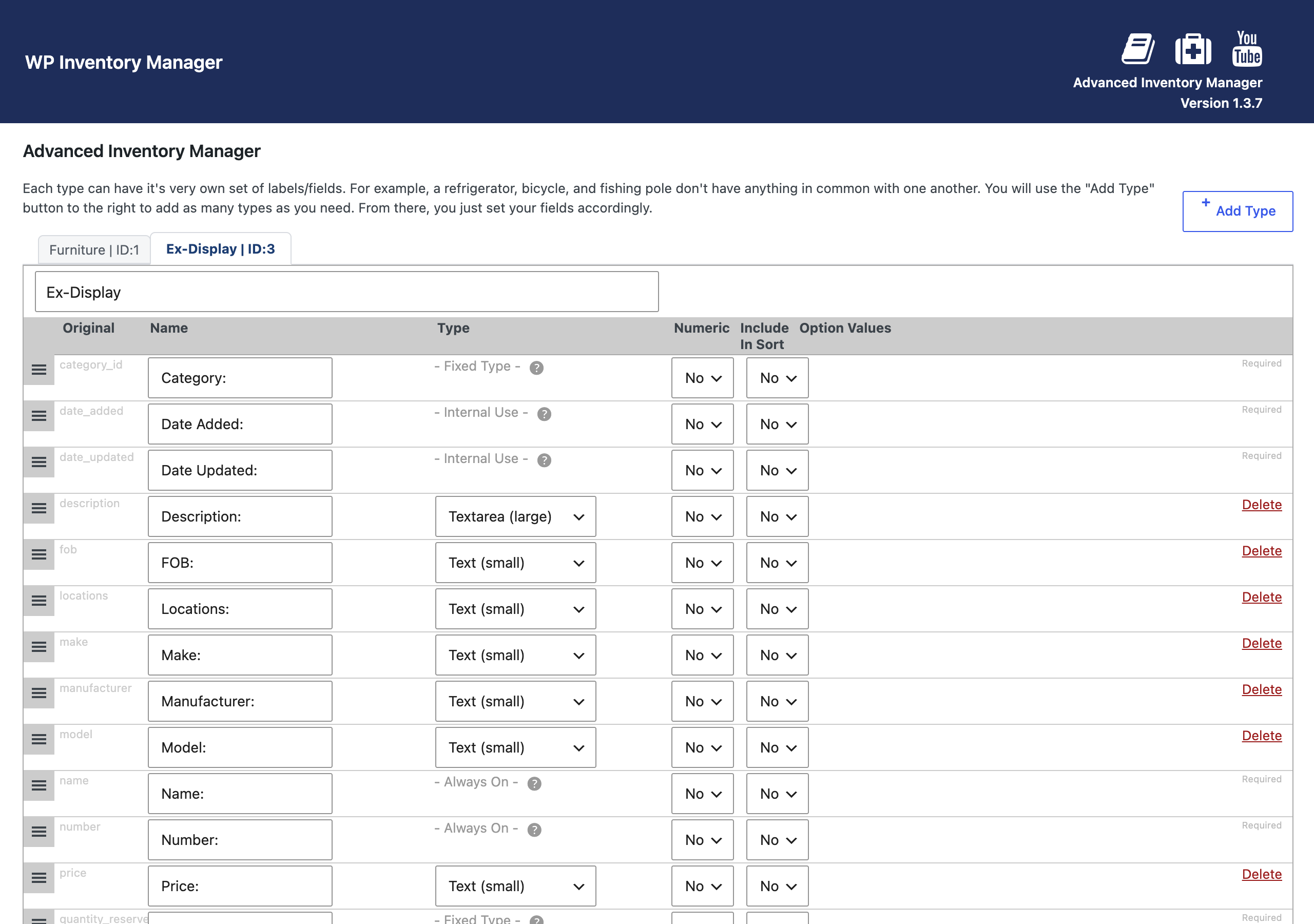
Custom inventory fields for each inventory type in the Advanced Inventory Manager type editor

Custom inventory fields at item creation

Defining a custom inventory type adds a step to the item creation process to ensure you’re entering the correct information. When you add new inventory, you’ll be prompted to select the type for the item before anything else. Then, all of the custom inventory fields you set for that type appear for you to enter, and nothing else. The Manage Inventory Items screen also gains a tab for each type, so a shop with guitars, amplifiers, and accessories can work on one kind of stock at a time.

The Inventory Type selector at the top of the add-item form, shown before any other field

Any inventory with a variety of item types can benefit from the Advanced Inventory Manager add-on: a rental fleet where vehicles and trailers need different details, a school tracking laptops alongside lab equipment, a church with both sound gear and furniture, or a store that sells instruments and lessons. Fields you add through the add-on work with the rest of the plugin, so they can be shown on the front end and, with the Advanced Search add-on, offered to visitors as filters. The documentation walks through creating your first type, or you can watch the demo on YouTube. Upgrade to total control over your inventory today!

(Note: This add-on requires a licensed copy of the WP Inventory Manager)

Watch the Demo:
 

WP Inventory Pro

WP Inventory Pro is the licensed edition of WP Inventory Manager. The plugin itself is the same tool that more than a thousand sites run for free: manage inventory in your WordPress dashboard, display it on your site if you want to, and handle reservations, whether you list 5 items or 5,000. A WP Inventory Pro license adds the three things the free plugin cannot give you.

  • Add-ons – Every add-on requires a licensed copy of WP Inventory Manager: custom inventory types and fields, front-end search filters, a multi-item reservation cart, multiple locations, a ledger with invoices, bulk editing, CSV import and export, per-user permissions, low-stock alerts, QR code labels and an analytics dashboard. Pro is the key that lets any of them run.
  • Premium support – Direct, personalized help from the people who build the plugin, including troubleshooting on your own site, rather than the documentation and the public forum alone.
  • Updates from wpinventory.com – Pro checks for and installs its updates from our servers, inside your dashboard, for the length of your license.

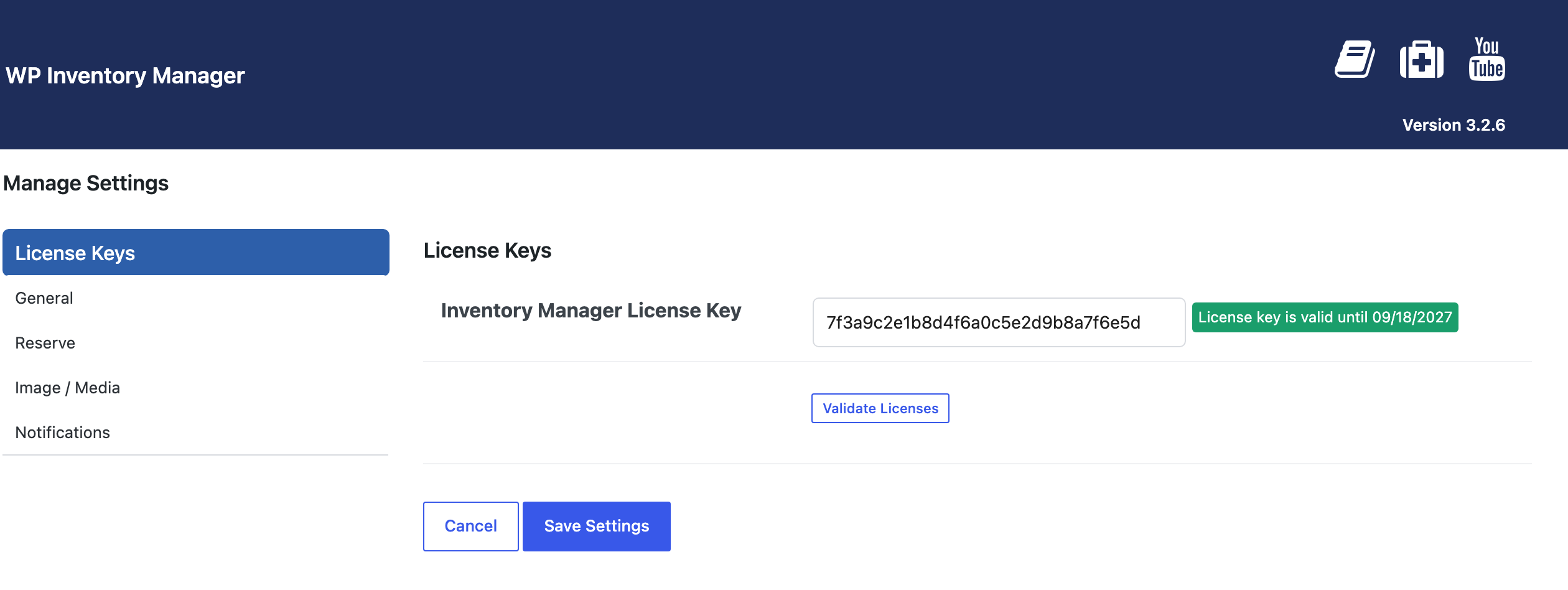
Your license keys, for Pro and for each add-on you buy, all go on the License Keys tab of WP Inventory Settings.

The License Keys tab in WP Inventory Settings with a WP Inventory Pro license key entered and validated

What the plugin does

  • Add and manage as many items as you like, with no limits or additional fees.
  • Separate your inventory into categories and statuses.
  • Choose which of the 15-plus built-in fields you use, rename them, and decide which appear on the front end and in what order.
  • Add as many images as you like to each item, plus supporting documents and media (PDFs, Word or Excel files).
  • Display the inventory as a table or as individual boxes, and control the order of the items.
  • Let visitors reserve items with a built-in reservation form, with quantity tracking and email confirmations.
  • Display inventory anywhere with the [wpinventory] shortcode and its options.
  • An admin interface built into your WordPress dashboard; no WooCommerce required.

Developer-Friendly

Template Override System

With a robust template override system, you can control how your inventory is displayed on the front-end.

Actions and Filters

Designed from the ground up to be extensible, WP Inventory is developer friendly, with action hooks and filter hooks throughout. Check out the Developer Documentation for more information.

WordPress-Style Functions for Familiarity

Utilizing WordPress style function names and architecture allows you to easily recognize and utilize the extensive list of exposed functions for your use.

Pro or All Access?

A WP Inventory Pro license is $79.99 a year for up to two sites and unlocks the add-ons, which are bought separately. If you plan to use several add-ons, or run the plugin on more than one site, All Access bundles Pro with every add-on for unlimited sites at $199 a year. The pricing page compares the two.

Watch demo:


Add-On: Bulk Item Manager

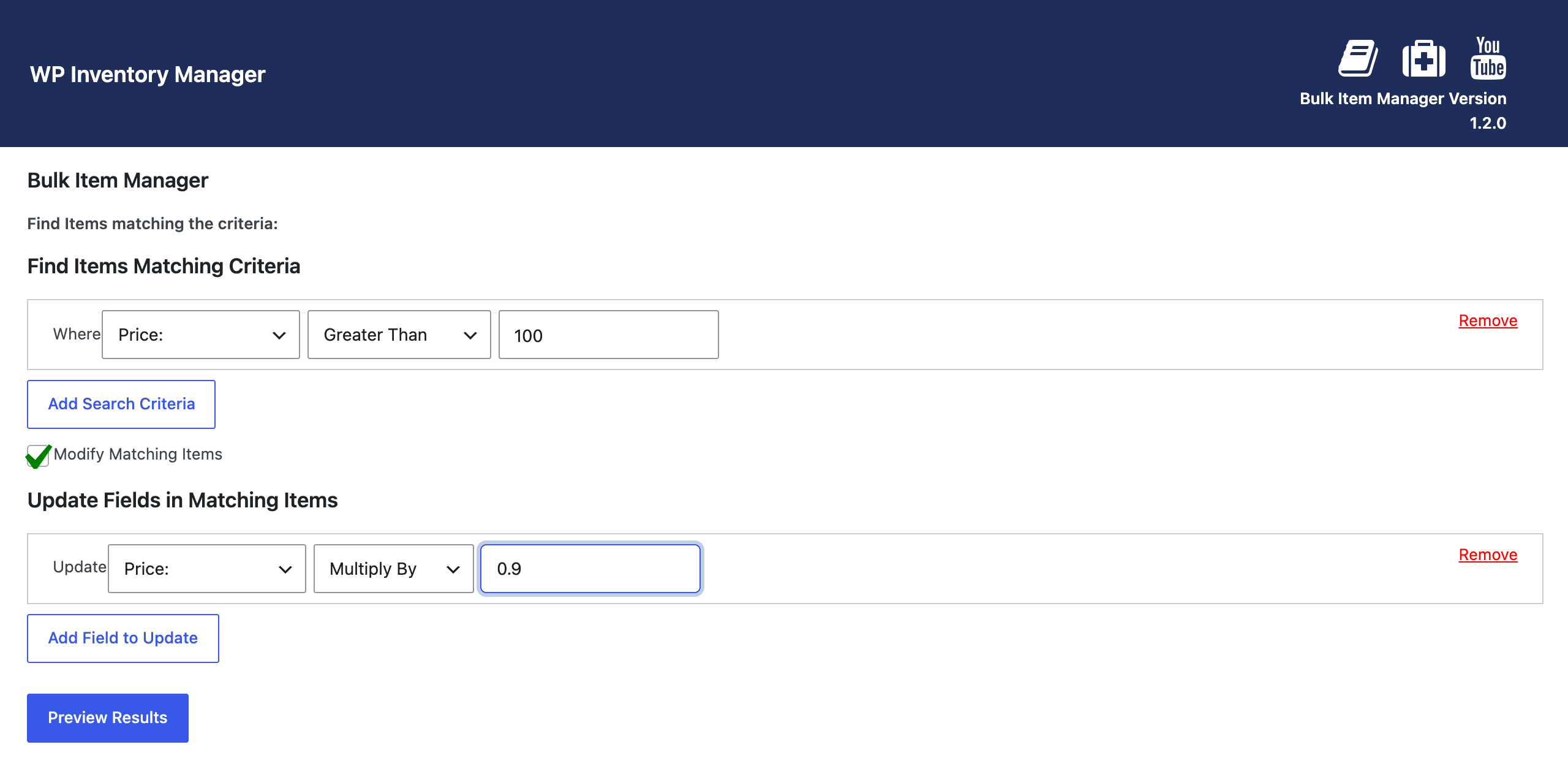
Save hours of maintenance by editing many inventory items at once. The Bulk Item Manager is a bulk edit add-on for WP Inventory Manager: describe the items you want with one or more filters, describe the change, preview exactly what will happen, and apply it to every match in a single click. Find every item with “Fender” in the name, every item priced over $100, every item whose make does not contain the letter N, or all three at once.

The bulk edit add-on form: filter items by price, then choose a field and an operation to apply to every match

What the bulk edit add-on can change

Filters work on any field, including custom fields created with the Advanced Inventory Manager, with the qualifiers you would expect: equal to, starts with, ends with, contains, does not contain, greater than, less than. The changes are just as flexible. Replace a value, append or prepend text, or for numbers multiply, divide, add and subtract, on any field, not only the ones you filtered by. Raise every Fender price by ten percent and add a trademark symbol to the name in the same run, move a whole category to a new status, or fix a supplier’s name across two hundred items. You can stack several filters and several updates in one operation, and you can also delete every matching item when a line is discontinued.

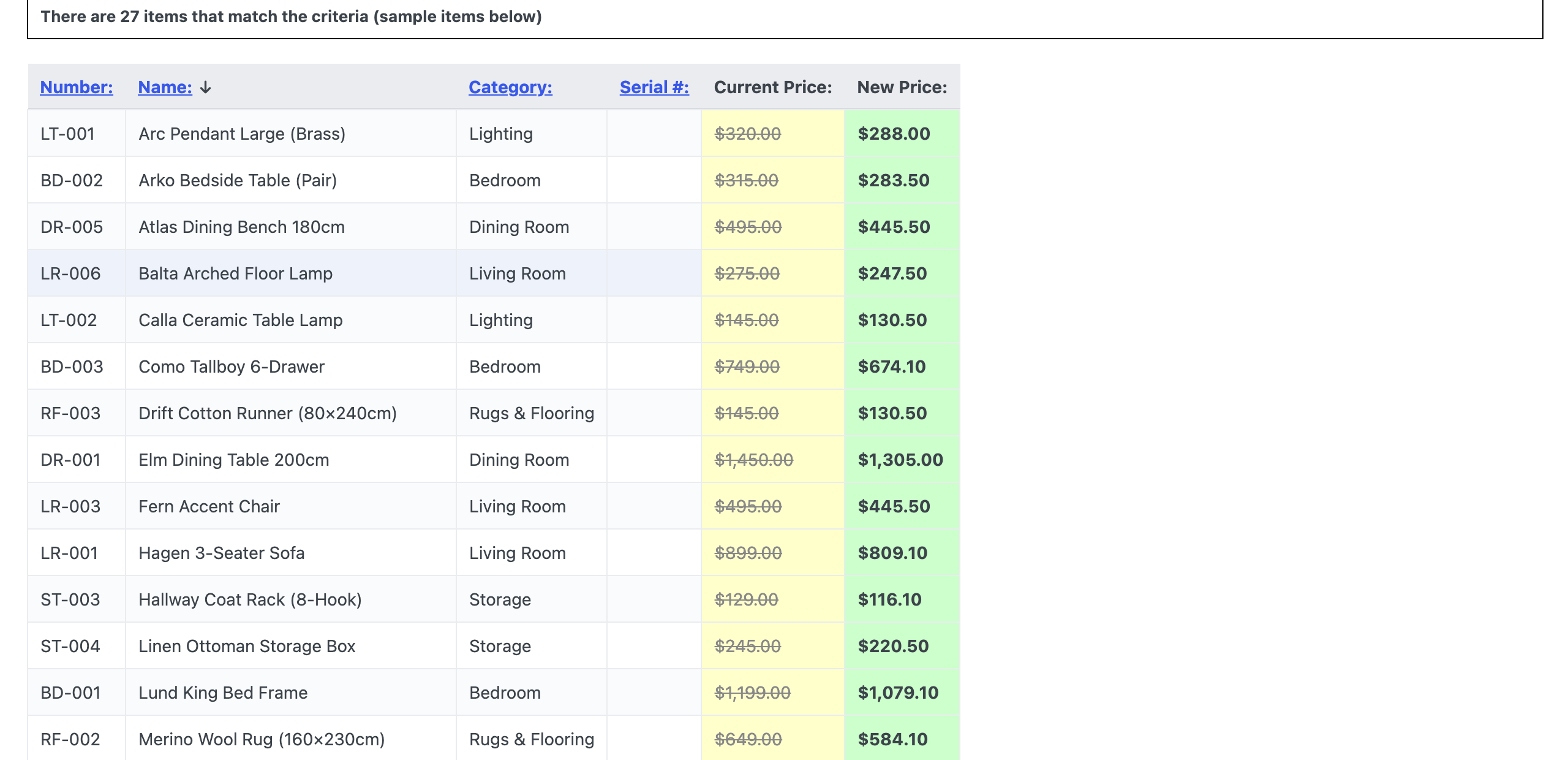
The bulk update preview, listing the matching items with the current price struck through and the new price beside it

Nothing changes until you say so. “Preview Results” lists every matching item with its current value struck through and the new value beside it, so a mistyped filter shows up as a wrong list rather than a wrong database. A single setting on the Bulk Management tab in WP Inventory Settings sets the minimum user role allowed to use the tool, which keeps it away from anyone who should not be rewriting stock in bulk. It is the natural companion to the Import and Export add-on for cleaning up freshly imported data, and to the Locations Manager when a store moves. The documentation walks through a full update step by step, and there is a short demo on YouTube.

(Note: This add-on requires a licensed copy of the WP Inventory Manager)

Add-On: Advanced User Control

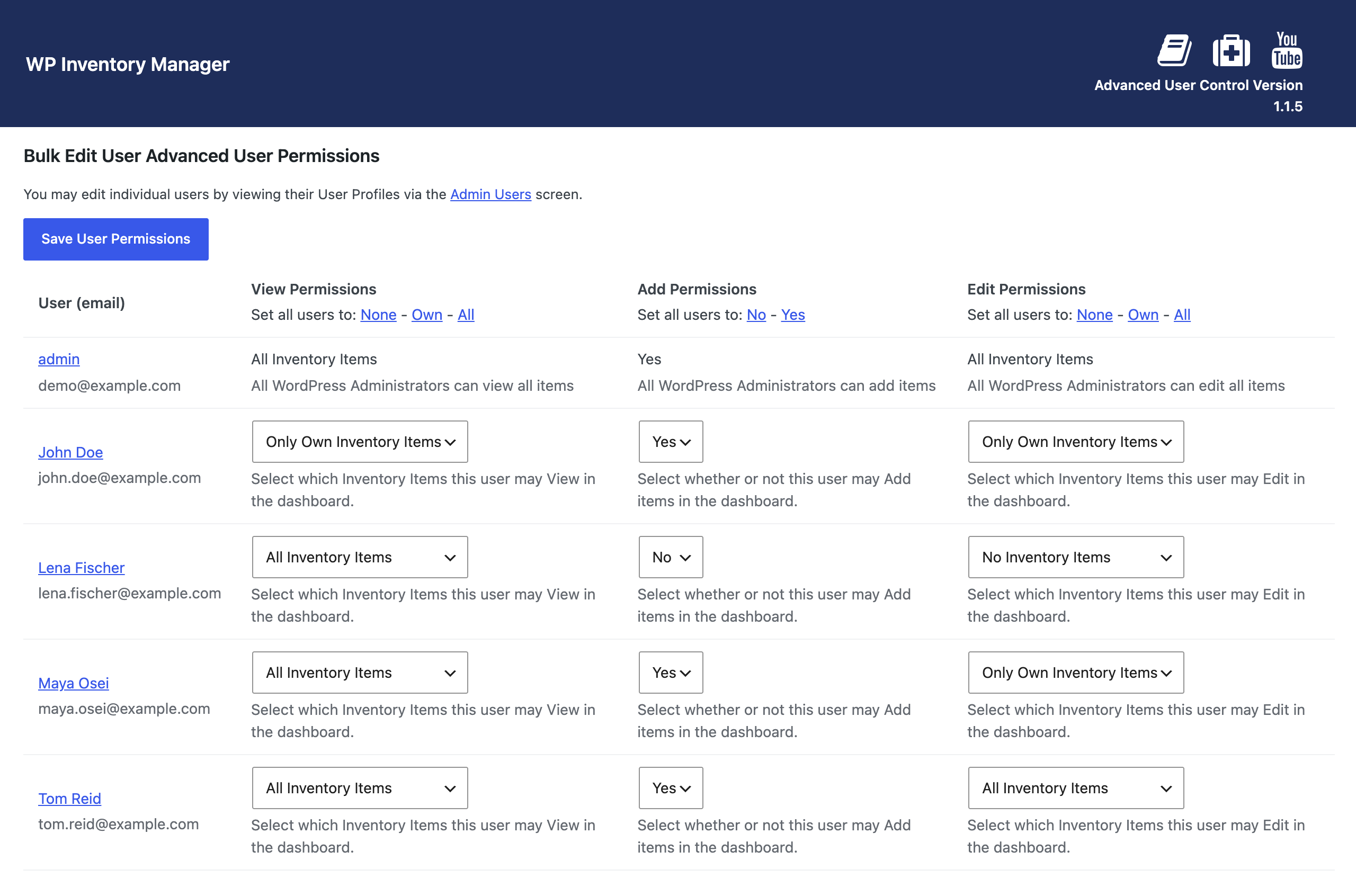
WP Inventory Manager sets permissions by WordPress role: every editor can do the same things, every subscriber can do the same things. Advanced User Control adds per-user inventory permissions on top. For each user on your site you choose, one at a time or in bulk, whether they can view no items, only their own items, or all items; whether they can add items; and whether they can edit none, their own, or all. A seller can manage their own stock without seeing anyone else’s, a moderator can see everything, and a subscriber can be shut out entirely.

Per-user inventory permissions on the Advanced User Control screen: view, add and edit settings for each individual user

Per-user inventory permissions and item ownership

The add-on also gives every item an owner. A new field on the item form lets you assign or change the user who owns it, and the “only own items” permissions key off that field, so handing an item to a different seller is a single dropdown change. Turn on “Send E-Mail to Item Owner on Reserve” in the Advanced User tab of the settings and, when a visitor reserves an item, the owner gets the reservation email as well as the site administrator, which is exactly what a consignment shop, a maker collective or a multi-vendor showroom needs.

The Advanced User Settings section, with the option to email the item owner when an item is reserved

Two things to know before you buy. First, the add-on refines permissions within what a user’s WordPress role already allows; it cannot grant a contributor the ability to add items if your sitewide settings require an author or higher, so set the minimum roles in WP Inventory Settings first and use Advanced User Control to narrow from there. Second, permissions are per user, not per company: several people who share one company’s inventory each need their own permissions, or a shared login. The documentation walks through the screen and the troubleshooting, and there is a short demo on YouTube. If you are separating stock by user because it lives in different places rather than belongs to different people, the Locations Manager may be the better fit.

(Note: This add-on requires a licensed copy of the WP Inventory Manager)

WPIM All Access

The All Access Pass (AAP) is just that: complete access to all of our products. We work hard to keep this product affordable – all paid add ons together are a $350 value, but the All Access Pass costs only $199. You’ll receive the benefit of:

  • All of our paid add ons, including the likes of…
    • Advanced Inventory Manager – In all actuality, it is unlikely that you don’t need this. The core plugin allows you to track inventory with 15 standard fields; but who has one item type? Enter the Advanced Inventory Manager. Create types of inventory and the fields that belong to it. For example, a skateboard, a bicycle, a washing machine, and a fireplace don’t have much in common (if anything). Manage those differences with this amazing functionality.
    • Ledger – Great for inventory tracking. The Ledger allows you to create entries manually (and on front end reservations) to reduce/increase quantity.  In addition, it will show you fluctuations of individual inventory items as well as cost over time.
    • Bulk Inventory Management – Manage like items or items with similar fields. Update or delete field value easily with this beauty.
    • Import and Export – The name says it all. Import or export your inventory in a few short clicks.
  • Premium support
  • Use on unlimited websites
  • All future add ons included

What are you waiting for?

The price is right, all the functionality is there, and set up is easy. Click the chat on the bottom right to get a conversation going or act now!


Have a look at this short video to see how easy it is to purchase, activate, and install.

Add-On: Import and Export

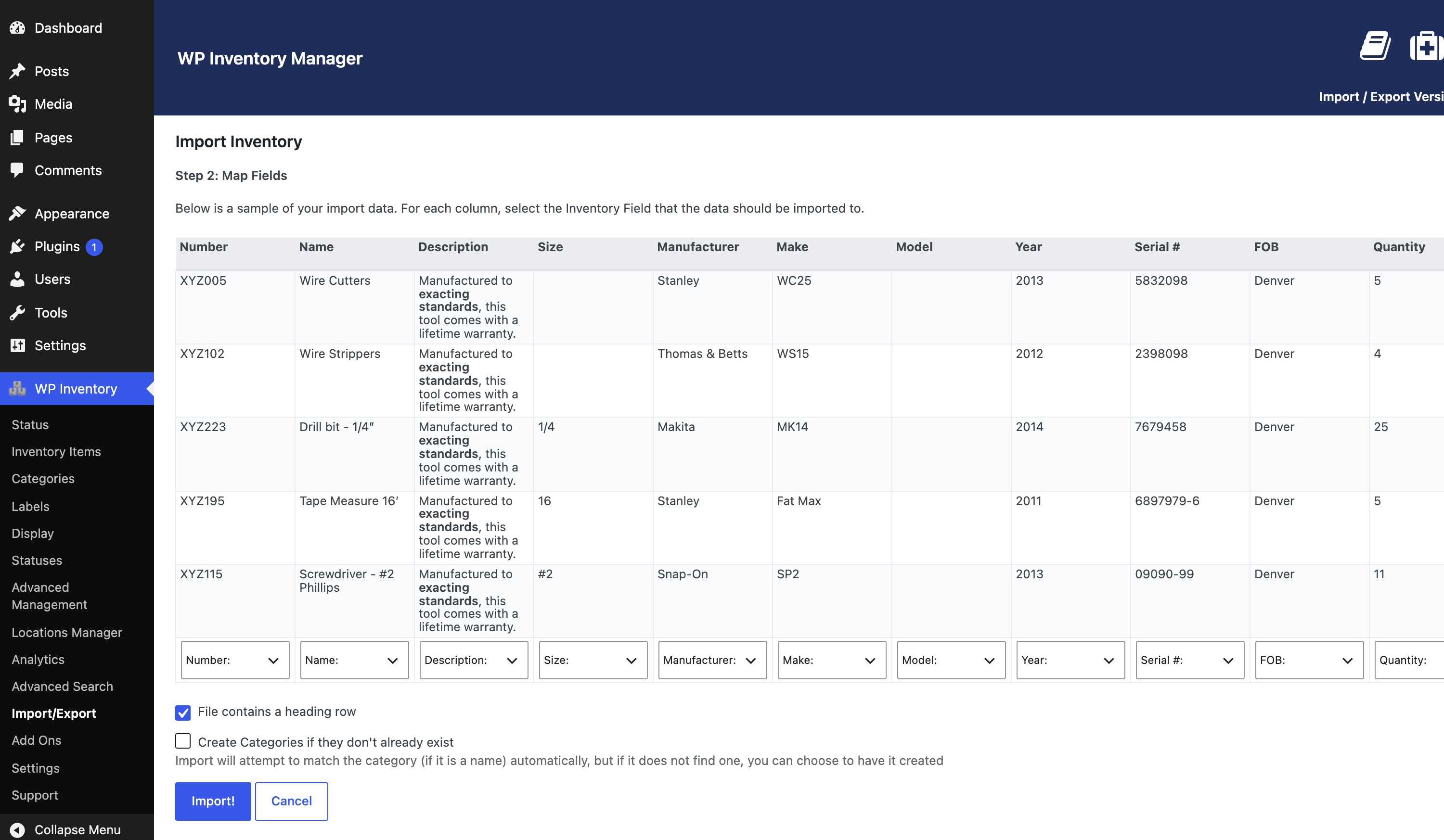
Stop managing your inventory in a spreadsheet. The Import and Export add-on moves your stock into WP Inventory Manager from any CSV file in one pass: upload the file, map each column to an inventory field, choose whether categories should be created on the fly, and import. Hundreds or thousands of items that would take days to type in arrive in minutes, with images attached from links in the file and categories and statuses matched by name or ID.

Step 2 of the import and export add-on: mapping each column of the CSV file to a WP Inventory field

What the import and export add-on does

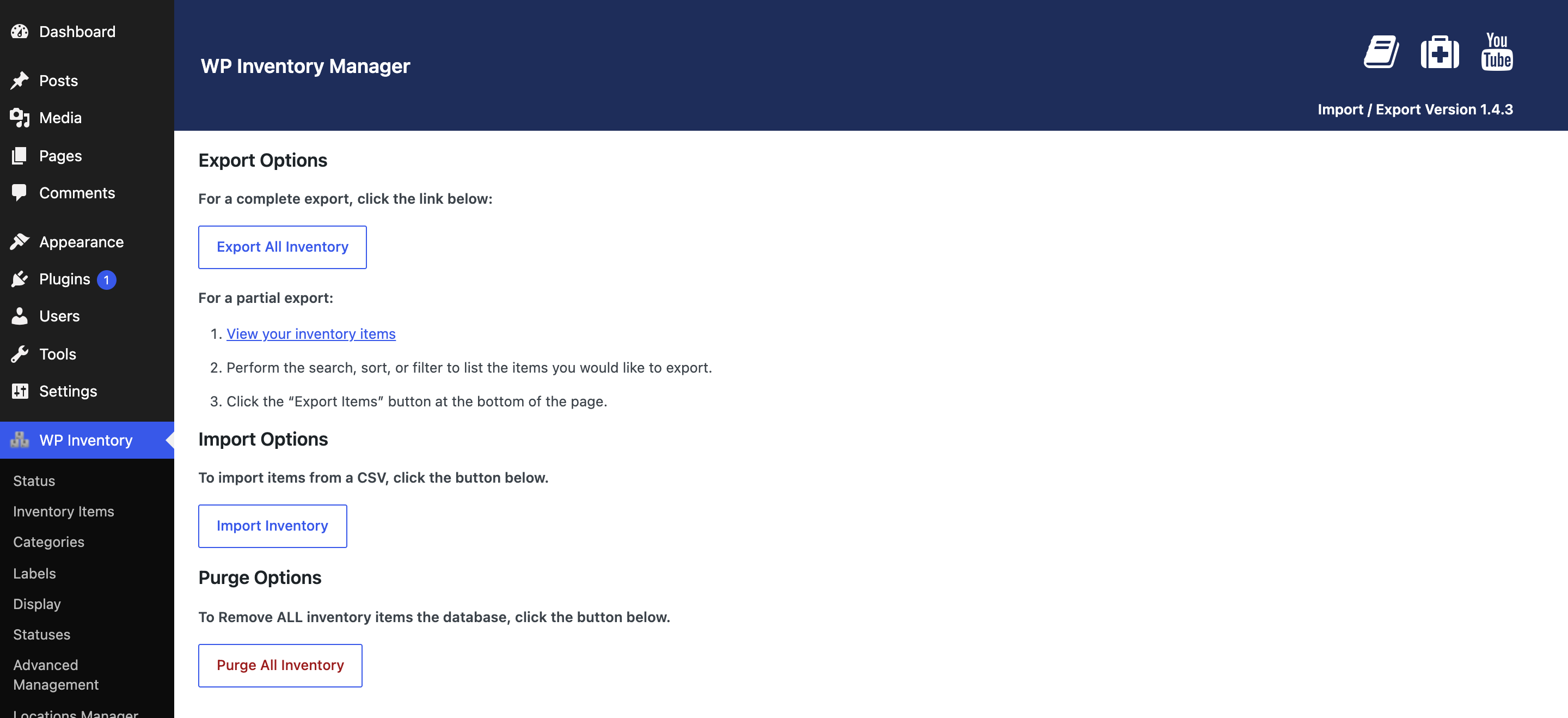
The export side works in reverse. Export your entire inventory to CSV with one click from the Import / Export screen, or export a subset by filtering the Inventory Items listing in your dashboard and clicking Export at the bottom, so a weekly backup, a price list for a supplier, or a stock count for the accountant is a filter and a click away. The file opens in Excel, Numbers or Google Sheets, and the same file can be imported again later, which is the simplest way to move an inventory between two WordPress sites or to migrate from the legacy version of Inventory Manager.

The Import / Export screen, with Export All Inventory, Import Inventory and Purge All Inventory

Imports are forgiving. A sample CSV ships with the plugin so you can see the supported columns, a heading row makes the mapping step almost automatic, and if a run goes wrong you can remove the items it created and start again. If you use the Advanced Inventory Manager, each inventory type imports from its own file so its custom fields map correctly, and the Bulk Item Manager is the natural companion for cleaning up prices or names once the data is in. For a step-by-step walkthrough of preparing a spreadsheet, see our guide to importing inventory into WordPress from a CSV file; the documentation covers every option, and there is a short demo on YouTube.

(Note: This add-on requires a licensed copy of the WP Inventory Manager)

Add-On: Ledger

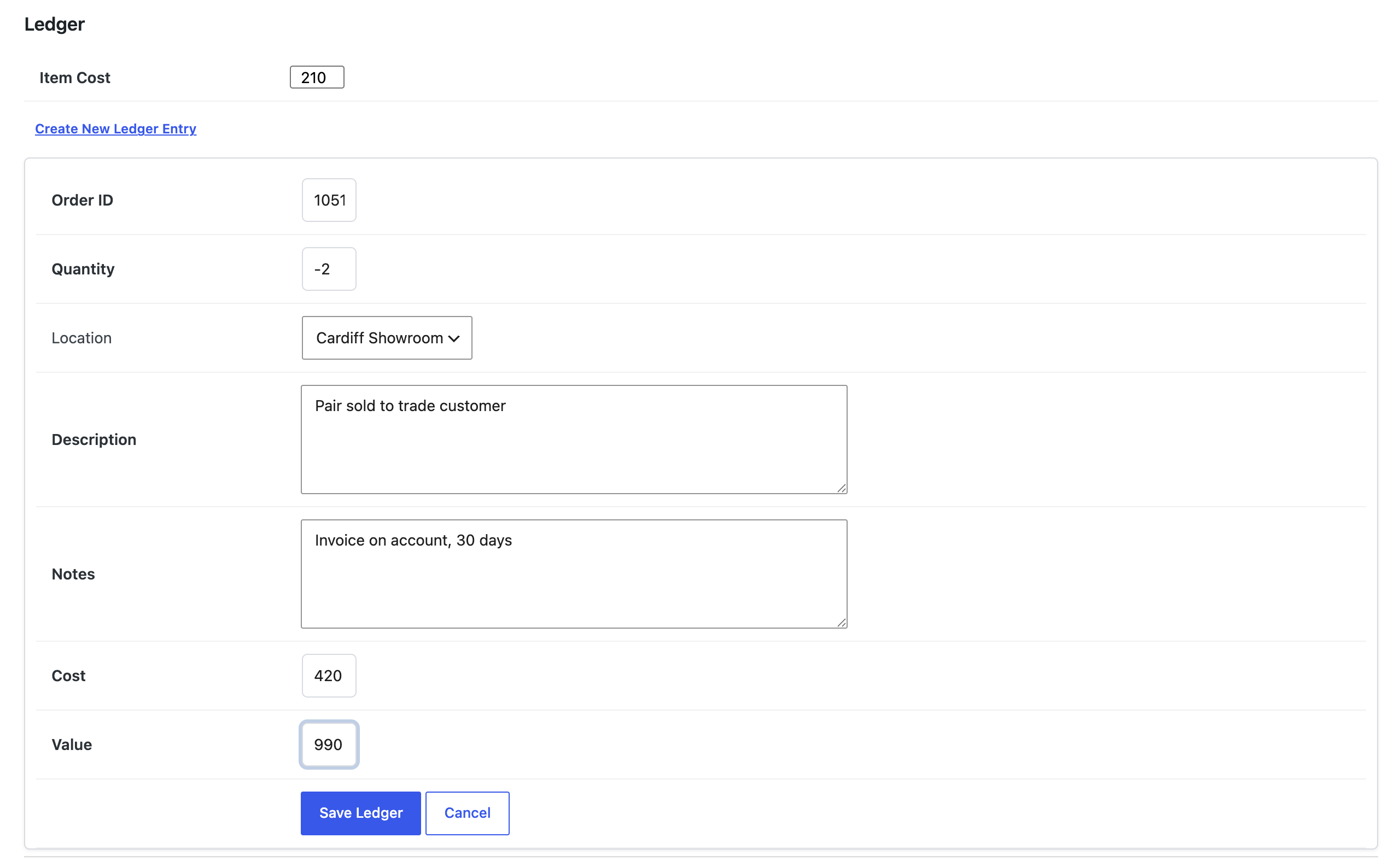
The inventory ledger add-on gives WP Inventory Manager a transaction record for every item: stock received, stock sold, stock reserved, each with a date, a quantity, a cost and a value. Record increases and decreases from the item edit page or from the Ledger screen, and set how much of it runs on its own. A reservation from your website can reduce the quantity automatically, create a pending ledger entry that waits for your approval, or leave the ledger alone for fully manual control.

The inventory ledger section on the item edit page, with the item cost and the Create New Ledger Entry form

Invoices from your inventory ledger

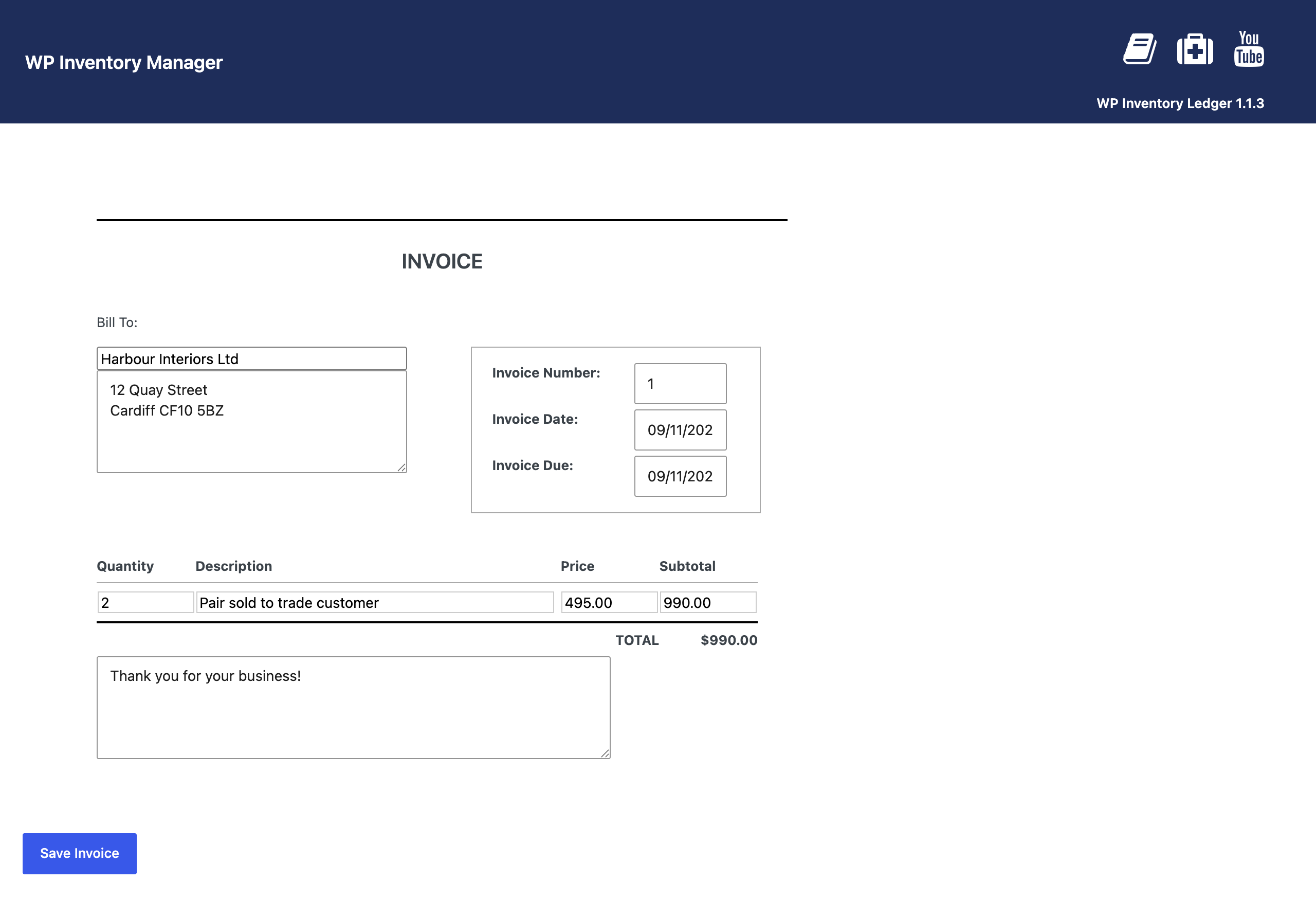
Any ledger entry can become a line on an invoice. Tick the entries you want to bill, create the invoice, add the customer details and confirm the prices, and save it. Set up an invoice template once in the settings, with your own header and terms, and every invoice after that takes a few clicks.

A generated invoice with the customer details, line item, total and Save Invoice button

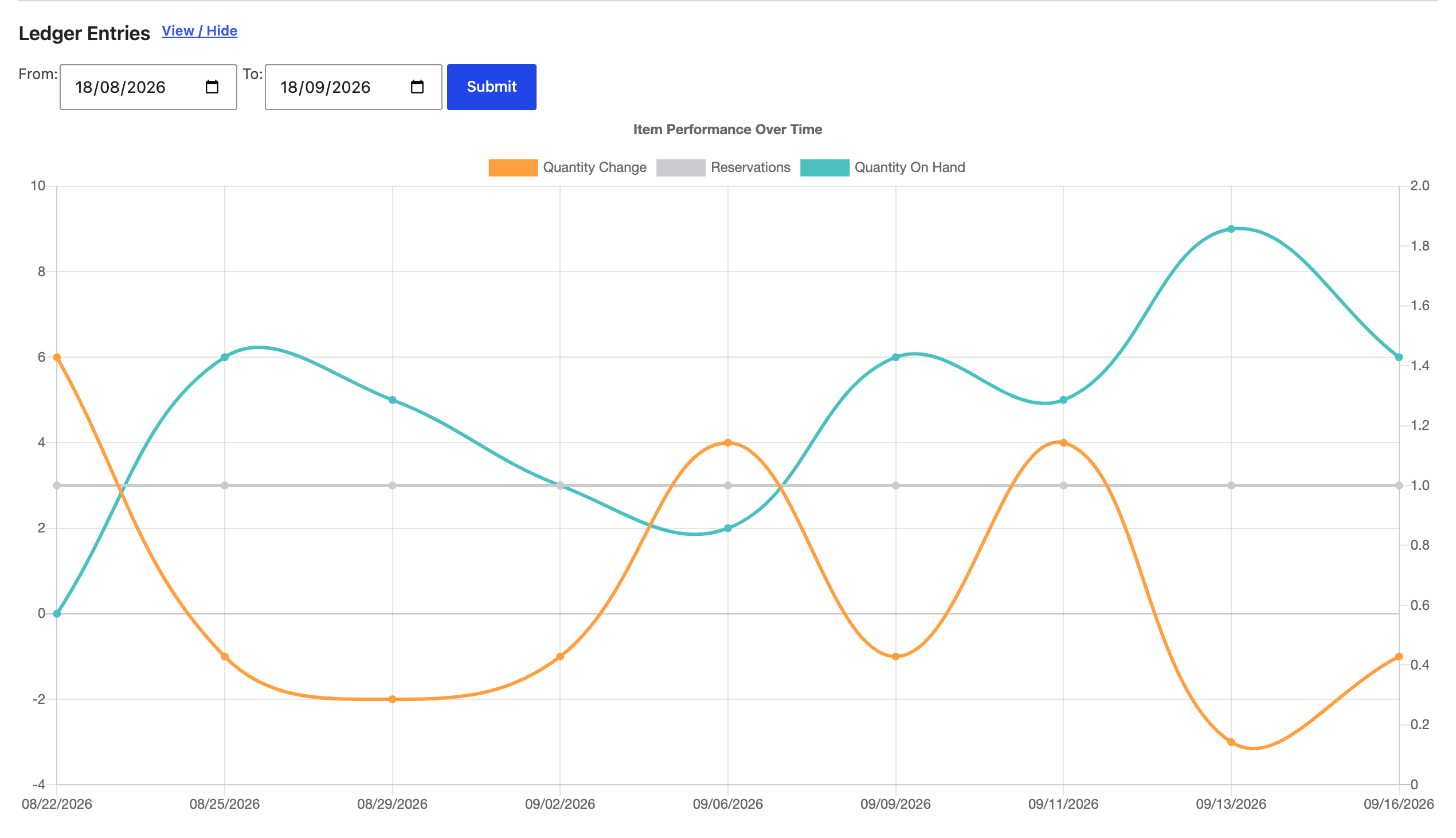
Each item also gets an item performance graph on its edit page. Pick a date range and the graph plots the quantity change, the reservations and the quantity on hand for that period, so you can see at a glance when stock came in, how quickly it went out, and whether reservations are driving the movement. Click a series in the legend to hide it and focus on the others.

The item performance graph, plotting quantity change, reservations and quantity on hand over a month

Because every entry carries a cost as well as a value, the inventory ledger add-on doubles as a simple stock accounting record: what you paid for the stock you hold, what you sold it for, and what each item has earned over time, without exporting anything to a spreadsheet. It works with the Reserve Cart add-on, so reservations made through the cart are recorded as well, and with the Locations Manager, so each entry can record which location the stock moved from. If you are new to the idea, our post on what an inventory ledger is and why small inventories need one is a good starting point; the documentation covers every setting, and there is a short demo on YouTube.

(Note: This add-on requires a licensed copy of the WP Inventory Manager)

30-day money-back guarantee

Reviews on WordPress.org

Trusted by 134,000+ businesses since 2013

★★★★★

"Created an online museum for my club. Really impressive plugin. Support was responsive and helpful."

@hackrepair

★★★★★

"Excellent, clean, simple inventory management. Well structured code — use it right away or customize it to your liking."

@techlocally

★★★★★

"We purchased the entire suite. Installation was easy, small issues were fixed immediately, and the guidance during setup was invaluable."

@design4dotcom

★★★★★

"Plugin support was helpful and rapid. Highest mark."

@drgar

★★★★★

"Great support. Very thorough when looking for a solution, and upfront with exactly how to fix it or institute a workaround."

@shoidahl

★★★★★

"I used this plugin and eventually hired the developers for all my WordPress work. Responsive, competent, and clean code. Would recommend to anyone."

@justenhong